
Store Settings
This content is for 5.0 (Preview). Switch to 4.5 (Current) for the current release documentation.
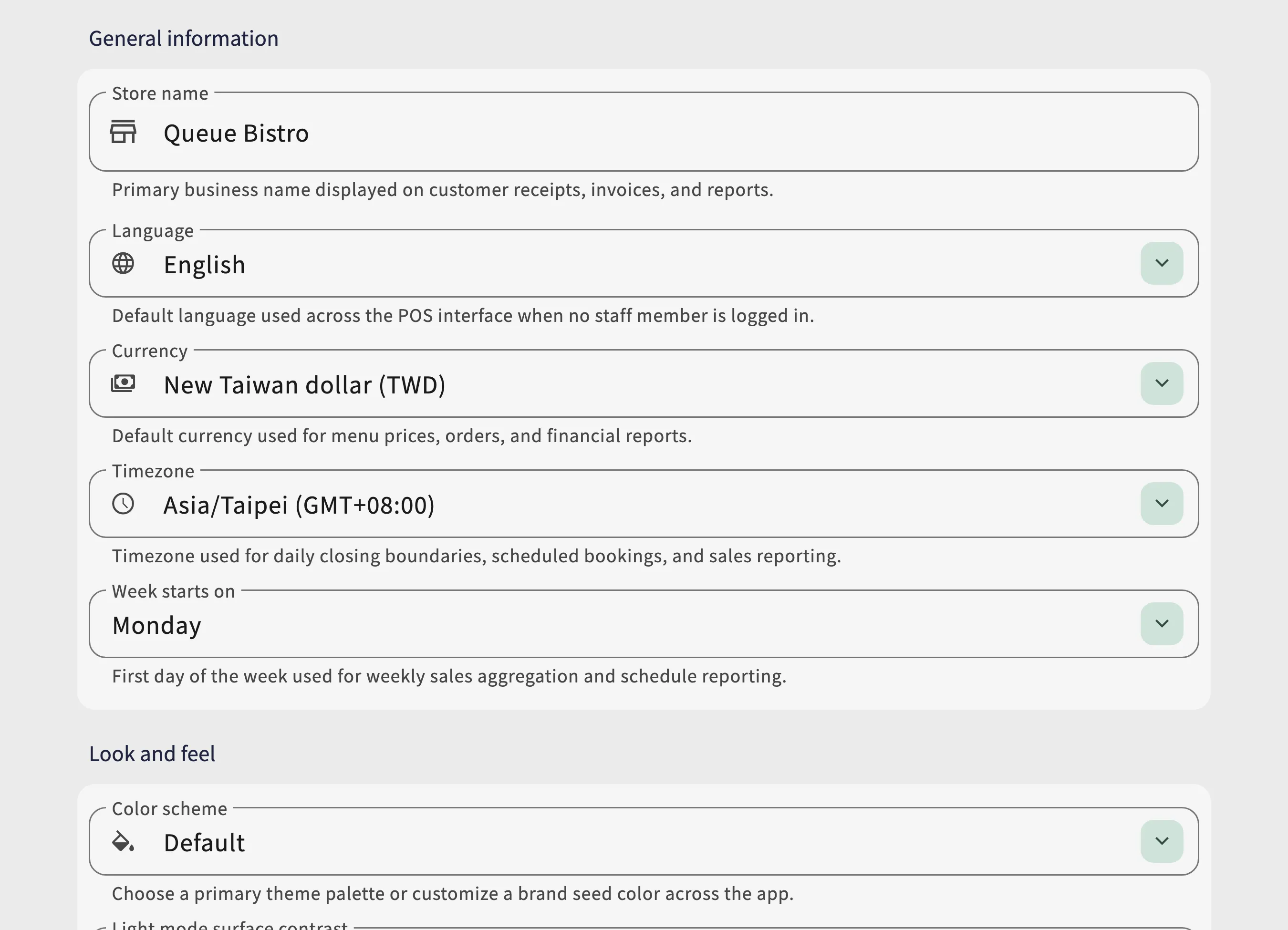
Store settings define your establishment’s global profile, default localization, calendar reporting boundaries, color theme, and default audio alerts across all connected terminals.
Quick Summary
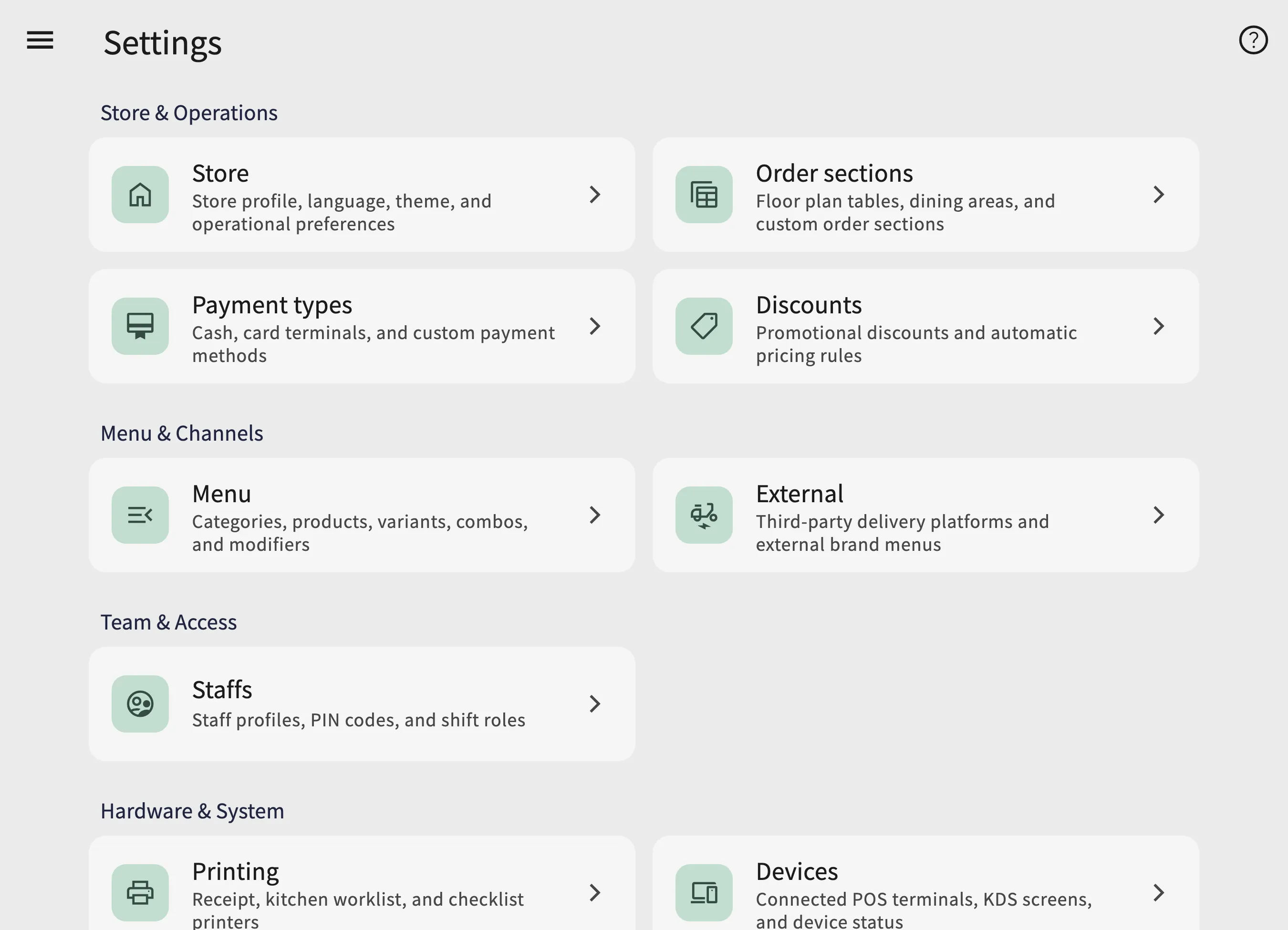
Section titled “Quick Summary”- Navigation path: Settings > Store > Store
- Access requirements: Store Owner or Manager role
- Cloud sync: Changes synchronize immediately to all active POS tablets and web terminals upon saving.
Configuration Options
Section titled “Configuration Options”| Setting Option | Type / Values | Default | Effect & Purpose |
|---|---|---|---|
| Store Name | Text input | Required | Primary business name displayed on customer receipts, invoices, and sales reports. |
| Default Language | English, 中文 (繁體), etc. |
English | Default UI language when no individual staff member is signed in. |
| Menu Type (Substores only) | Standalone, Use Parent, Merge Parent |
Standalone | Controls whether a branch store manages its own menu, mirrors the parent brand menu, or merges local additions with parent items. |
| Timezone | Standard IANA Timezone list | Local Timezone | Anchors daily business day (operating hours) closing boundaries, scheduled bookings, and sales reporting. |
| Week Starts On | Monday - Sunday |
Monday | Determines the first day of the week for weekly analytics, sales charts, and staff schedules. |
| Color Scheme | Default, Premade Scheme, Seed Color |
Default | Customizes the POS interface appearance with 9 premade palettes or a custom brand hex color. |
| Notification Sound | 7 audio chimes (Default Alert, Chime, Ping, etc.) |
Default Alert | Sets the store-wide chime played on devices set to Toast & Sound when new orders arrive. |
| Ask for Device Name at Login | Toggle (True / False) | False | Prompts staff to assign a human-readable name when signing into a new terminal or tablet. |
| Customer Secondary Screen Image | Image upload | Default graphic | Standby hero image displayed on customer-facing dual-screen monitors. |
Detailed Feature Explanations
Section titled “Detailed Feature Explanations”1. Menu Type Hierarchy (Brand & Sub-stores)
Section titled “1. Menu Type Hierarchy (Brand & Sub-stores)”For multi-store brand accounts:
- Standalone: Branch manages 100% of its own menu products and categories independently.
- Use Parent: Branch completely adopts the parent organization’s menu. Local edits are disabled.
- Merge Parent: Branch inherits parent brand items while allowing local store-specific items and price overrides.
2. Timezone & Operating Hours
Section titled “2. Timezone & Operating Hours”Sales calculations, hourly breakdown reports, and scheduled order preparation counters all reference the configured store timezone. If daylight savings transitions occur, the POS adjusts timestamps automatically without affecting historical closing records.
3. Device Identification
Section titled “3. Device Identification”When Ask for device name at login is enabled, new POS tablets will ask for a name (e.g., Bar Terminal 1, Kitchen Expediter, Takeout Tablet). This name appears in device master settings, remote print routing, and time card audit logs.
Troubleshooting & FAQs
Section titled “Troubleshooting & FAQs”| Issue | Cause | Solution |
|---|---|---|
| Receipt shows old store name | Cached store profile on local terminal. | Tap Settings > Reload (or sign out and back in) to refresh local cache. |
| Weekly reports start on the wrong day | Default week start mismatch. | Change Week starts on in Store settings to your accounting preference (e.g. Sunday vs Monday). |
| Substore cannot edit menu items | Substore is configured with Use Parent menu type. |
Switch Menu Type to Standalone or Merge Parent if local menu customization is required. |