Recent orders
This content is for 5.0 (Preview). Switch to 4.5 (Current) for the current release documentation.
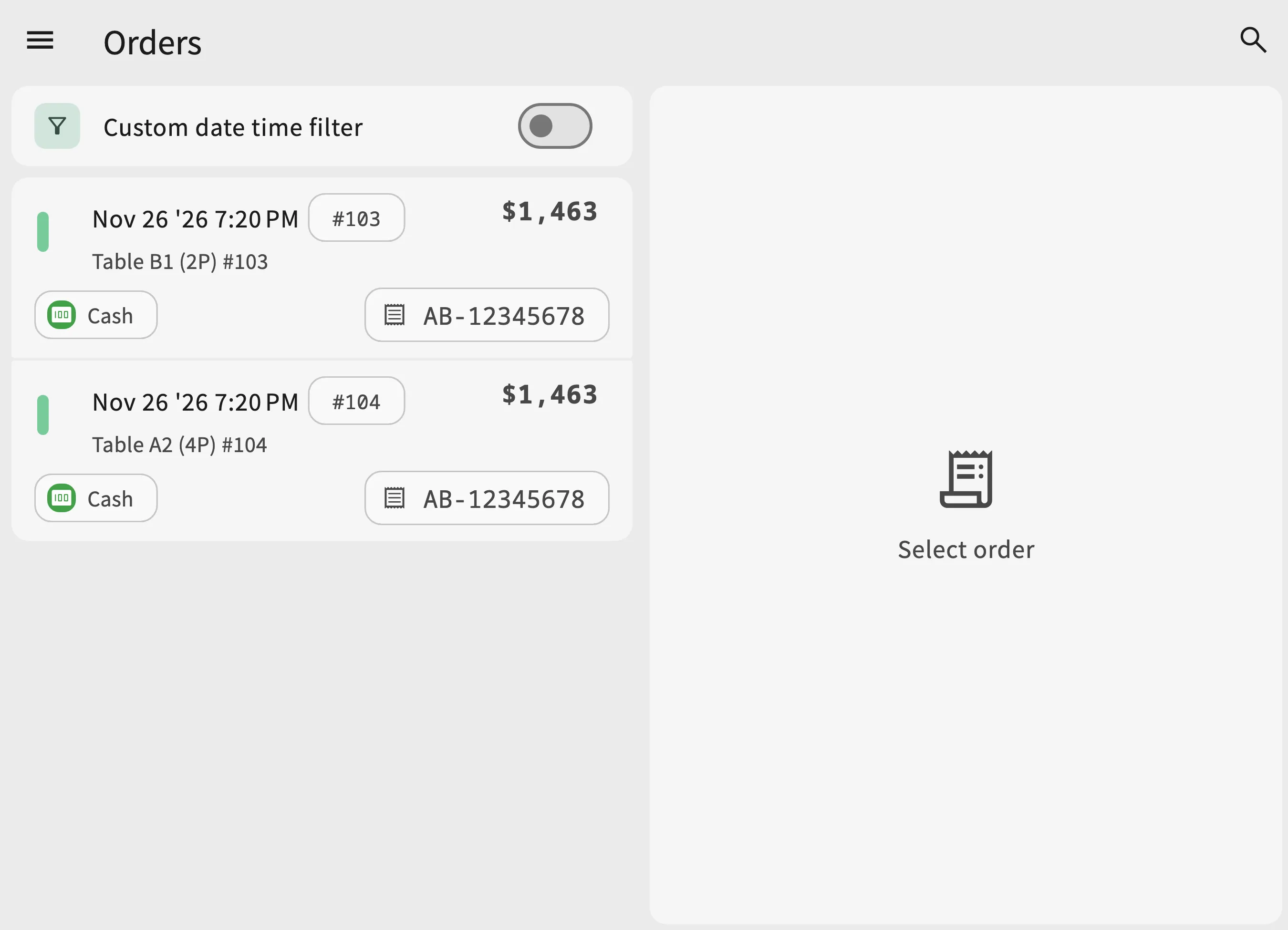
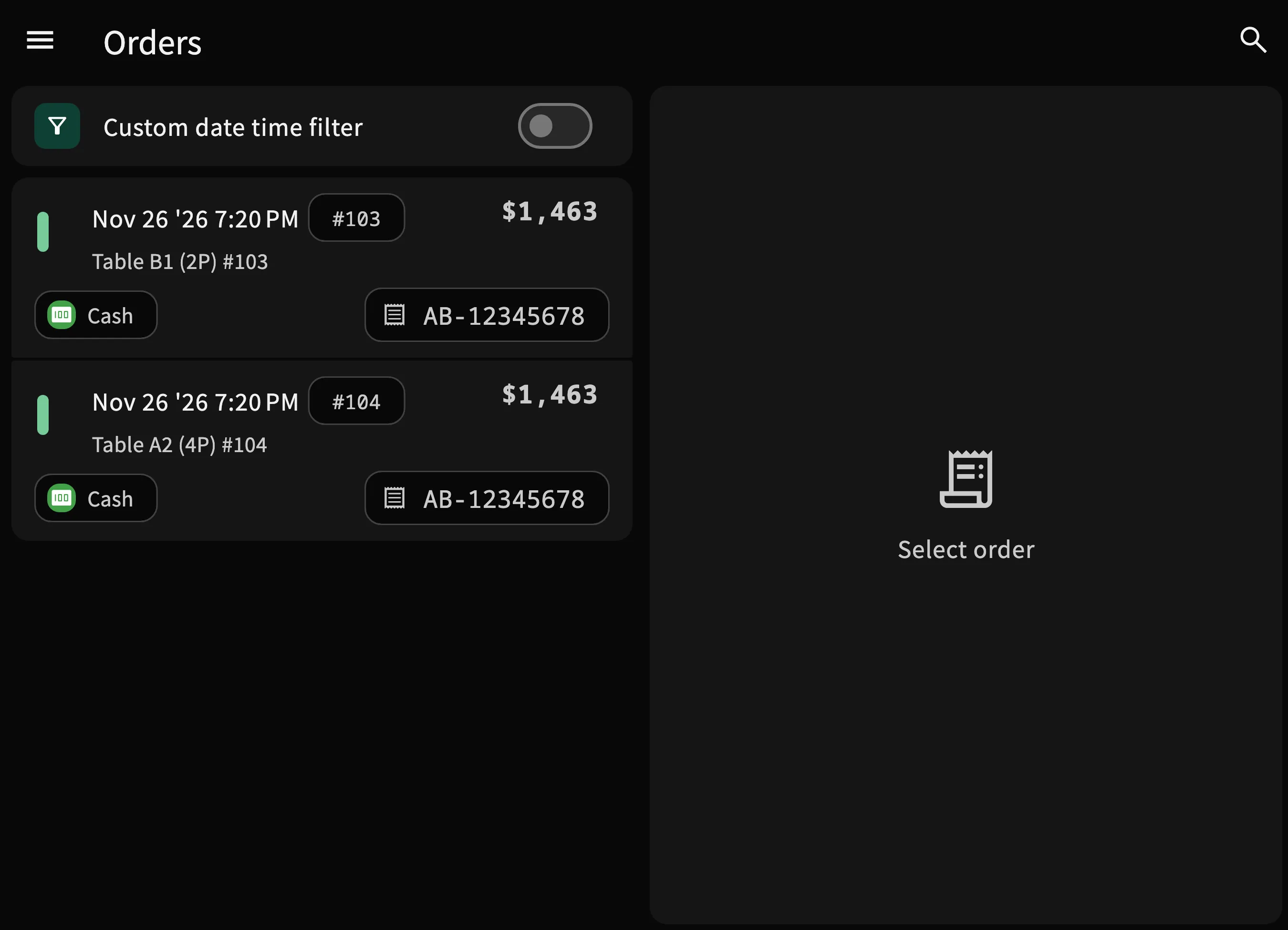
By default a list is shown with the most recent completed orders. Press on an order to see more details.
Custom date time filter
Section titled “Custom date time filter”Sometimes is can be useful to narrow down the range of dates to find an order paid at a specific time. Toggle Custom date time filter and tab the Select time range to limit the order list to orders paid at a given interval.
Search for orders
Section titled “Search for orders”Tab the Search icon in order to search for orders. In the text field you can enter the name or order number and tab Search to find all orders that meet the specified criteria.
Order actions
Section titled “Order actions”| Action | Description |
|---|---|
| Reprint receipt | Print a copy of the receipt |
| Reprint invoice | If electronic invoices are enabled, print a copy. It will contain COPY header to indicate this is a copy and not the original |
| Change order section | For completed order section orders, tap the pencil icon next to the order section to assign a new order section and update reporting |
| Change custom name | Tap the pencil icon next to Custom name to add or edit the custom order name on a completed order |
| Change payment type | If allowed by the order type and the current staff has the permission, tab the pencil to change the payment type |
| Void order | Void a paid order, see more below |
| Show activities | List all activities associated with the selected order |
Void order
Section titled “Void order”If an order has been completed and major changes is required, it is sometimes necessary to void and order.
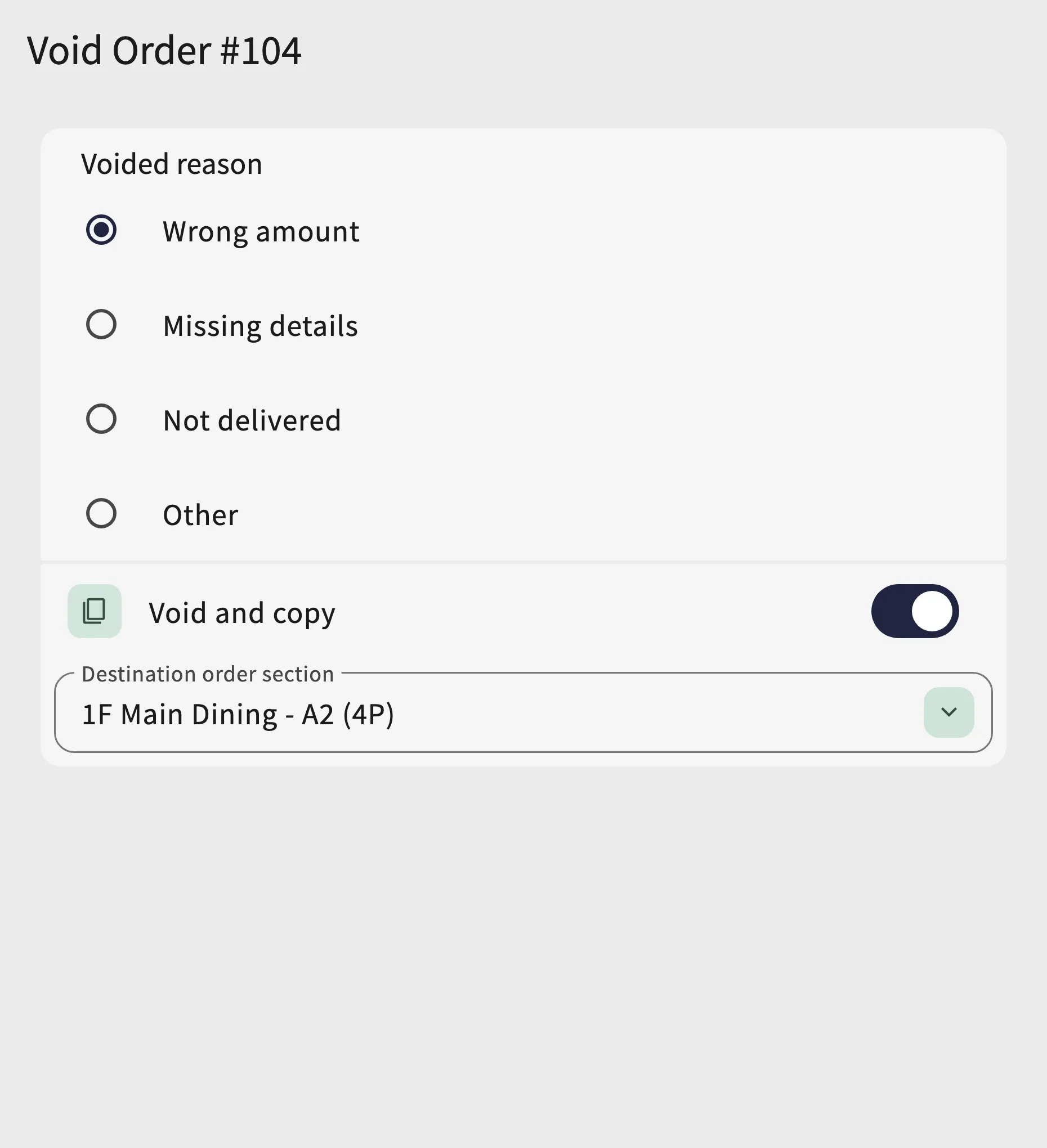
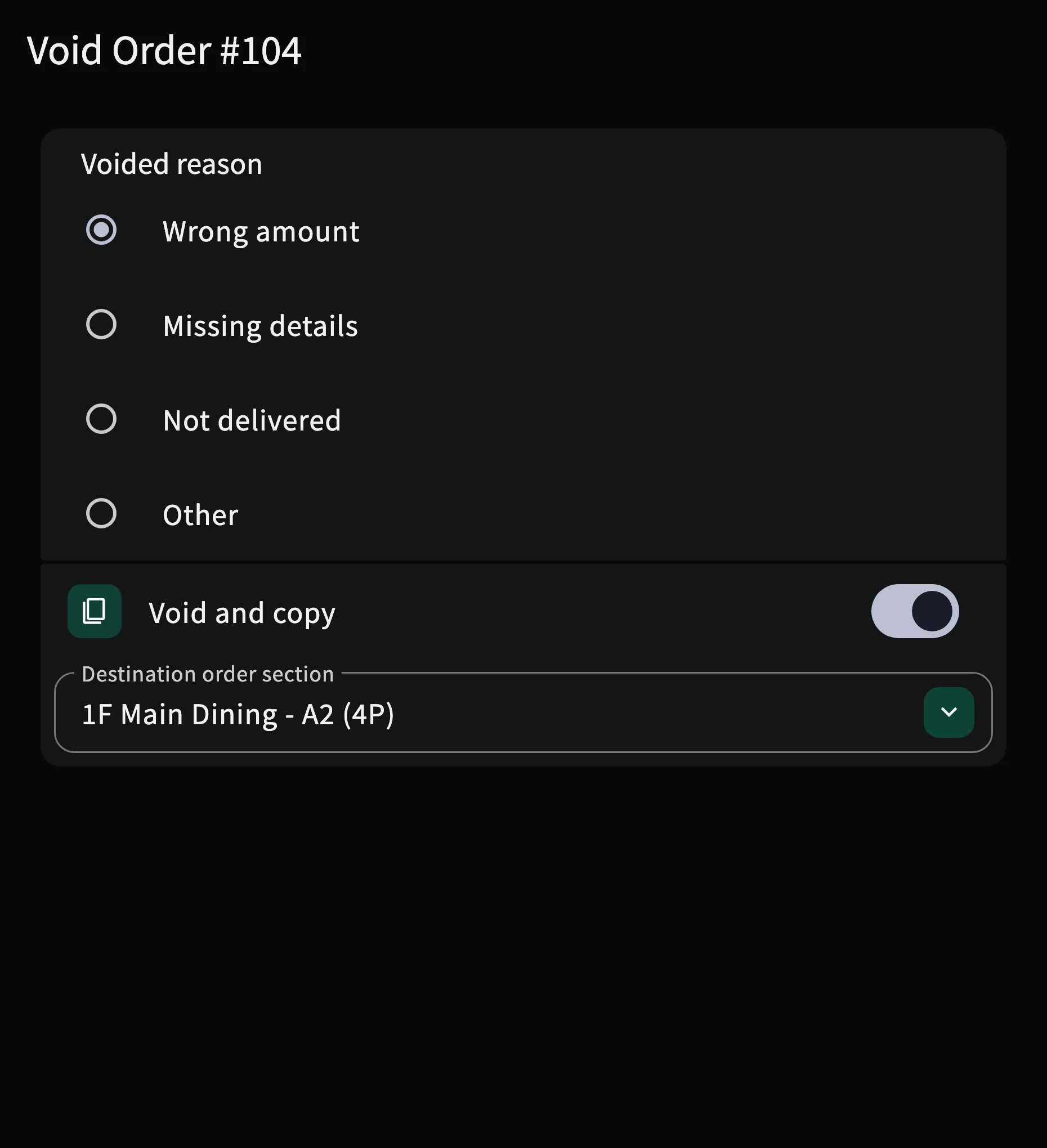
- Tab Void order
- Select a predefined void reason or select Other you want to enter a custom reason
- If inventory is enabled and the order contains tracked items, toggle Return inventory to automatically create return adjustments and restore stock levels (automatically disabled when Void and copy is enabled)
- If a new copy of the voided order should be created, select Void and copy and select a destination for the newly created order copy
- Press Confirm and enter PIN