This content is for 5.0 (Preview). Switch to 4.5 (Current) for the current release documentation.
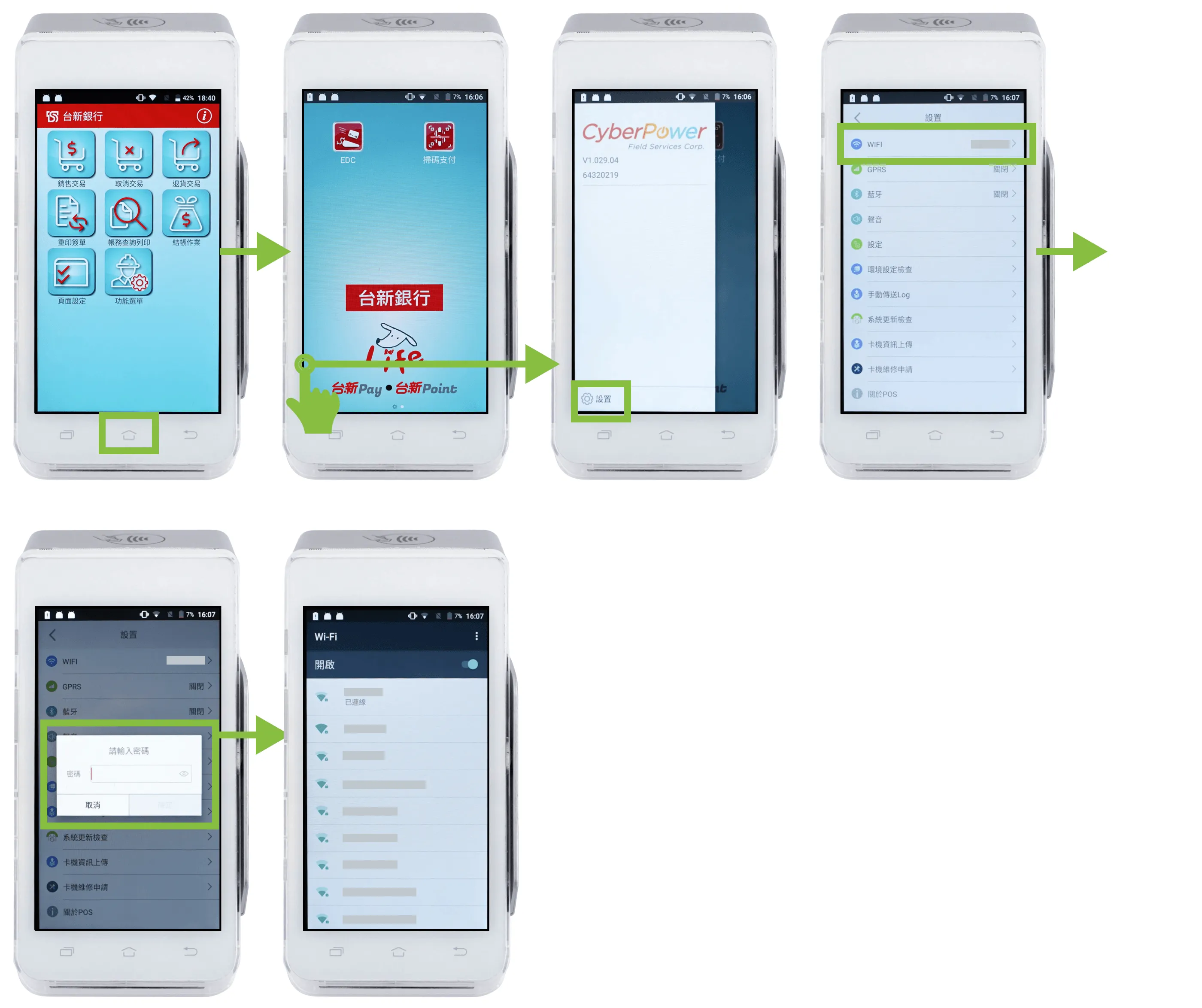
After acquiring a Taishin (A910/A920) or CTBC credit card machine and adding the credit card machine integration module to your store, you can connect QUEUE POS directly to your terminal over your local Wi-Fi network—eliminating the need to manually key in transaction amounts.
Ensure you have a payment method configured in Settings > Payment types bound to your integrated terminal (Taishin or CTBC), then return to the QUEUE POS homepage:
Open a new test order with an amount greater than $1 > tap Payment.
Select the integrated Card Terminal payment type > tap Pay now.
Confirm that the transaction amount automatically appears on the credit card terminal screen.
Tap/insert/swipe the card on the terminal. After approval, tap 完成 (Complete) on the terminal, and QUEUE POS will automatically finalize the payment and issue the receipt/e-invoice.
During checkout, if the terminal cannot complete a transaction or communication is interrupted, QUEUE POS displays one of 4 terminal error dialogs. Follow the steps below for each message:
Cause: QUEUE POS could not open a local TCP connection to the terminal’s IP address on port 1234 (Taishin) or port 8000 (CTBC). This happens when the terminal’s IP changed via DHCP, the terminal and POS are on different Wi-Fi networks/VLANs, the terminal is asleep, or the ECR listener app on the terminal is not on the home screen.
Step-by-Step Recovery:
Wake the credit card terminal and ensure the bank payment application is open on its main standby screen.
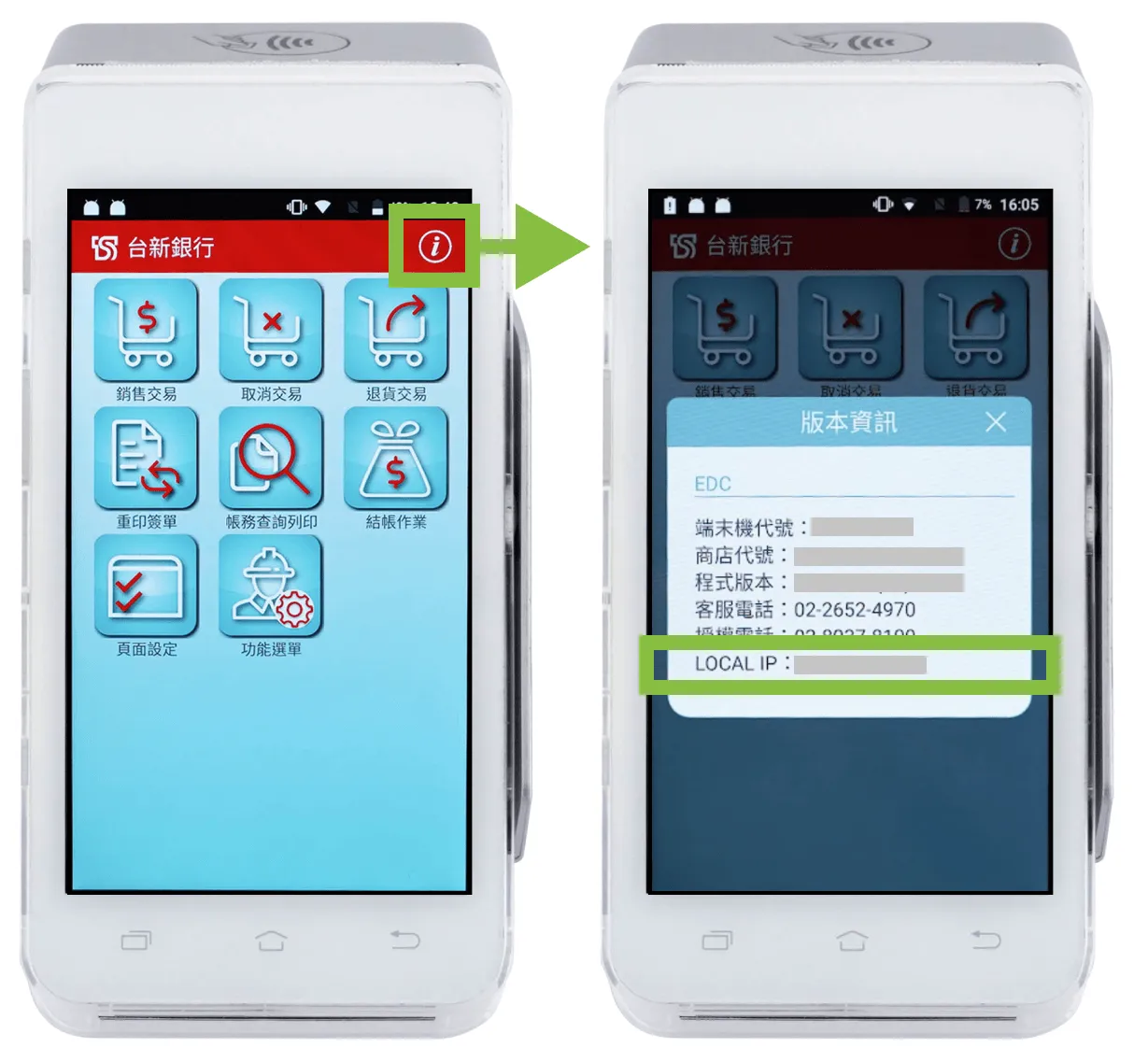
Check the terminal’s LOCAL IP (Step 1 above) and verify it matches the IP configured in Settings > Devices > Card Terminal.
Confirm that both the POS tablet and the terminal are connected to the exact same Wi-Fi SSID (not a guest network with client isolation).
Cause: The POS connected to the terminal, but the terminal returned a malformed response, declined the transaction, or the connection dropped before the bank approval code was returned.
Step-by-Step Recovery:
Check the physical terminal first before charging the customer again! Look at the terminal screen or check if a paper credit card slip printed.
If the terminal printed an approved slip: Do not swipe the card again. Instead, switch the payment method in QUEUE POS to a standalone/manual Credit Card payment type to record the payment and close the order without double-charging the card.
If the terminal shows declined or no transaction occurred: Dismiss the dialog, verify the terminal is back on its standby screen, and tap Pay now to retry.
Cause: The approved transaction amount returned by the credit card machine does not match the payment amount requested by QUEUE POS.
Step-by-Step Recovery:
Inspect the printed credit card slip from the terminal to verify the actual amount charged to the customer’s card.
If the wrong amount was charged on the terminal, void/refund that transaction directly on the credit card machine, then initiate the payment again from QUEUE POS.
If a partial amount was intentionally charged, use Split payment in QUEUE POS to record the exact amount paid.
Cause: The cashier or customer pressed the Cancel (取消) button on the credit card terminal, or the terminal timed out waiting for the customer to tap/insert their card.
Step-by-Step Recovery:
Dismiss the Cancelled dialog in QUEUE POS (the order remains unpaid on the Payment screen).
If the customer still wishes to pay by card, tap Pay now again to re-send the payment request to the terminal, or choose a different payment method.
Restart both the credit card machine and the store Wi-Fi router.
Confirm whether you can operate standalone credit card transactions directly on the credit card machine. If not, contact the bank’s merchant repair hotline located on the back of the terminal.
Confirm that no other device on your LAN is occupying the same IP address as the credit card machine.