
Payment
This content is for 5.0 (Preview). Switch to 4.5 (Current) for the current release documentation.
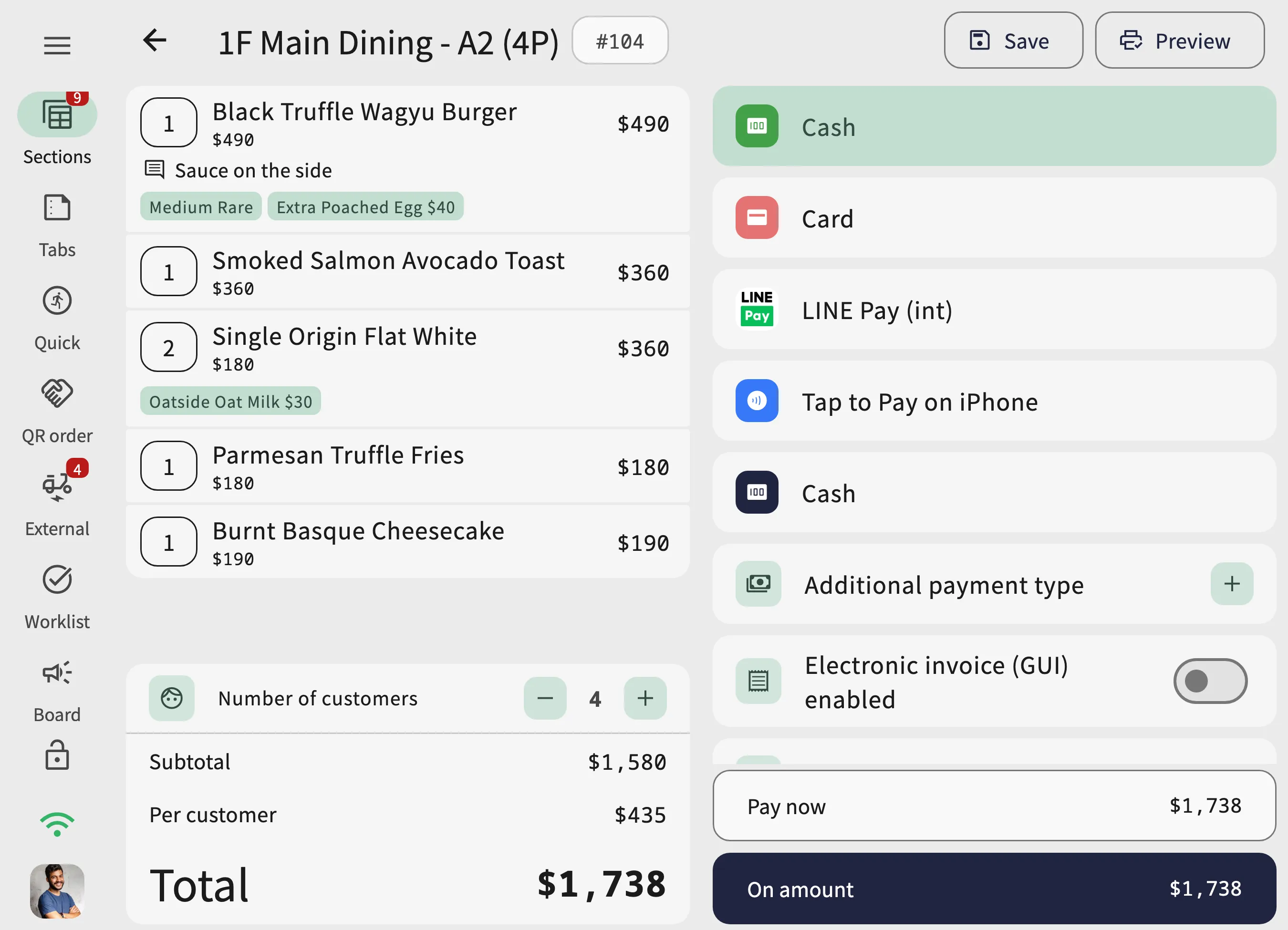
The payment screen lets you review your order, make adjustments, and complete the transaction.
Review & Adjust
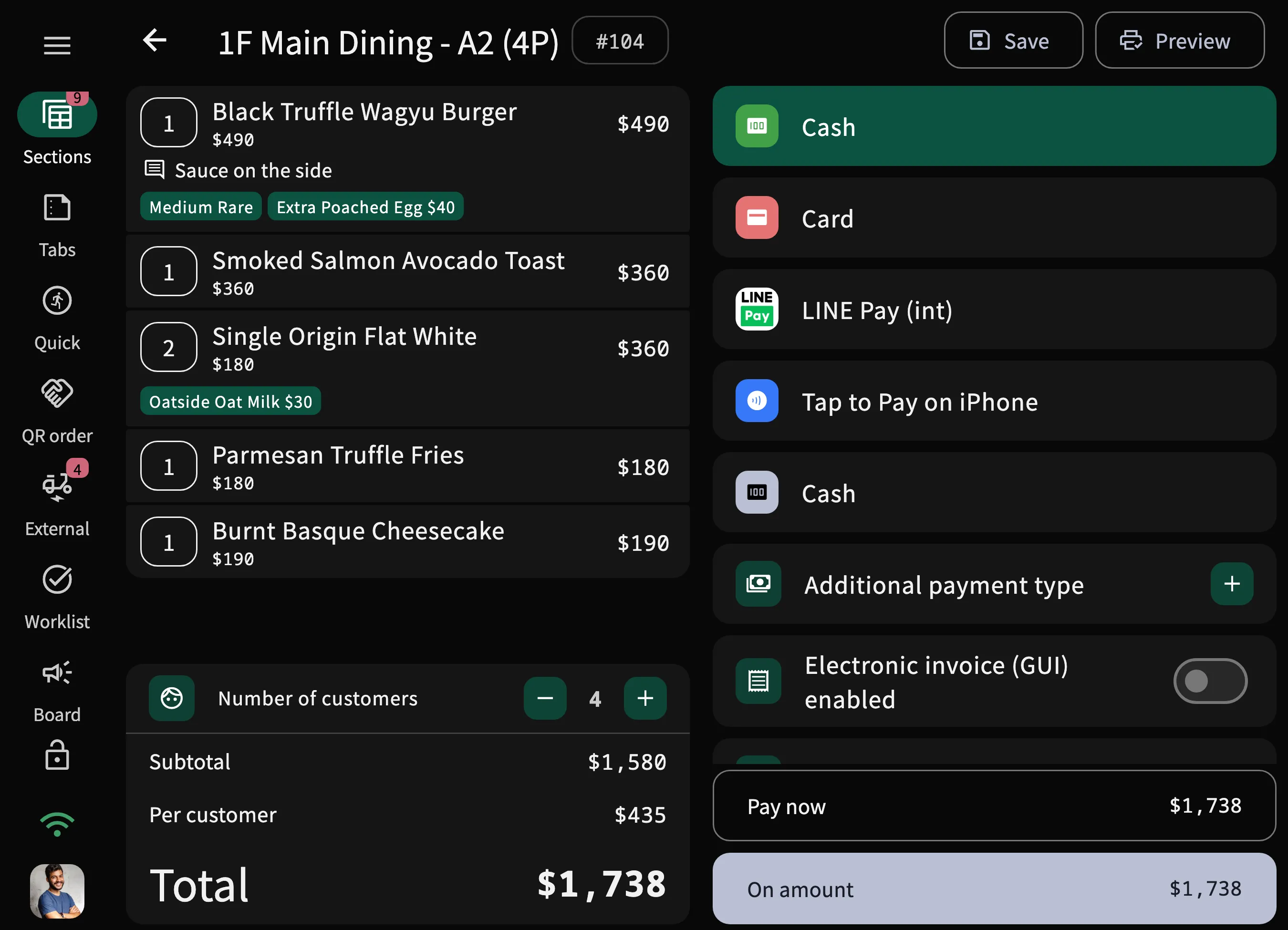
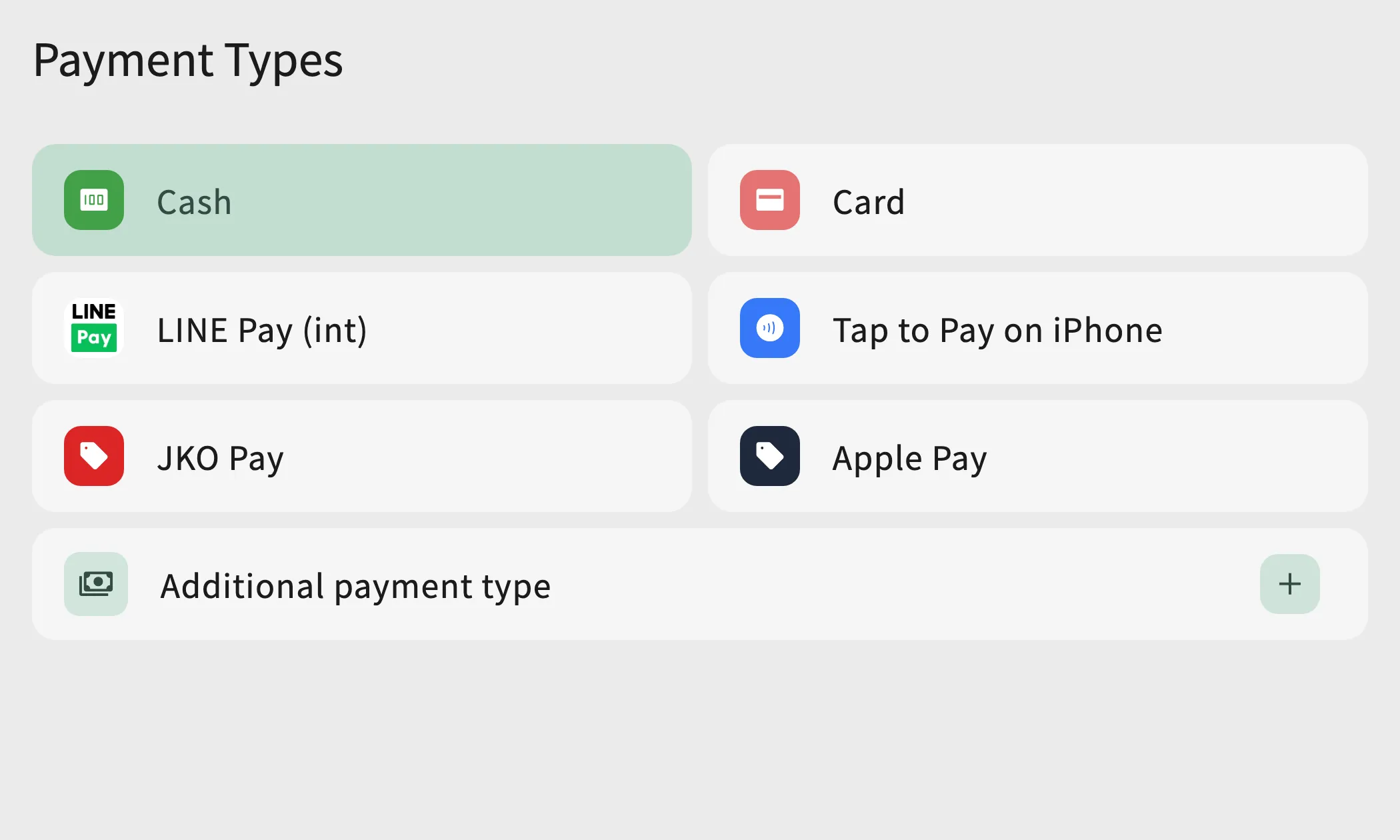
Section titled “Review & Adjust”Check your order details and select a payment method (Cash, Credit Card, LINE Pay, or custom type).
Actions
Section titled “Actions”Depending on the order type and enabled options, the following actions are available:
| Action | Description |
|---|---|
| Save order | Save the order details as is, but complete the order at a later point |
| Split payment | Perform a partial payment of the order |
| Print order preview | Print a preview of the order before completion. The order status color will change to blue to indicate that the order is currently being completed |
Service charge
Section titled “Service charge”Enable or disable service charge for this order. If needed, click on the pencil icon to change the service charge percentage.
Discounts
Section titled “Discounts”There are three different discount types that can be applied to an order. Note that discounts are applied to the order subtotal, and an order total can never be less than zero.
- Amount: A fixed discount amount specified by the user
- Percentage: Percentage of the subtotal
- Template: A predefined discount that can be reused to save time
Electronic invoices
Section titled “Electronic invoices”You can toggle electronic invoices on and off for a given order. When enabled you have additional options available:
- Carrier ID or Donation code: Click the keyboard icon to manually enter a code or tap the row to open the camera scanner.
- Company tax ID: Click on the row to open the keyboard to manually enter the 8-digit company tax ID (統一編號). Remember, electronic invoices require a valid company tax ID.
Ocard CRM & Loyalty Redemption
Section titled “Ocard CRM & Loyalty Redemption”-
Click on the Ocard button to connect a customer with your Ocard account.
-
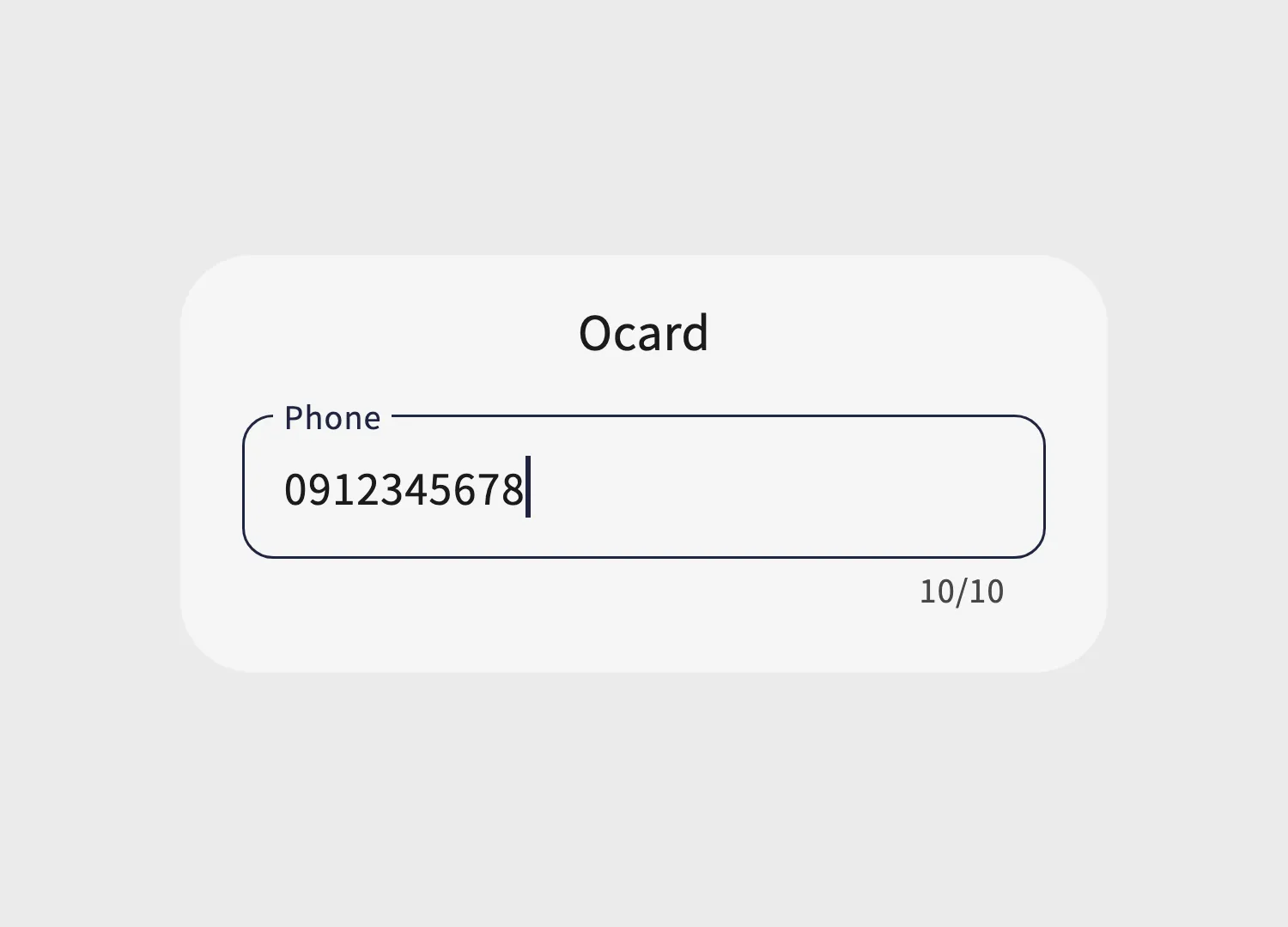
Enter the customer phone number and press Search.
-
Redeem Points & Vouchers (
OCardWidget): If the customer already exists, their member profile is shown together with their accumulated points and valid digital coupons/vouchers. Tap any eligible voucher or point reward to apply the discount directly to the order.
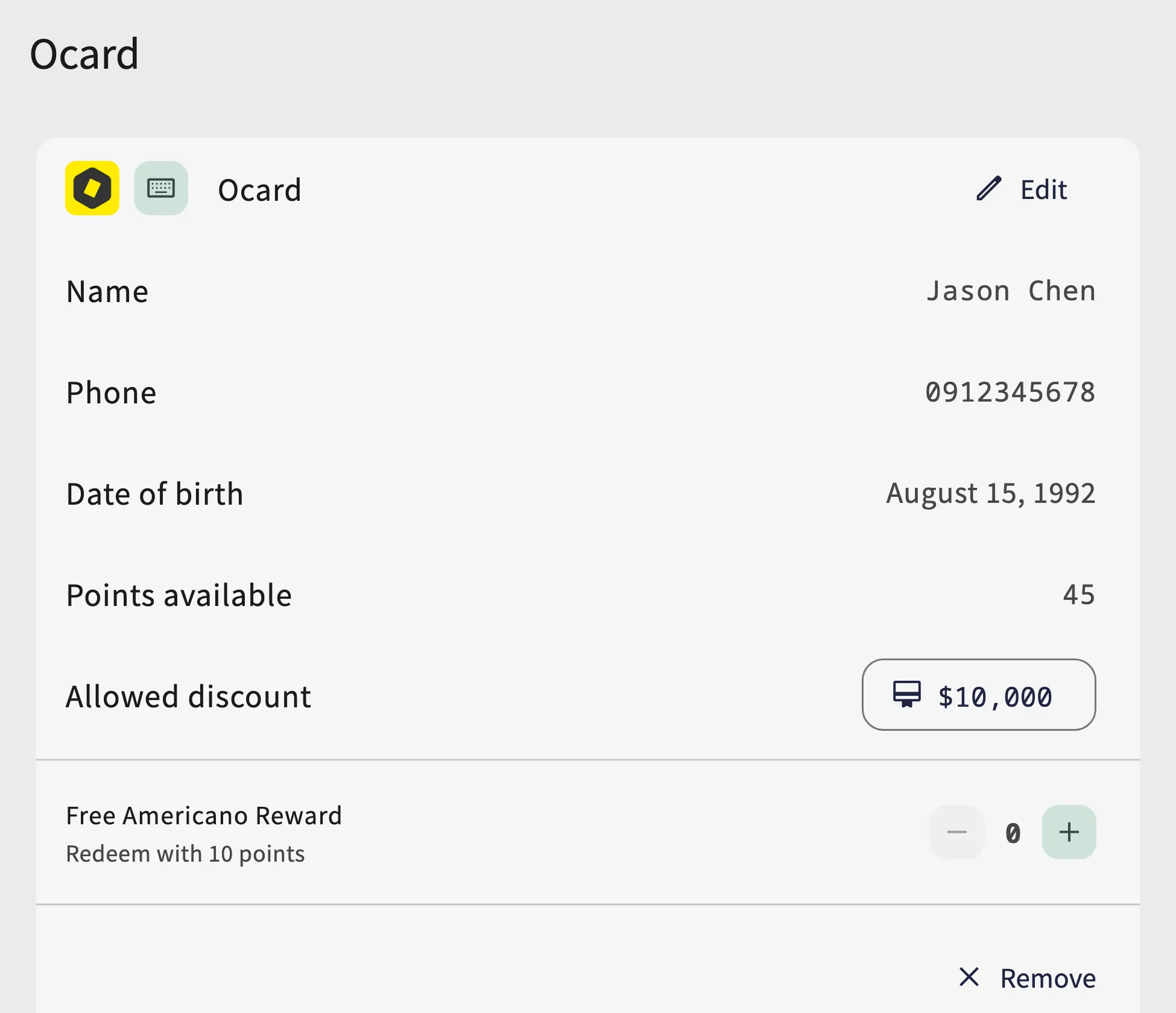
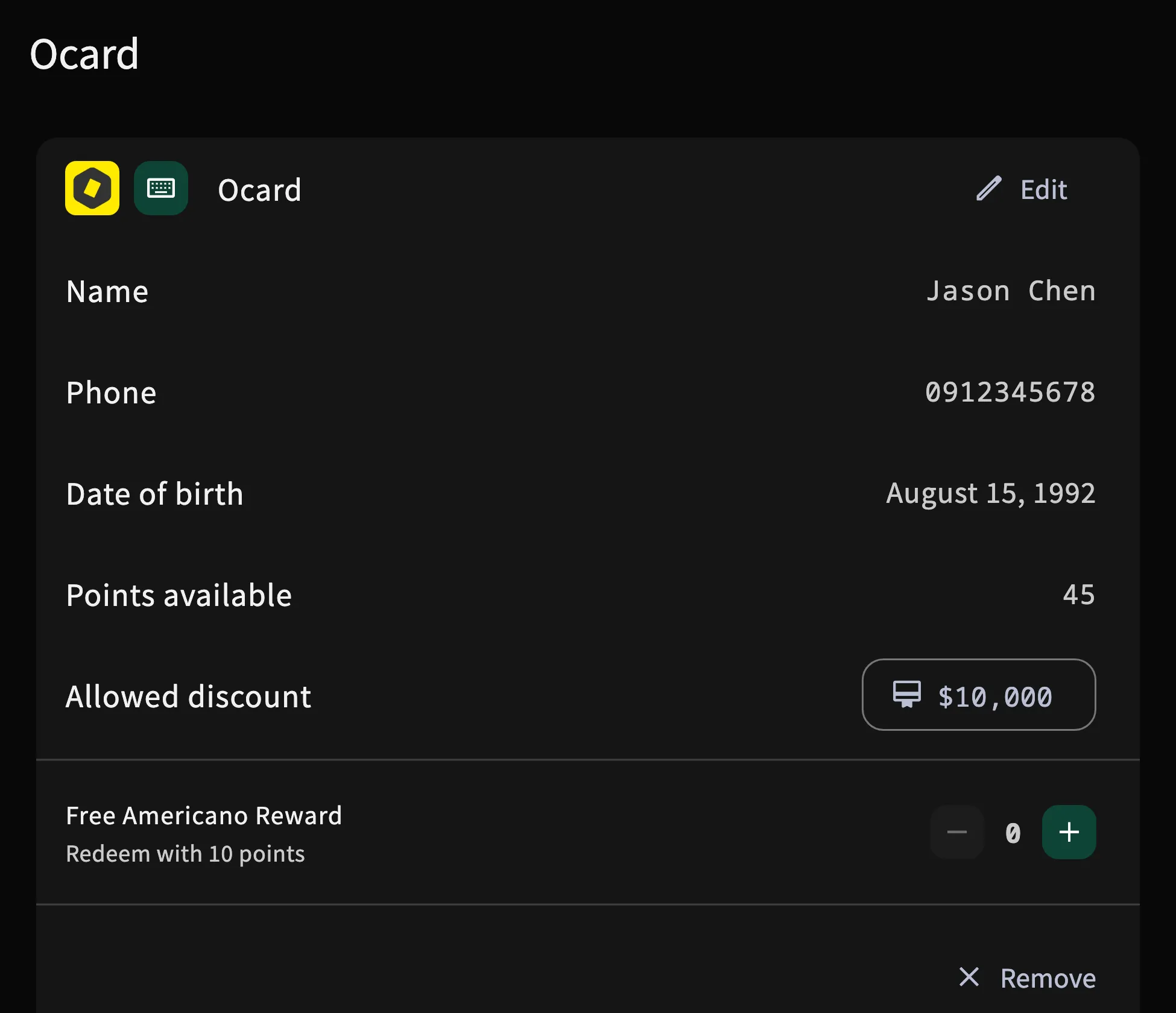
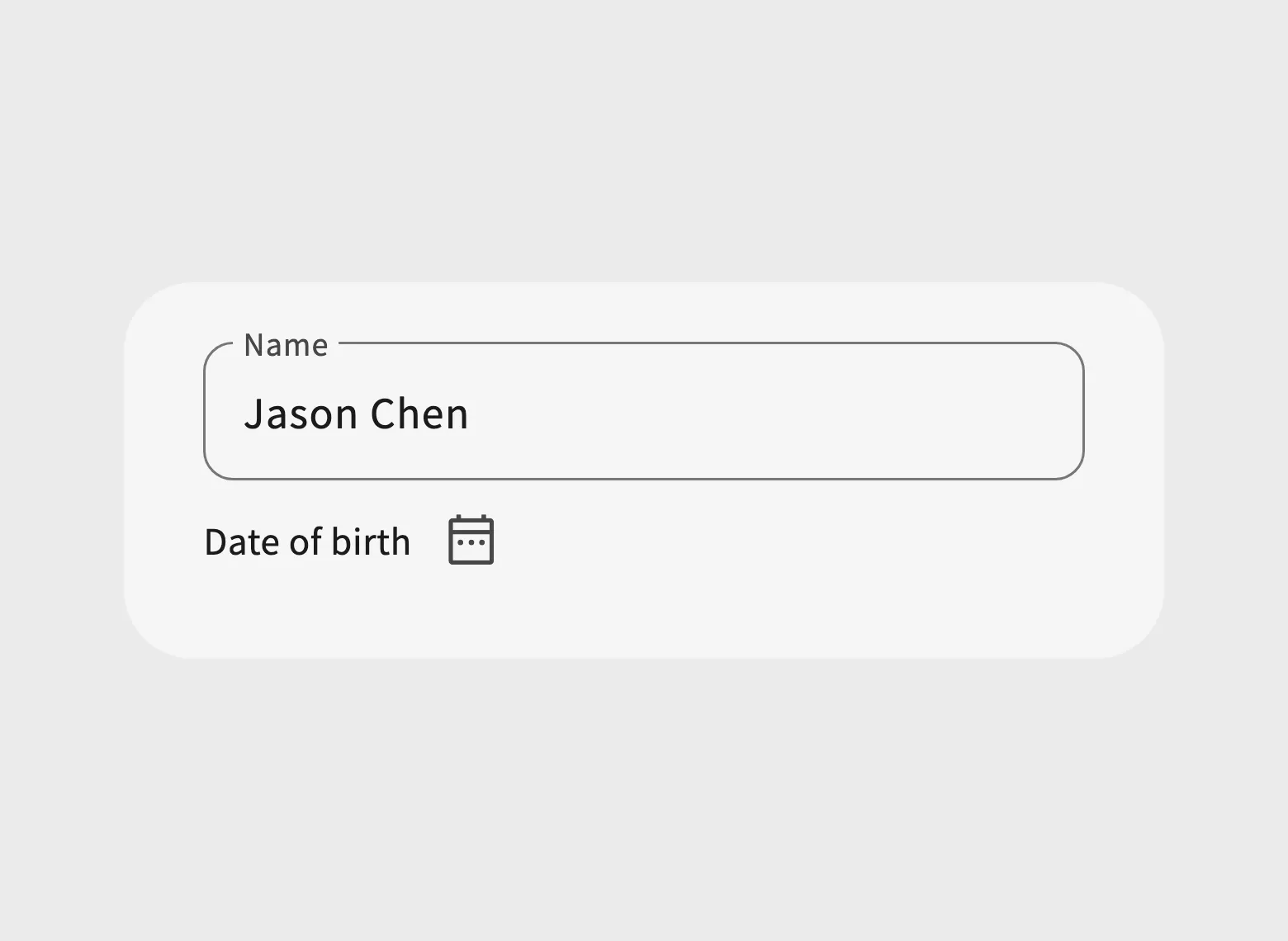
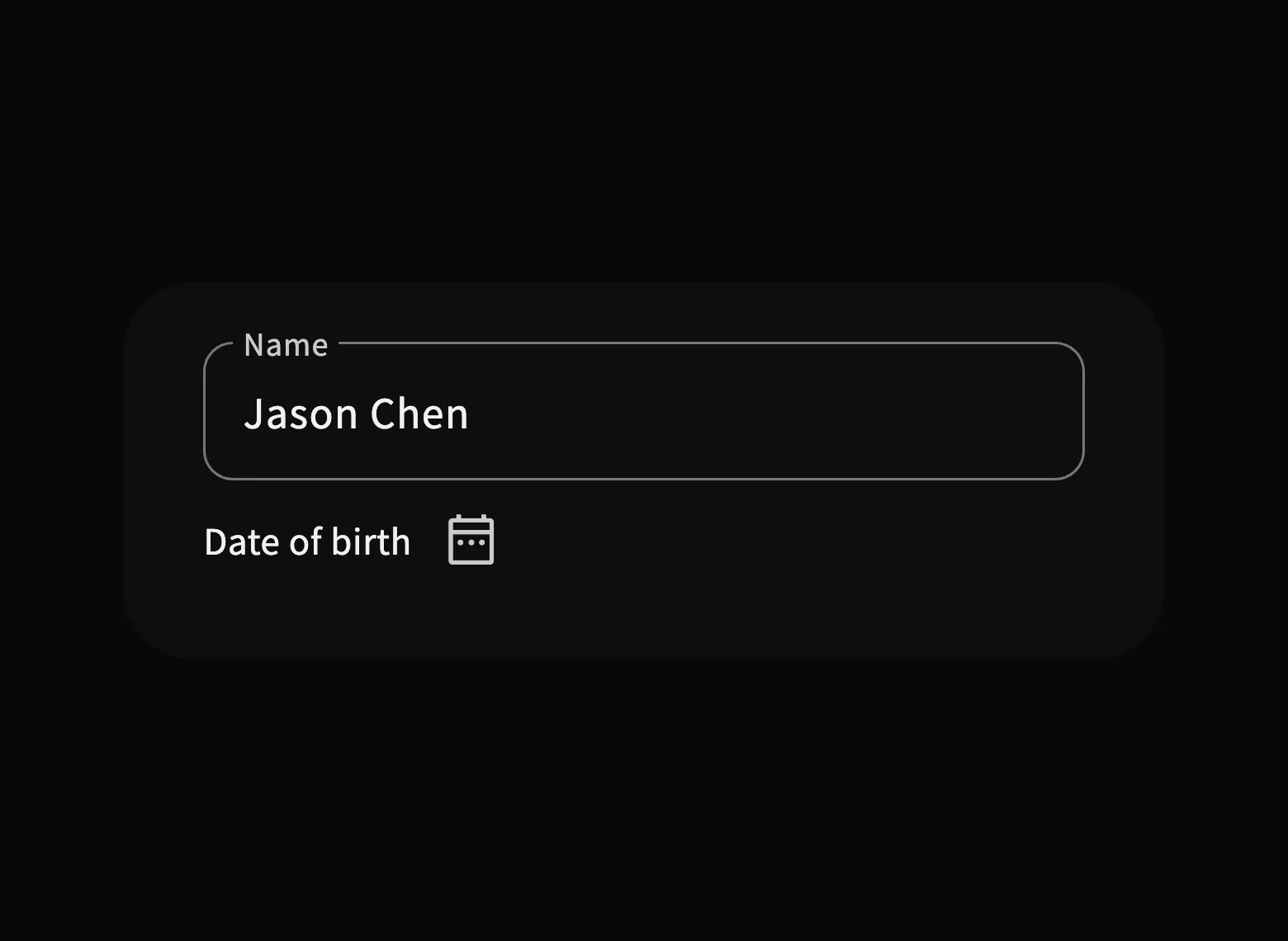
- Press the Edit button to update the name or date of birth for the selected customer.
QUEUE Customer
Section titled “QUEUE Customer”Keep track of your customers with QUEUE’s built-in customer management module.
Click on the Customers button to search for existing customers.
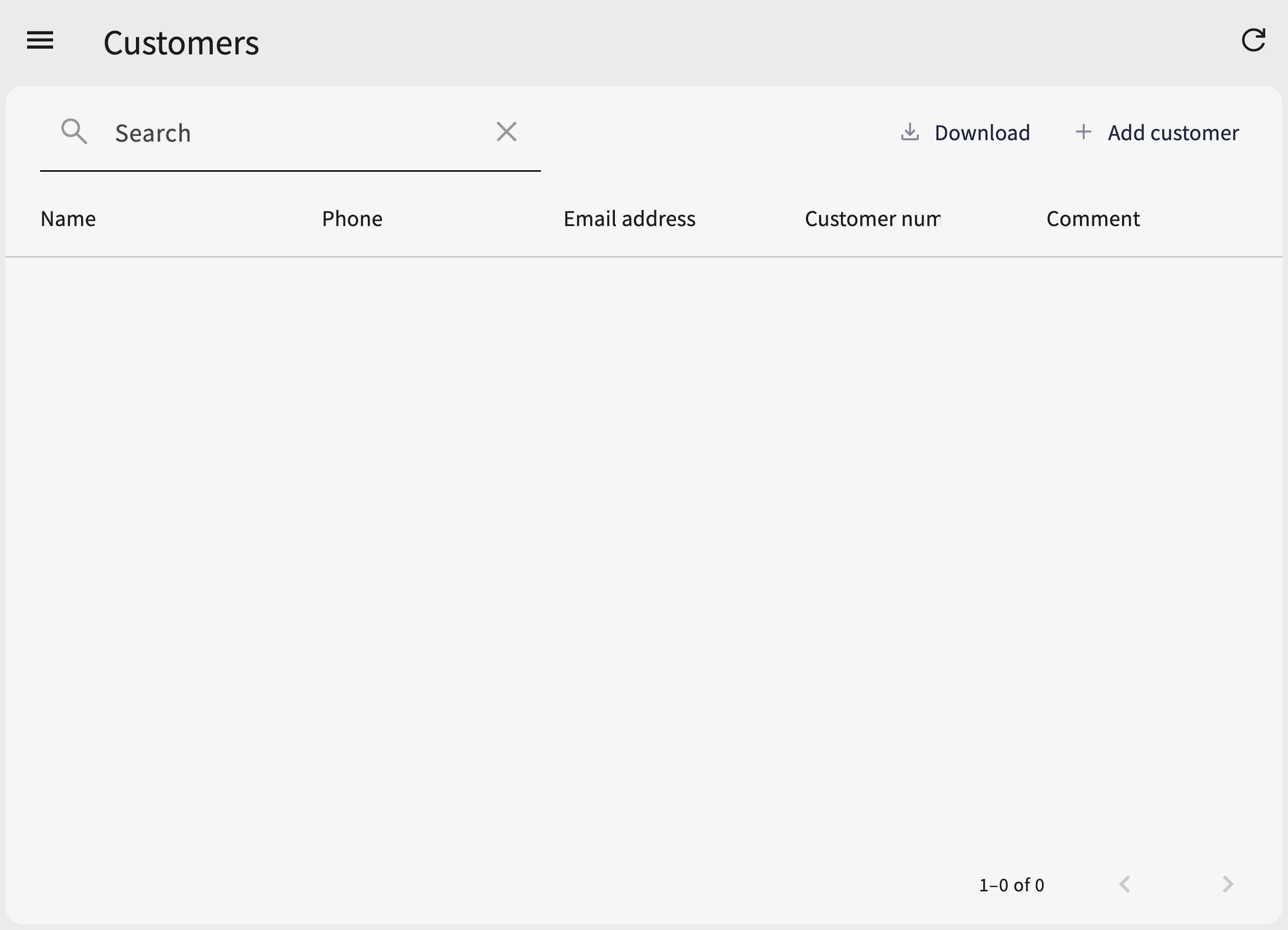
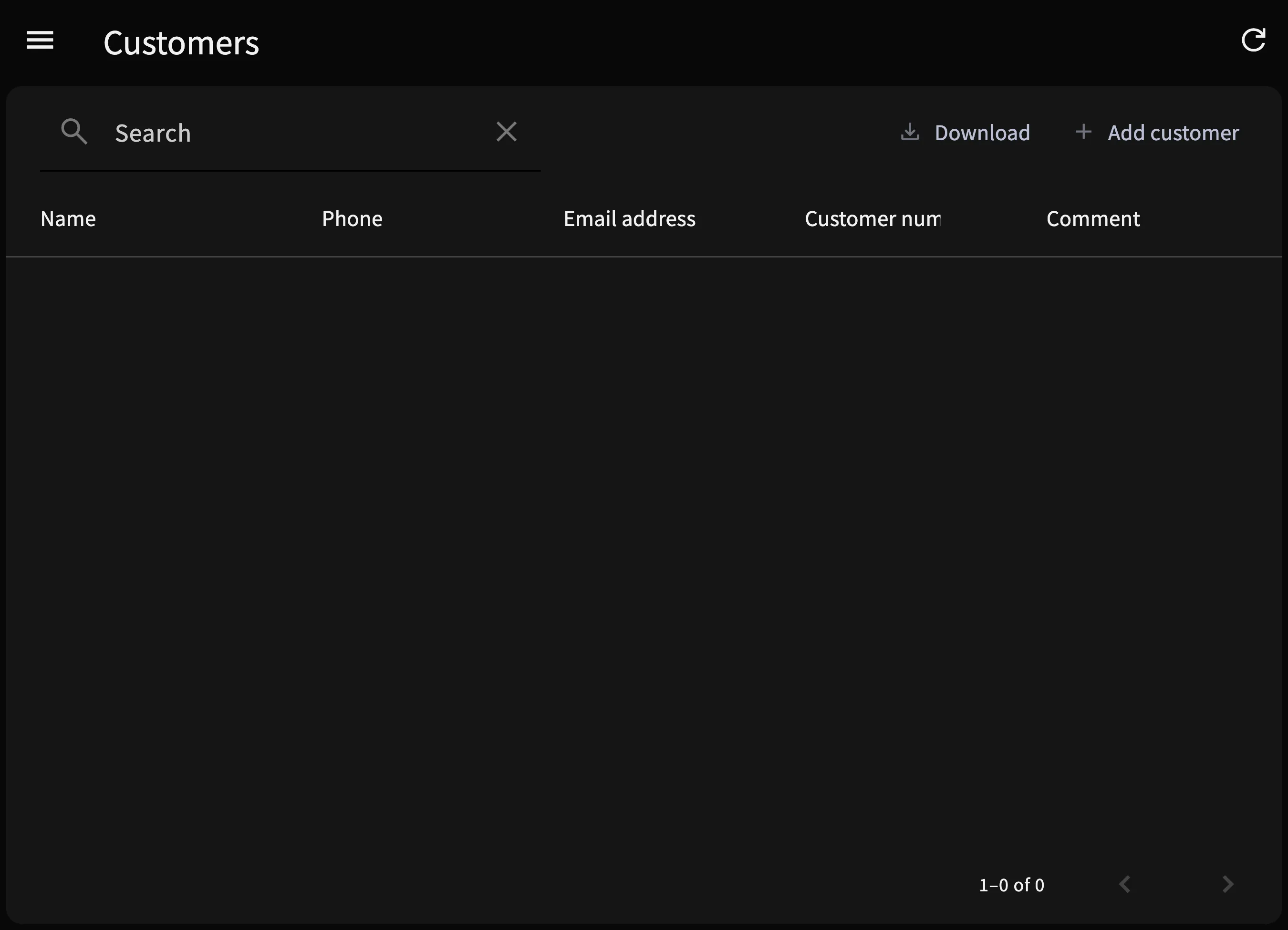
Select the desired customer and the order is automatically associated with this customer record. Click on the customer name to edit any details related to this customer.
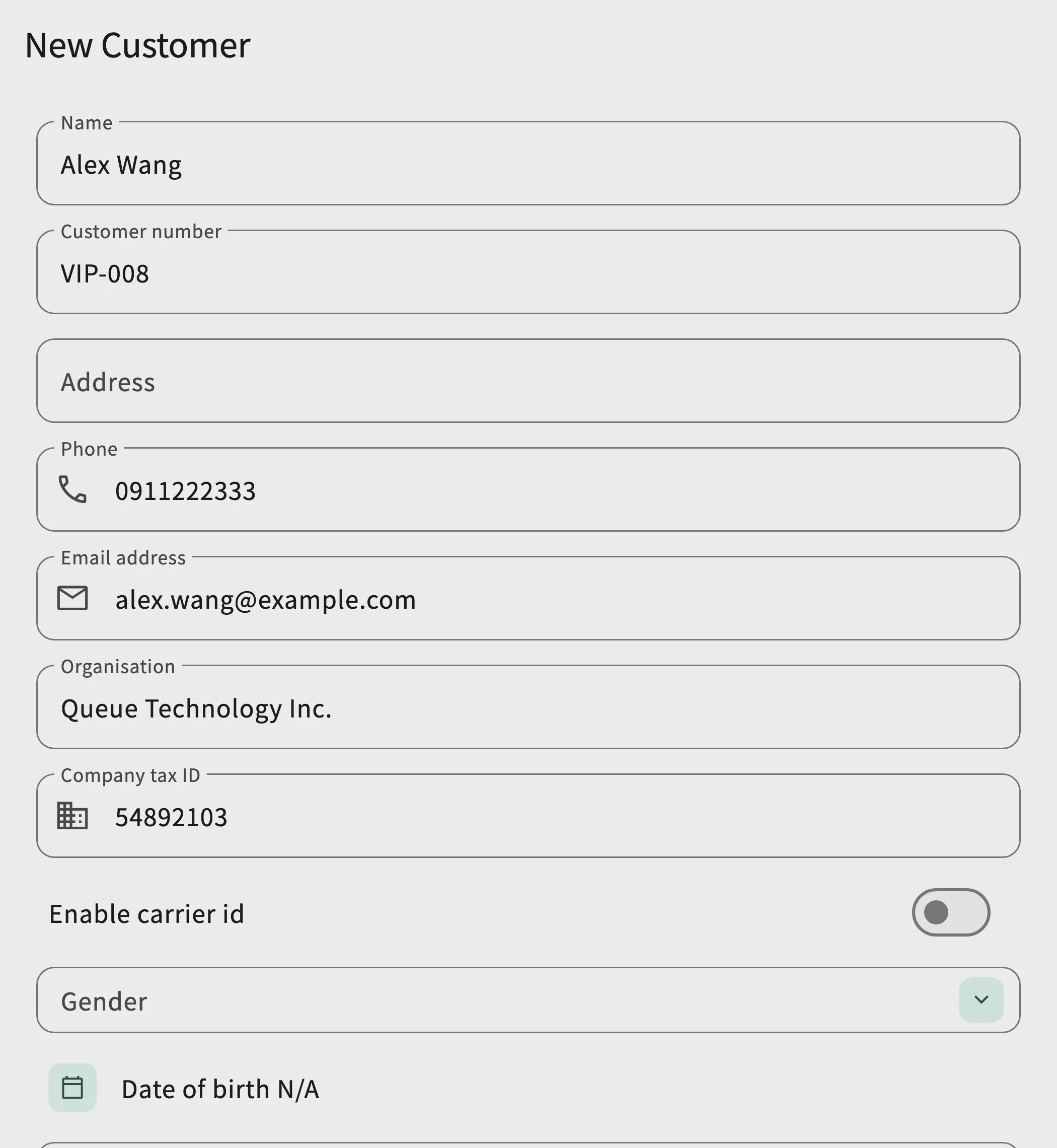
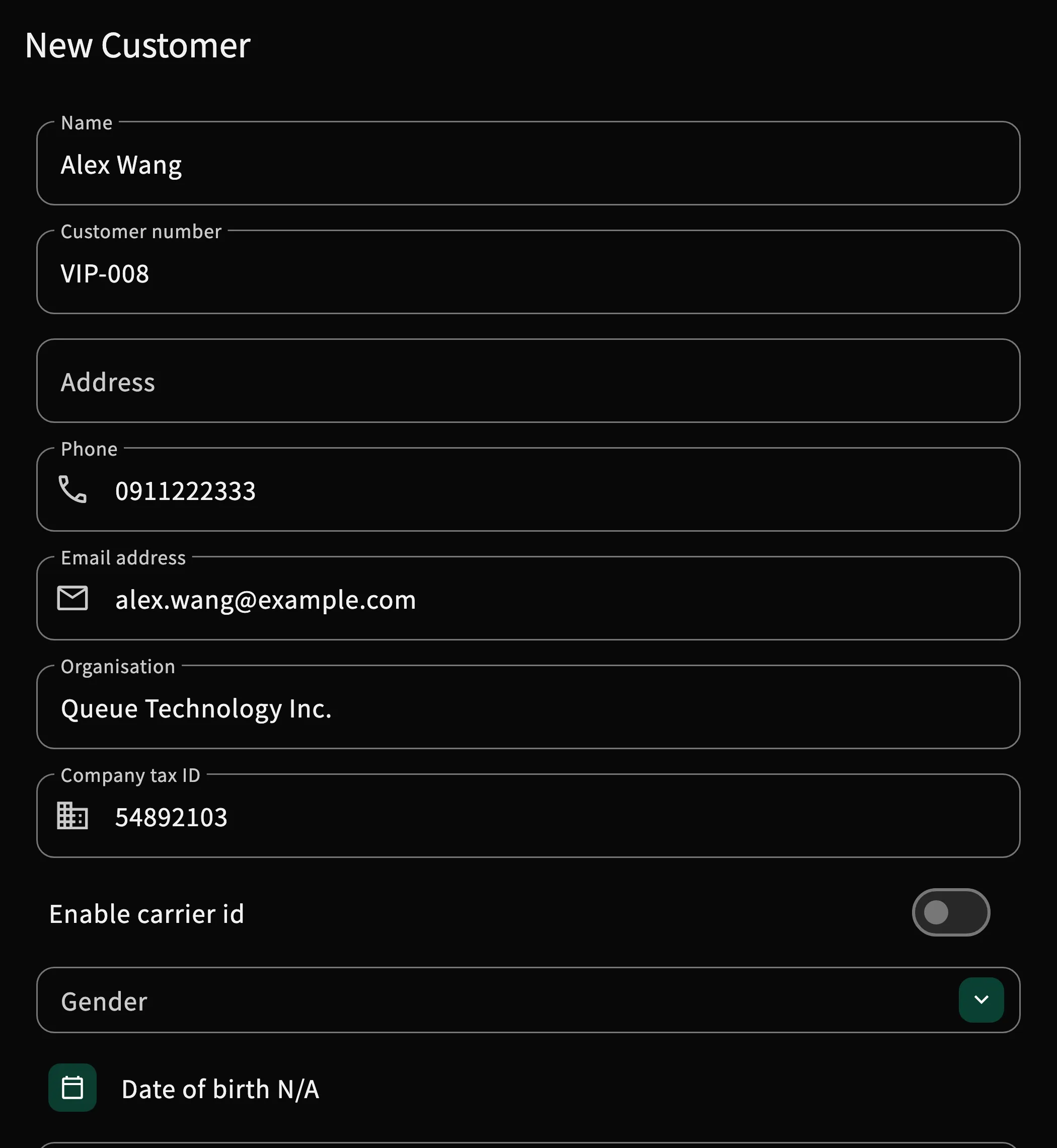
For new customers, click on the Add customer icon and enter the necessary details. When the new customer is saved, they are automatically connected to this order.
Specialized Payment Methods & Workflows
Section titled “Specialized Payment Methods & Workflows”Native LINE Pay (LINE Pay (int))
Section titled “Native LINE Pay (LINE Pay (int))”When your store has integrated Native LINE Pay (LINE Pay (int)):
- Select the LINE Pay integrated payment method on the payment screen and tap Pay now.
- Prompt the customer to open their LINE app and display their 18-digit LINE Pay one-time payment barcode (一維/二維付款條碼).
- Scan the customer’s 18-digit barcode using your external USB/Bluetooth 2D barcode scanner or the built-in camera scanner.
- Automatic E-Invoice Mobile Carrier Extraction: If the Taiwan Electronic Invoice toggle is enabled for the order and the customer has bound their Ministry of Finance Mobile Carrier (
/XXXXXXX) inside their LINE Pay settings, QUEUE POS automatically extracts and attaches the customer’s Mobile Carrier ID to the e-invoice—no second scan is needed! - Handling
LINE Pay FailedErrors: If the barcode has expired (LINE Pay barcodes refresh every 60 seconds), was already scanned, or the customer has insufficient balance, aLINE Pay Faileddialog appears. Dismiss the dialog, ask the customer to refresh their LINE Pay barcode screen, and scan the new 18-digit code.
Tap to Pay on iPhone & Paired Card Reader Mode
Section titled “Tap to Pay on iPhone & Paired Card Reader Mode”When Tap to Pay on iPhone is configured in Settings > Tap to Pay on iPhone:
- Direct on iPhone: If running QUEUE POS on a Tap to Pay–enabled iPhone, select the Tap to Pay payment method and tap Pay now to immediately present the contactless Apple Tap to Pay prompt for physical credit/debit cards, Apple Pay, and Google Pay.
- Paired iPad + iPhone Card Reader Mode: If your primary cashier station is an iPad paired with a store iPhone running in Card Reader Mode, selecting Tap to Pay on the iPad automatically dispatches the payment request to the paired iPhone. The customer taps their card or phone on the iPhone, and the iPad completes the order automatically as soon as payment is approved.
Manual Credit Card Recording (Standalone Terminal)
Section titled “Manual Credit Card Recording (Standalone Terminal)”When using a standalone (non-integrated) credit card machine where the cashier rings up the card on a separate bank terminal:
- Select the Credit Card (manual) payment type.
- Optionally enter the card’s last 4 digits (卡號末四碼) and select the Card Network (
Visa,MasterCard,JCB,Amex,UnionPay, orOther) for accurate reconciliation and shift closing reports. - Confirm the payment on the standalone bank terminal first, then tap Pay now in QUEUE POS to complete the order.
Prepaid (Pre-payment)
Section titled “Prepaid (Pre-payment)”For banquets, custom cakes, or large reservations where a customer pays a deposit in advance before final settlement:
- Open the customer’s order and go to the Payment screen.
- Select Pre-payment (Prepaid) or use Split payment to record the deposit amount received (e.g., via Cash, Card, or Bank Transfer) while keeping the order open (
Save order). - When the customer dines in or picks up their order later, open the same order—the recorded pre-payment is automatically deducted from the remaining balance due at final checkout.
Consolidate Later (Consolidate)
Section titled “Consolidate Later (Consolidate)”For corporate accounts, hotel guests, or VIP regulars who settle their bills on a monthly or periodic consolidated basis:
- Attach a QUEUE Customer First: Before selecting
Consolidate, you must attach a QUEUE Customer profile to the order using the Customers button on the payment screen. - Select the Consolidate (
Consolidate Later) payment type and tap Pay now. - The order is completed and its balance is posted to the customer’s consolidated account ledger.
- To view open balances and record a lump-sum settlement later, go to Customers > select the customer > Consolidate payments > tap Make payment.
Completing the Transaction
Section titled “Completing the Transaction”Pay now
Section titled “Pay now”For Cash payments, QUEUE presents quick-select denomination buttons alongside a keypad to enter the cash tendered and automatically calculates the exact change due.
Complete Order
Section titled “Complete Order”Tap or swipe the Pay now button to finalize the transaction. QUEUE POS will print the receipt/e-invoice and return to your previous order view for your next customer.