
Closing reporting
This content is for 5.0 (Preview). Switch to 4.5 (Current) for the current release documentation.
The Closing page is where you can start the process of closing for the day. If enabled, it is also possible to record expenses throughout the day that will be calculated when the closing is performed.
Expenses
Section titled “Expenses”Tab New expense to add a new expense. Provide a name, optional comment and amount. If the expense should be subtracted from the expected end of day cash, for example, the expense was paid out of the cash register, toggle Cash expense on.
If you need to make changes to an existing expense, simply select it from the list and make the necessary changes in the pop-up.
Perform closing
Section titled “Perform closing”QUEUE POS support two types of closing reporting.
- Partial closing
A partial closing lets you perform closing without having to complete all open orders. This closing type is useful when performing a half-day closing. Incremental order number and work item numbers are not reset when performing partial closing.
- Full closing
In order to perform a full closing, all open orders (unless Allow open during closing reporting is enabled for the order) must be completed. After a full closing incremental order numbers and work item numbers are reset.
1. Sales
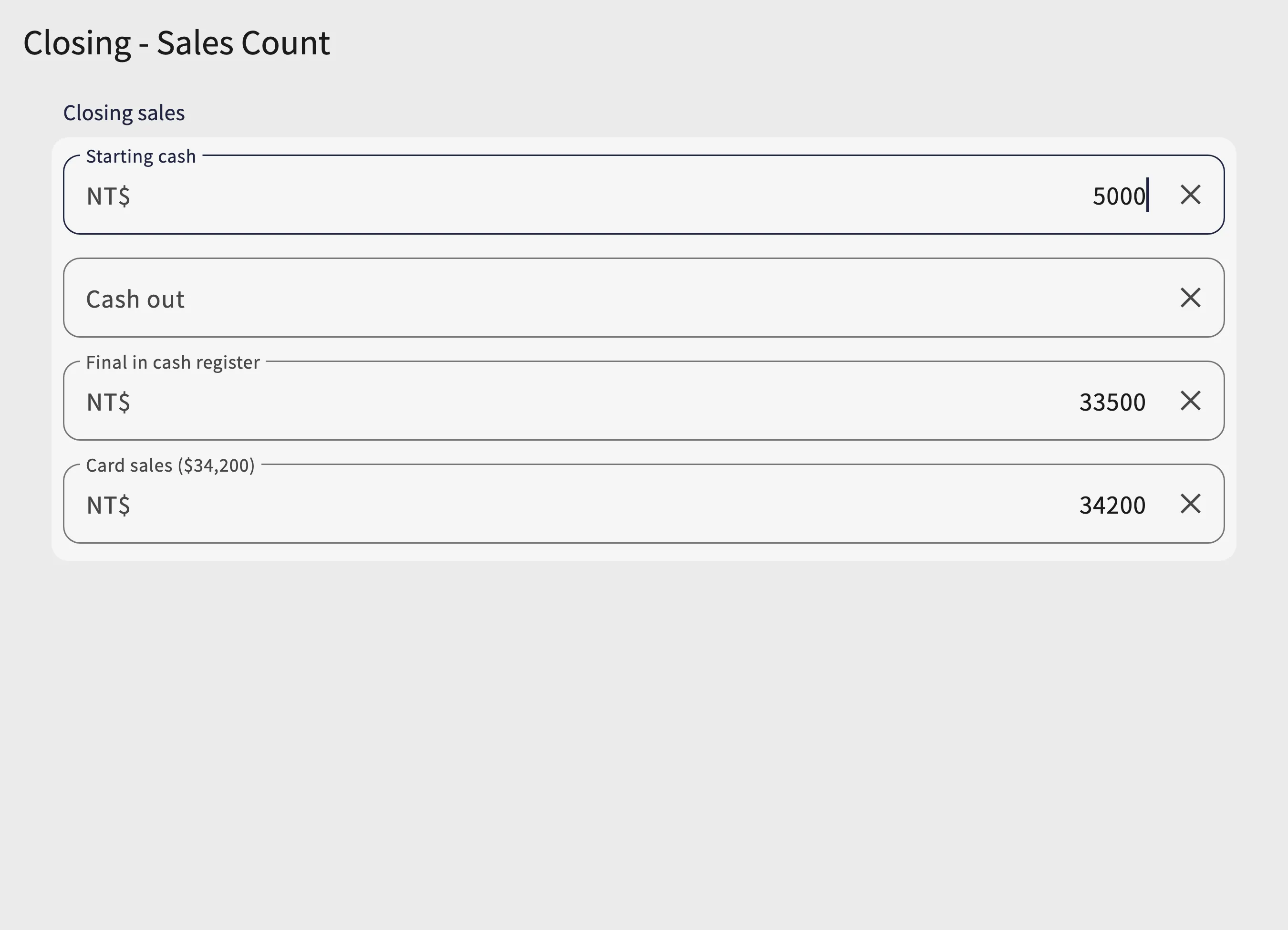
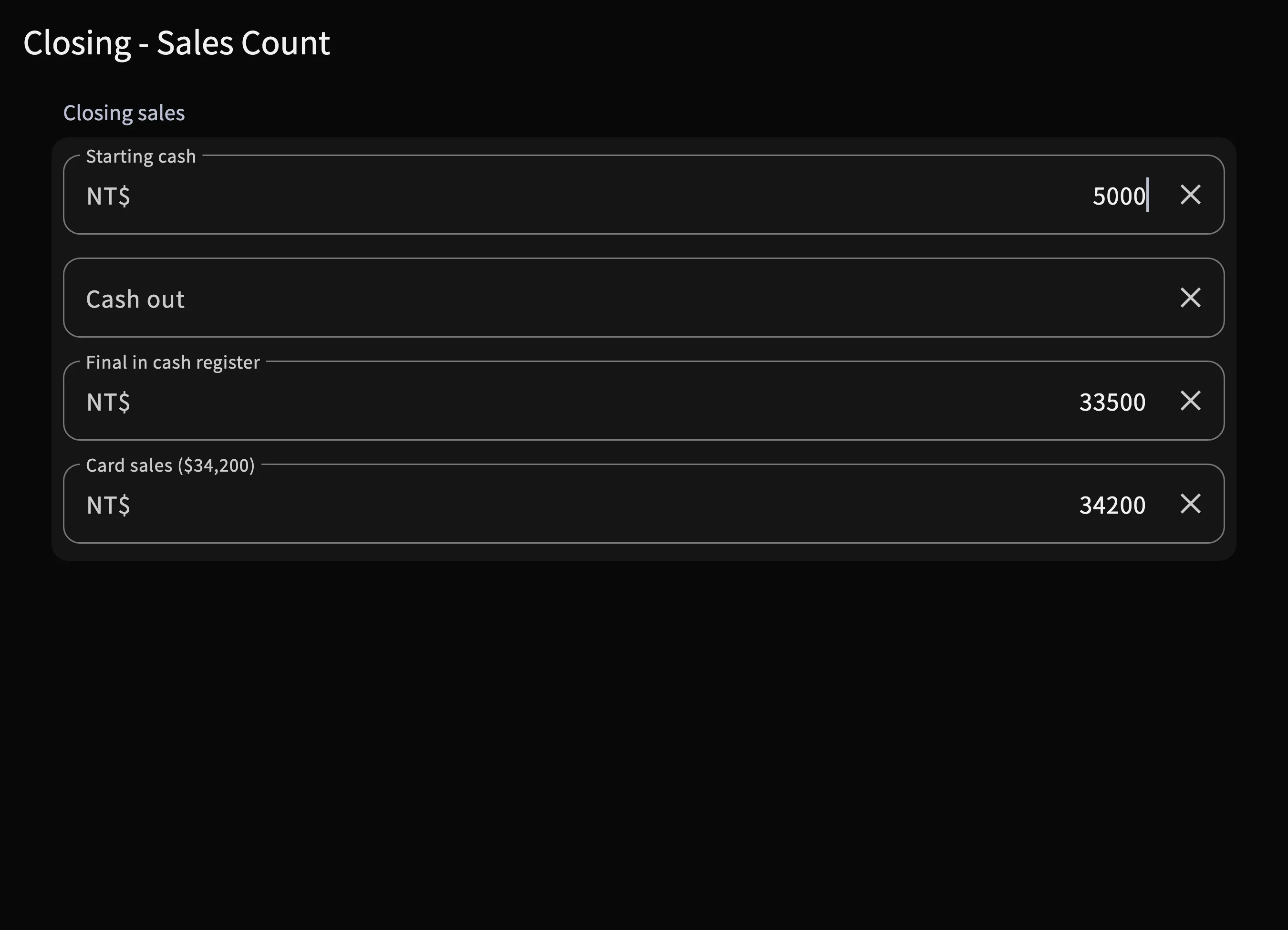
Section titled “1. Sales”Enter the required details for this closing. The fields available depend on the closing settings and on what modules are enabled for this store.
2. Comments
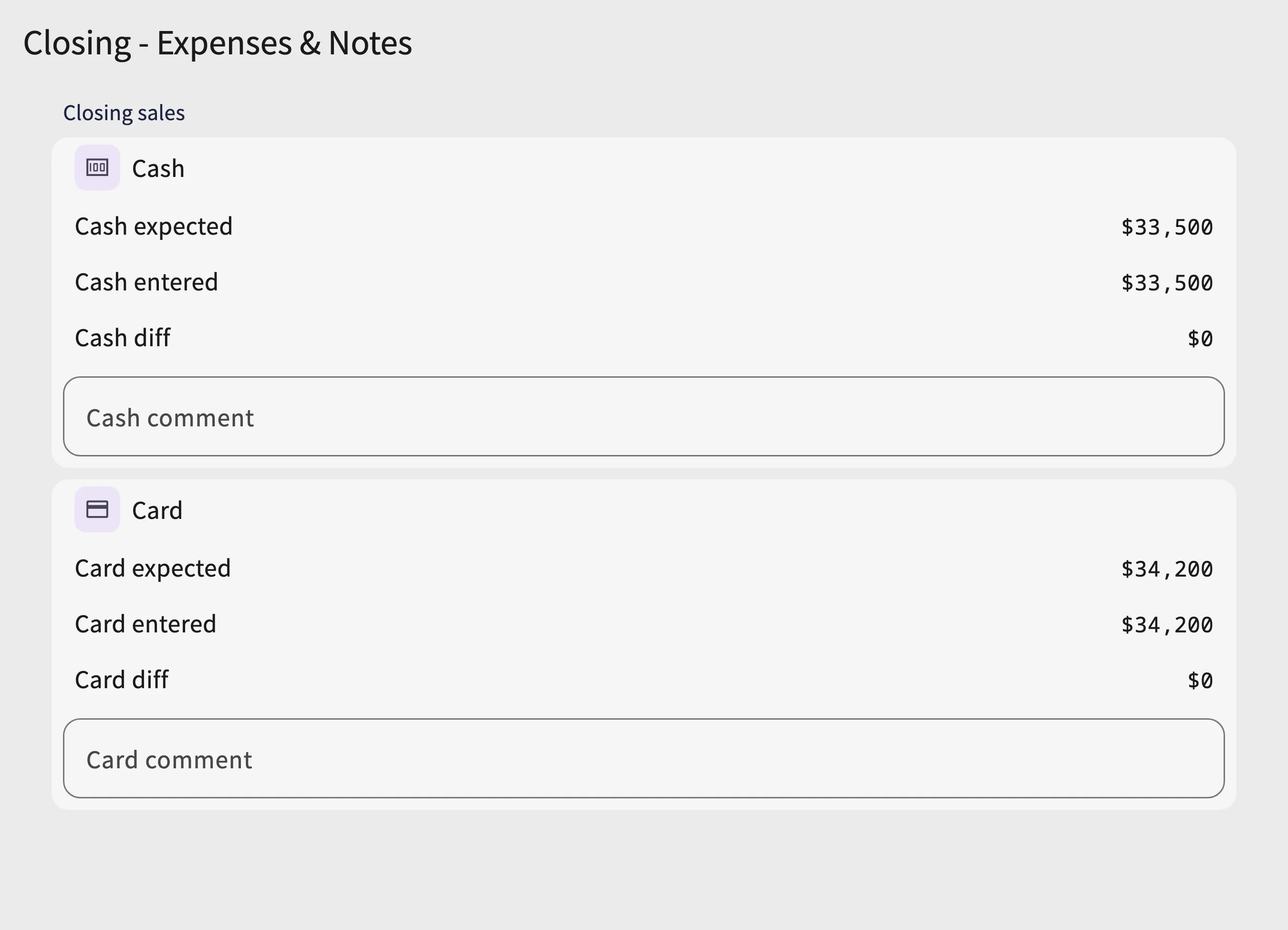
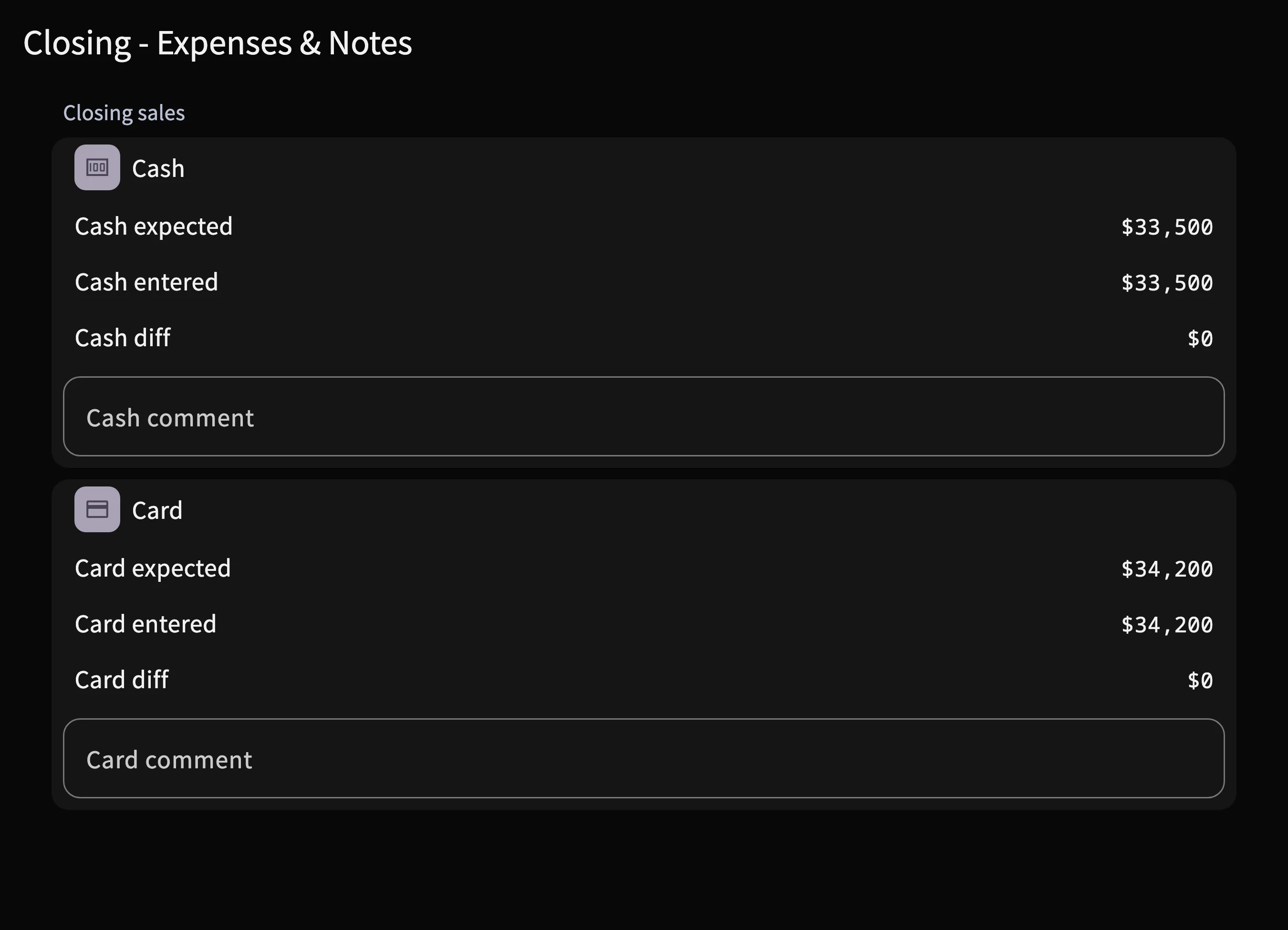
Section titled “2. Comments”Each payment type is listed together with expected and entered amounts. If necessary, usually if there is a discrepancy, you can add a comment to explain why this is the case.
3. Confirm
Section titled “3. Confirm”Full overview of the closing report. If you have no further changes you can press Save to save and submit the report.
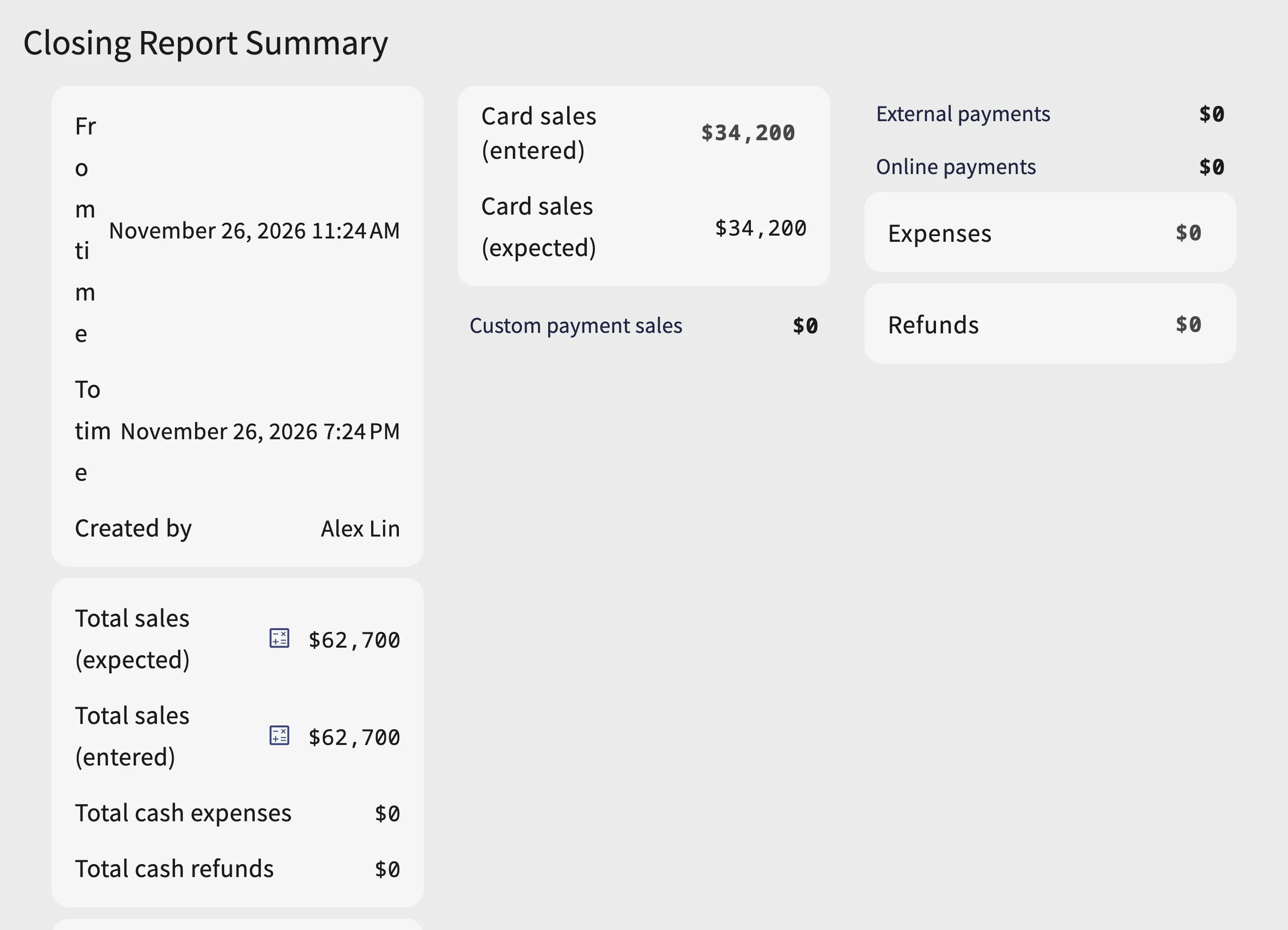
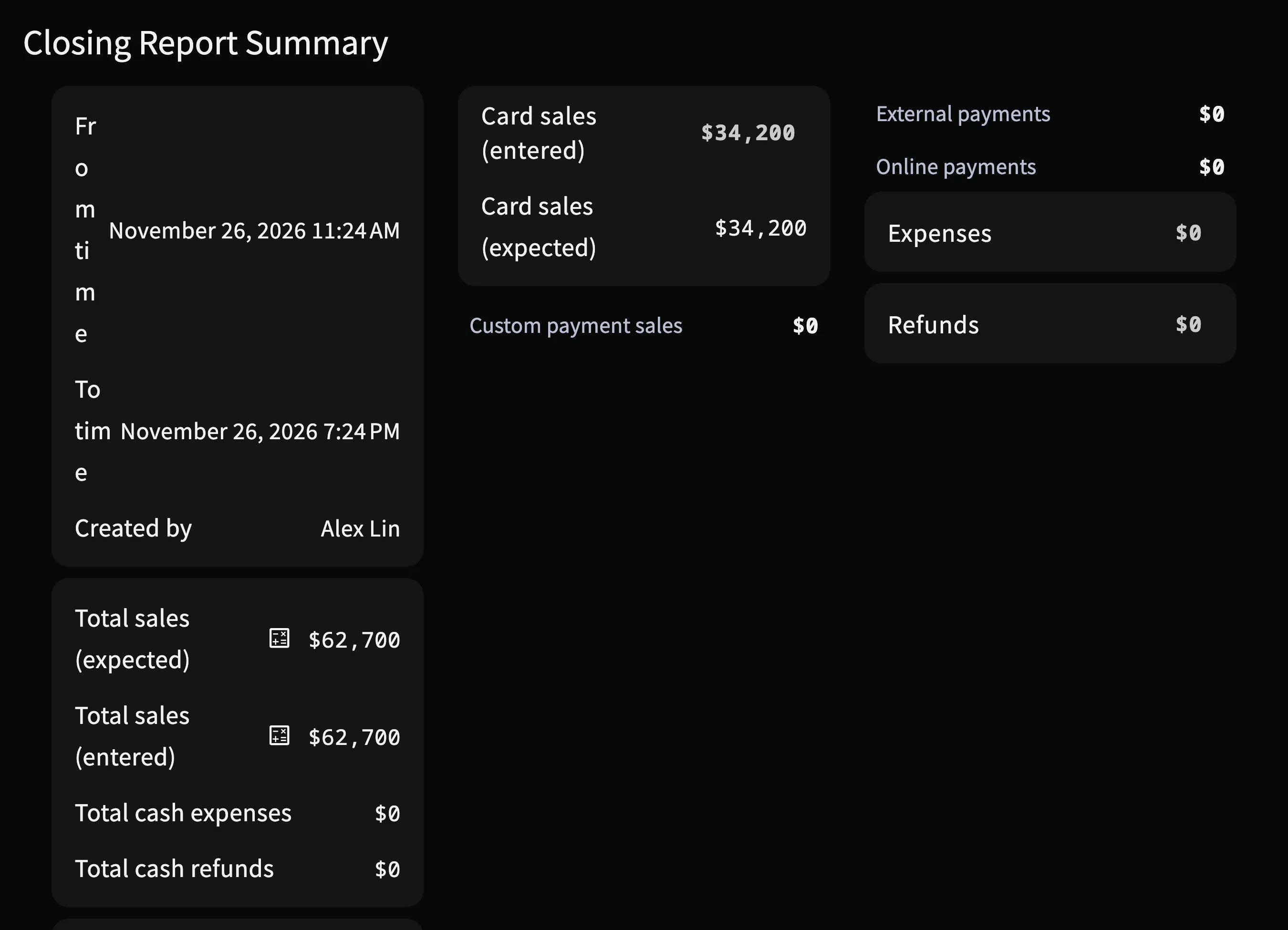
Next to the auto-calculated values (Total sales expected, Total sales entered, Ending cash, Cash difference and Card difference) there is a calculator button. Tap it to see the formula and the actual amounts that make up the value.
If any payment type (cash, card, custom, external or online payments) has a difference between the entered and expected amount, a confirmation dialog listing every difference is shown when you press Save. Choose Save anyway to continue or Cancel to go back and correct the amounts. Saving a draft is not checked.