
QR ordering
This content is for 5.0 (Preview). Switch to 4.5 (Current) for the current release documentation.
QUEUE offers a comprehensive mobile QR Self-Ordering solution (self_svelte) that lets your customers browse your live digital menu, customize modifiers, and submit orders directly from their smartphones—without downloading an app.
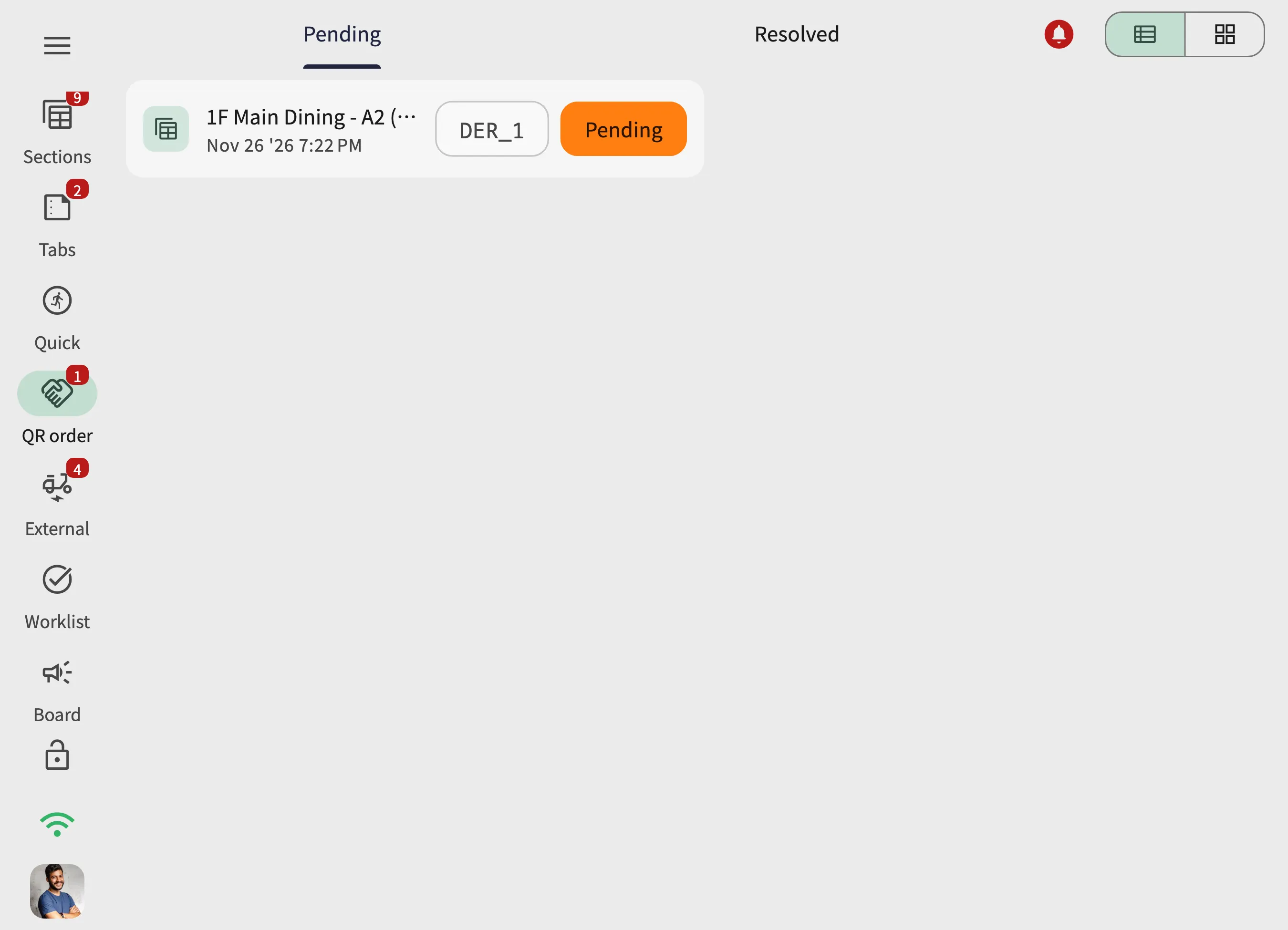
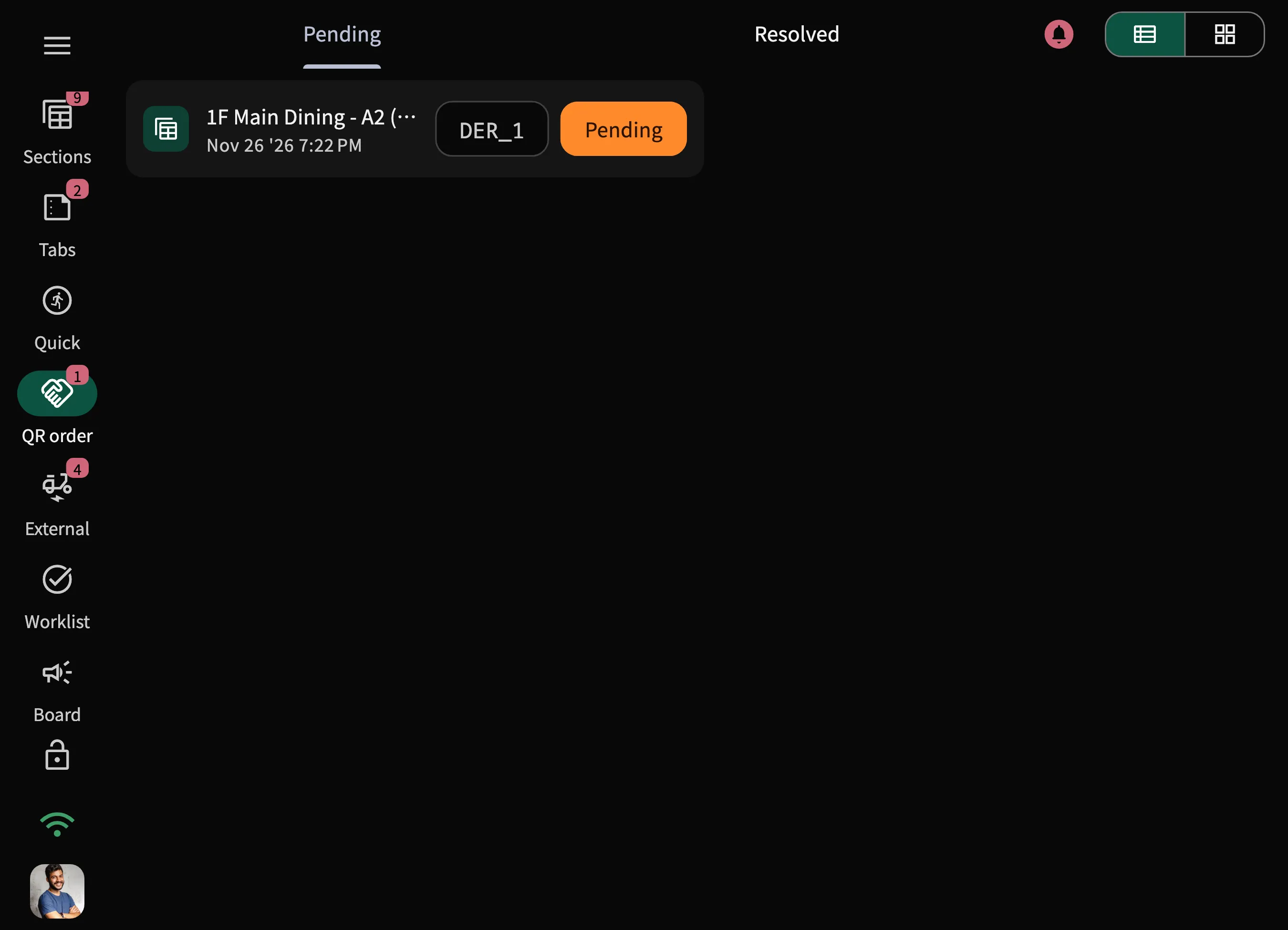
Incoming self-orders appear in real time on the QR Ordering (Self orders) page in QUEUE POS with instant visual and audio notifications.
Three Self-Ordering Modes
Section titled “Three Self-Ordering Modes”1. Dynamic QR Code (Order-Level One-Time QR)
Section titled “1. Dynamic QR Code (Order-Level One-Time QR)”A unique, single-use QR code generated for a specific open order and printed on a slip for the customer upon seating:
- To enable QR ordering for an active order, toggle on the QR ordering switch in the cart header and tap the QR print icon to print the customer’s QR ticket.
- Multiple guests at the same table can scan the slip and add items to the shared table order.
- Automatic Expiration: As soon as the order is paid and completed (or the toggle is turned off), the dynamic QR code expires automatically so it cannot be scanned after the party leaves.
2. Static QR Code (Permanent Table Stickers / Stands)
Section titled “2. Static QR Code (Permanent Table Stickers / Stands)”Each floor table (Order Section) has a permanent, pre-generated QR code that can be printed on acrylic table stands or stickers:
- Customers sit down, scan the table’s QR code, and submit their order.
- Subsequent rounds ordered from the same table while an order is still open are automatically appended to the active table bill.
3. Online Ordering (Takeout / Pre-Orders)
Section titled “3. Online Ordering (Takeout / Pre-Orders)”Share your store’s public Online Ordering link on Google Maps, Instagram, LINE Official Account, or your website so customers can place pickup or scheduled takeout orders remotely.
Customer Checkout: Pay at Counter vs. Online Payment
Section titled “Customer Checkout: Pay at Counter vs. Online Payment”Depending on your configuration in Settings > Store > Self ordering, customers can complete their mobile order in two ways:
- Order First / Pay at Counter: Customers submit their order straight to the POS/kitchen and pay at the cashier counter when picking up or finishing their meal.
- Integrated Online Mobile Payment: Customers pay directly on their smartphone using integrated digital payment gateways (such as LINE Pay or online credit card) and enter their Taiwan E-Invoice Mobile Carrier (
/XXXXXXX), Company Tax ID (統編), or Donation Code right on their phone.
Managing Incoming Self-Orders & Customer Requests
Section titled “Managing Incoming Self-Orders & Customer Requests”When a customer submits a QR order or taps the Call Staff / Send Message button on their phone, an alert appears in the QR Ordering queue:
- Accept & Execute: Approve the incoming self-order and immediately fire all items to the kitchen Worklists (KDS) and kitchen printers. If an open unpaid order already exists on that table, the new items are automatically merged into the table’s cart and executed. For Static QR orders already paid online, only Accept & Execute is displayed.
- Accept: Approve an unpaid incoming order into the cart without firing to the kitchen yet—ideal when staff need to verify an allergy note, confirm seating, or collect payment at the counter before preparation begins. (Hidden when the order has already been paid online via Static QR.)
- Decline: Reject the incoming order with a selected decline reason (for example, Item out of stock or Kitchen closing). The customer’s smartphone screen is updated immediately with the status notification.