Worklists
This content is for 5.0 (Preview). Switch to 4.5 (Current) for the current release documentation.
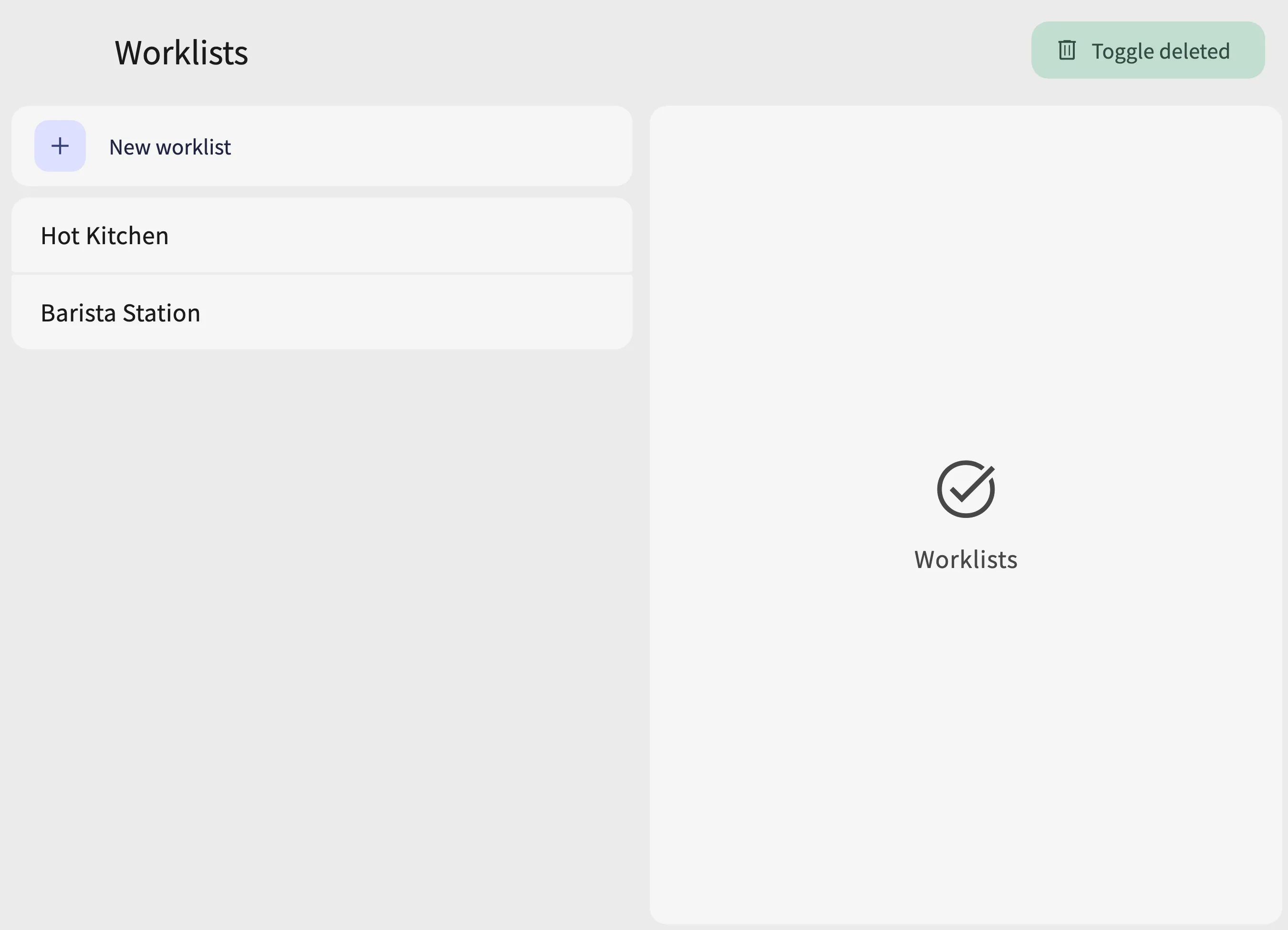
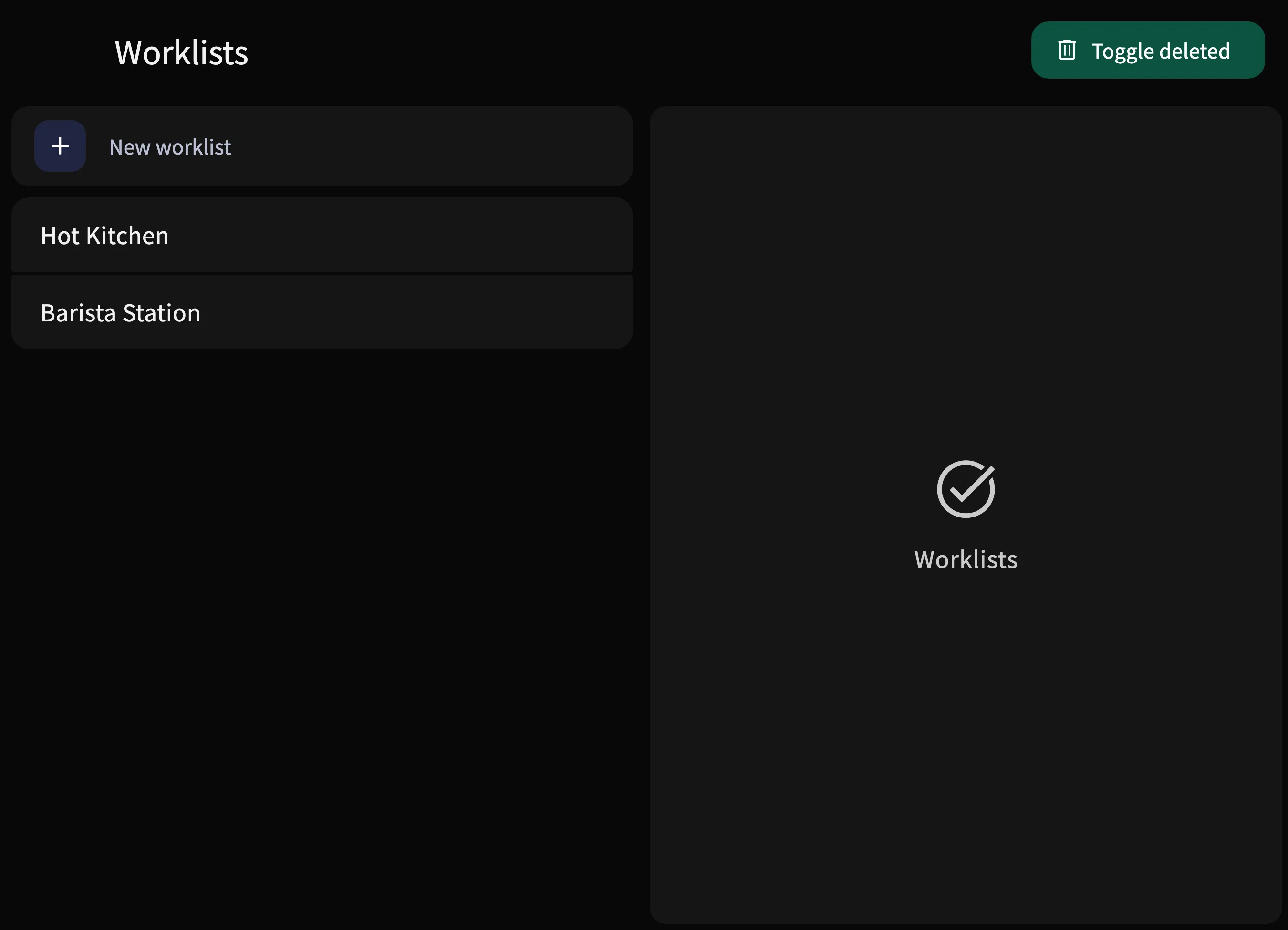
Think of worklists as virtual stations in your kitchen or venue, each with a specific purpose. They’re like organized to-do lists for your team, helping you keep track of orders and tasks.
Imagine your kitchen as a bustling restaurant:
- The grill station has a worklist for burgers and steaks.
- The bar has a worklist for cocktails and mocktails.
- The prep station has a worklist for chopping veggies and mixing sauces.
Key Features of Worklists:
| Option | Description |
|---|---|
| Name: | Give your worklist a clear and descriptive name (e.g., “Grill Station,” “Bar,” “Prep Table”). |
| Custom Color: | Assign a color to easily identify the worklist on screens and in reports. |
| Designate Printer: | Choose a specific printer for worklist tickets if needed (e.g., a printer near the grill). |
| Print Ticket Count: | Decide how many copies of each ticket to print (e.g., one for the kitchen, one for the bar). |
| Customize Print Type: | Tailor the print layout for different worklists (e.g., larger font for the grill, highlighted allergens for the bar). |
| Limit to Order Tags: | Filter items based on order tags (e.g., “Delivery” orders go to the “Packaging” worklist). |
| Add Printer: | Connect multiple printers to a worklist if needed (e.g., one for the kitchen, one for a secondary display). |
How Worklists Help You:
- Streamline Kitchen Workflow: Ensure items are prepared in the right order and sent to the correct stations.
- Improve Communication: Keep everyone on the same page about what needs to be done.
- Track Progress: Monitor order status and identify any bottlenecks.
- Optimize Resources: Manage staff assignments and equipment usage effectively.
Ready to create your own worklists? It’s like setting up stations in your kitchen, but even easier!