
Worklist and KDS
This content is for 5.0 (Preview). Switch to 4.5 (Current) for the current release documentation.
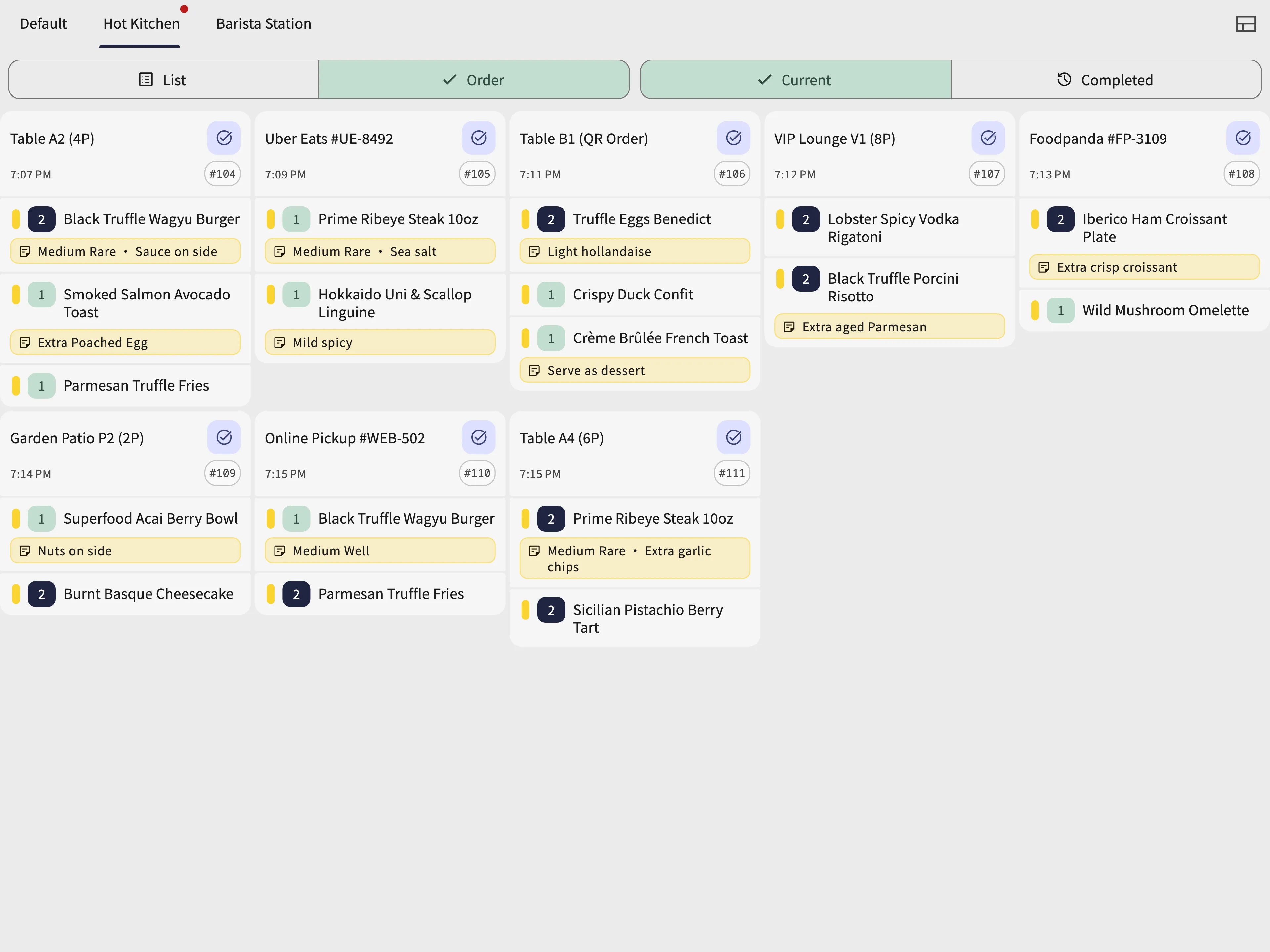
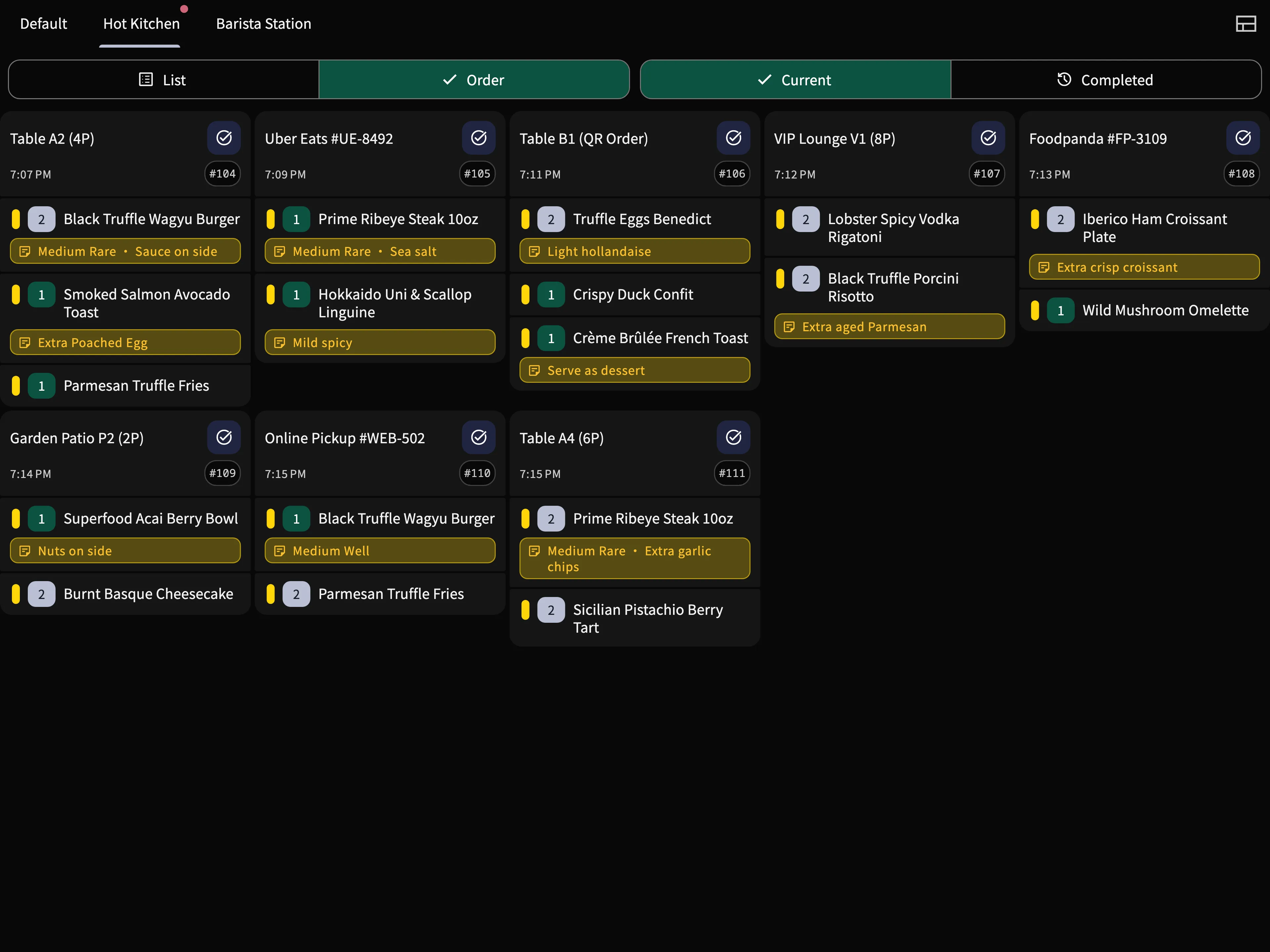
The worklist interface is where you keep track of what items are currently being prepared on either a item level or order level.
Worklist
Section titled “Worklist”If your store is configured for multiple worklists each will be shown in the tab bar on top of the screen.
When a work item is marked a completed the status color for the associated item automatically change from green to blue.
Display type
Section titled “Display type”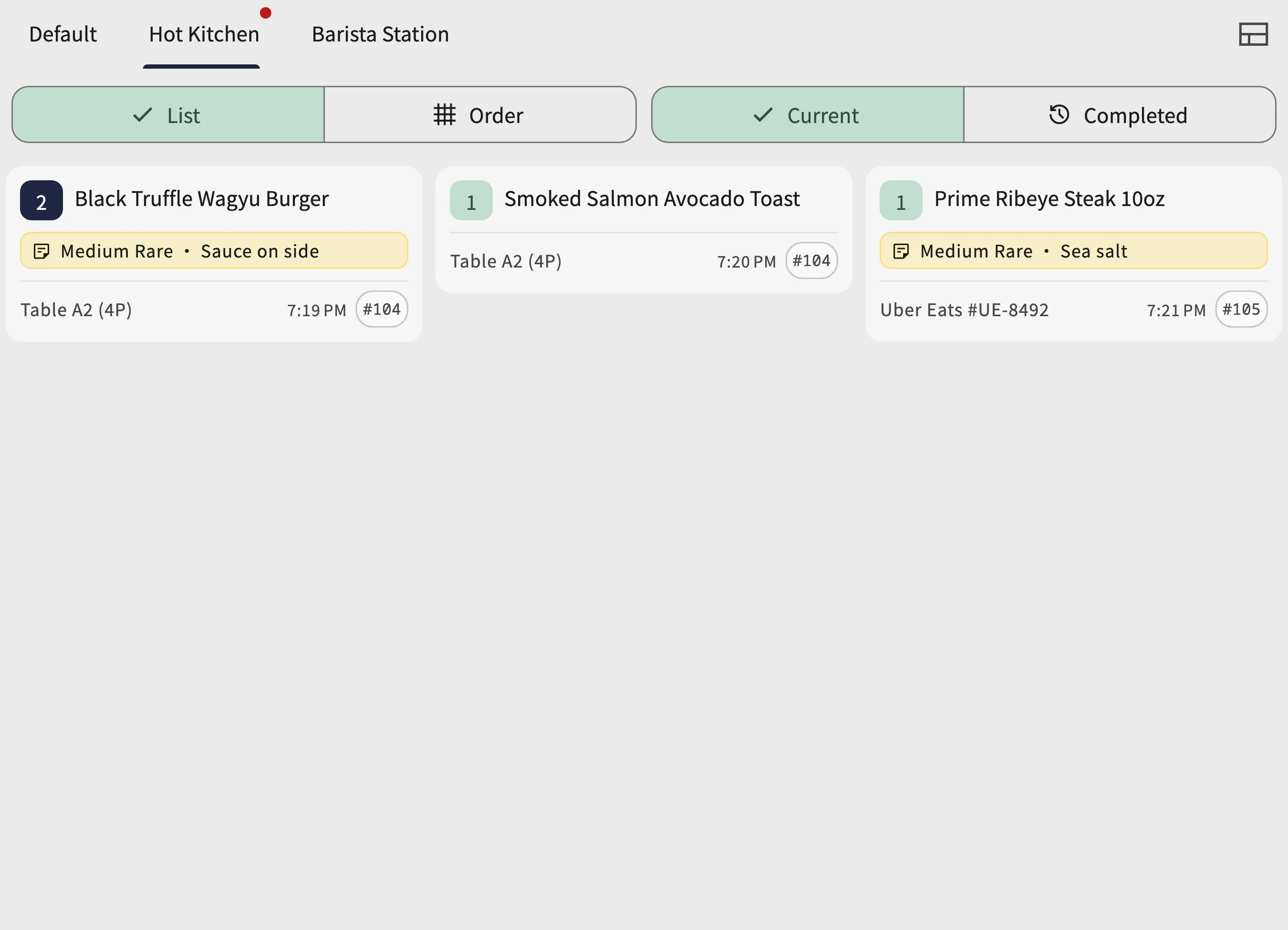
-
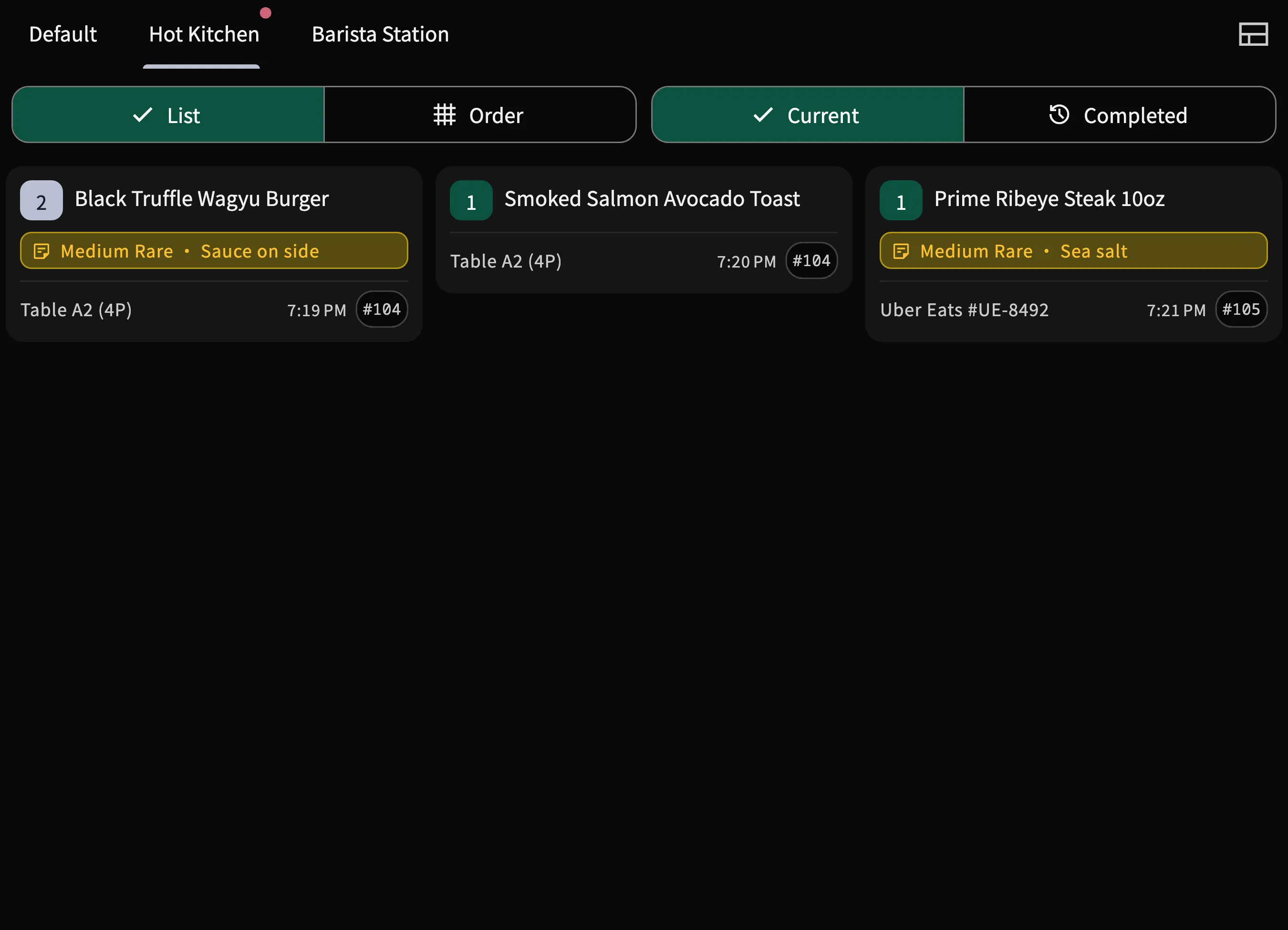
List view: View each individual item for the selected worklist. The worklist card contains information about the quantity, item details and optional comments. Press on a card to mark the work item complete.
-
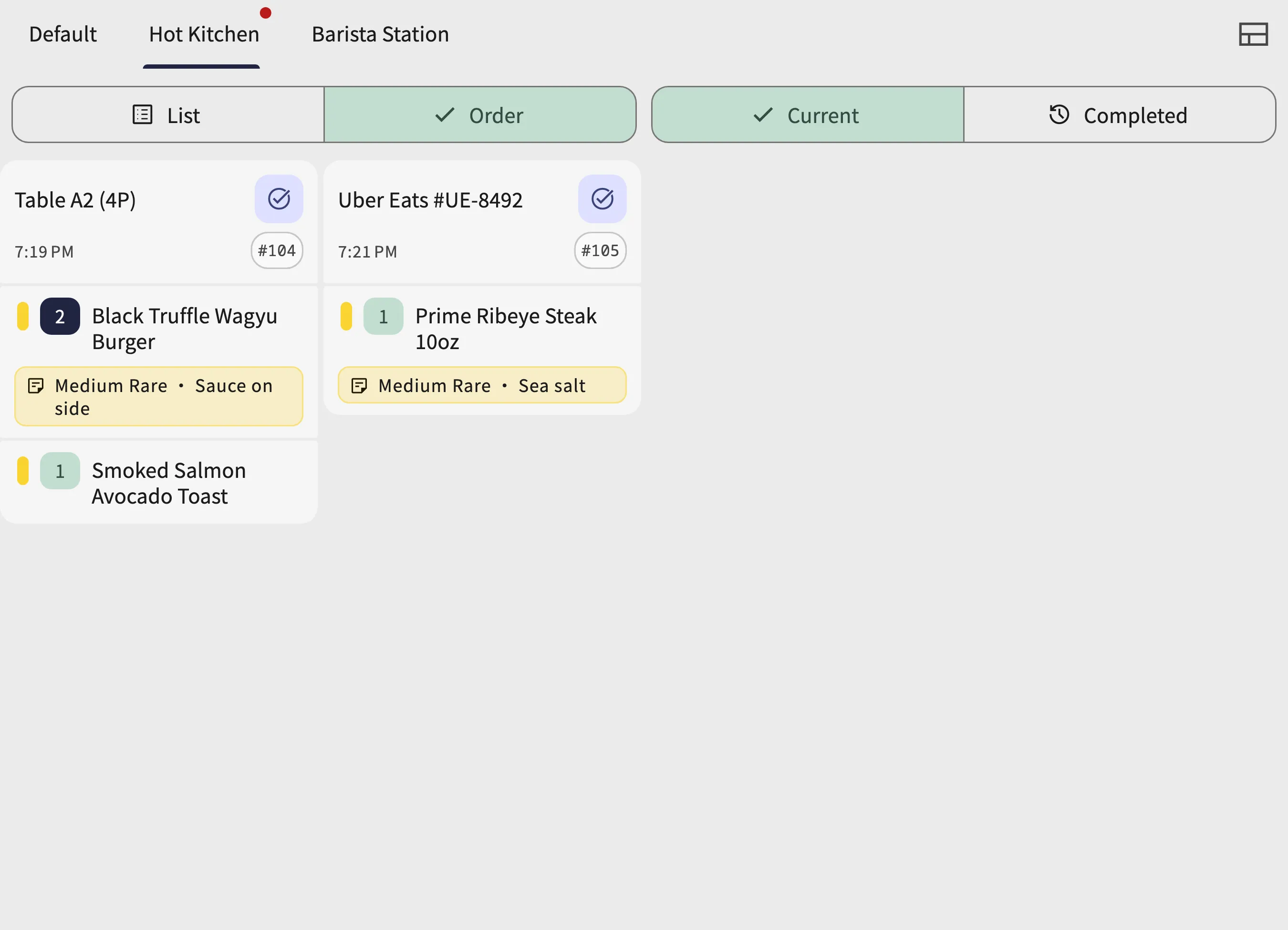
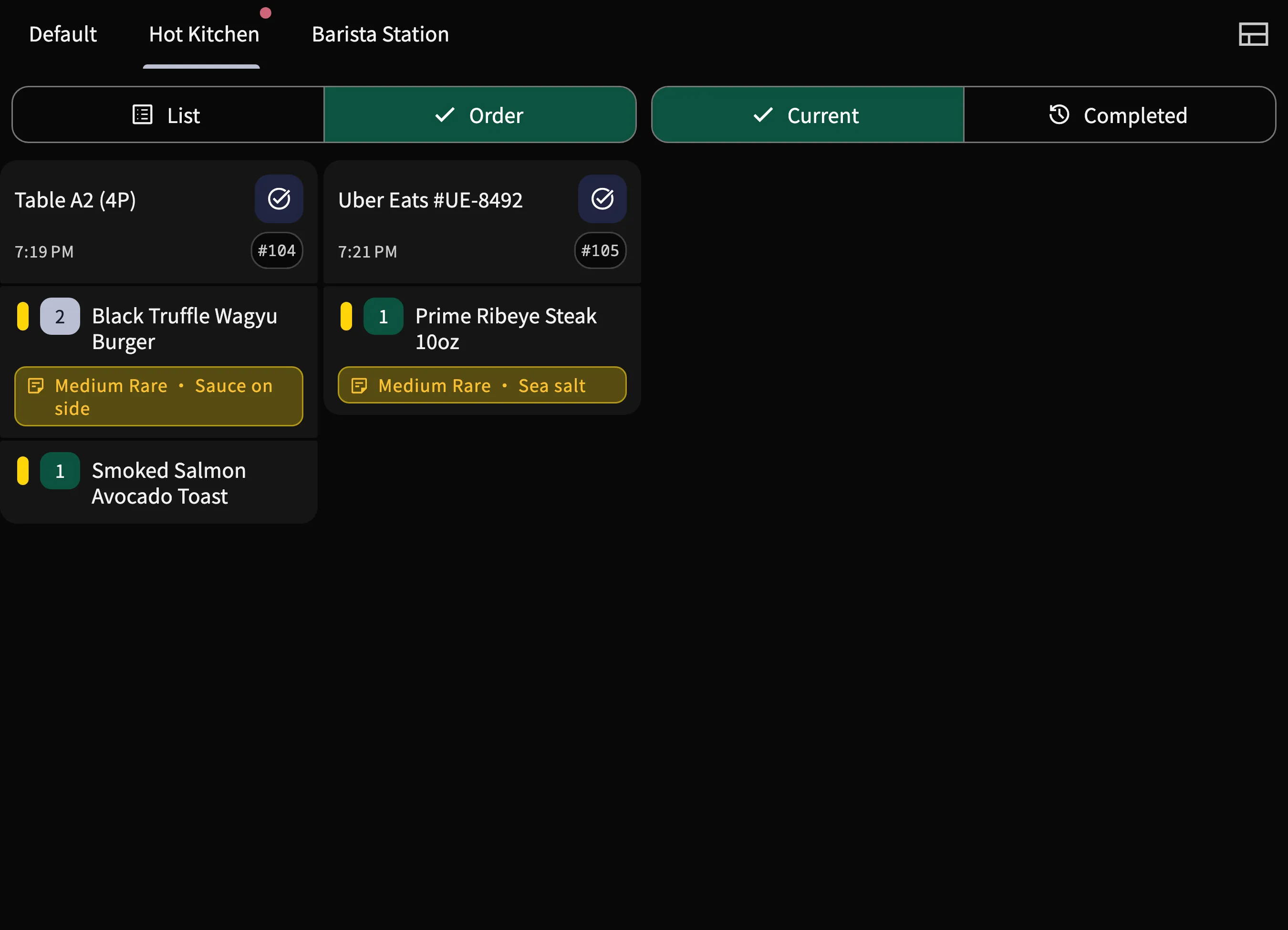
Order view: All work items are organized by the order it was created from. You can either complete the entire order or each work item individually.
Current / Completed
Section titled “Current / Completed”Toggle between current and completed items if you want to review items that have already been completed. Tap the Undo button on a completed item to move it back to the Current page.
Layout & Image Options
Section titled “Layout & Image Options”Items and orders are always sorted oldest-first, spanning left to right and wrapping onto subsequent rows so older items never get lost. Use the display menu in the top-right corner of the KDS header to customize how cards transition when items are completed, or to toggle item photos:
- Classic (default): Maintains left-to-right chronological order with quiet fade transitions.
- Row glide: Slides neighbors smoothly along each row while fading in row-wrapping items locally without diagonal jumps.
- Tap-streak settle: Holds card positions steady during rapid consecutive taps, then compacts once in chronological order after a short pause.
- Minimal motion: Updates positions instantly with no reflow animation.
- Show / Hide images: Toggles product photos on work item cards.