
Orders
This content is for 5.0 (Preview). Switch to 4.5 (Current) for the current release documentation.
QUEUE lets you customize the ordering process to fit your unique flow, whether you’re serving up lightning-fast coffees or leisurely sit-down meals.
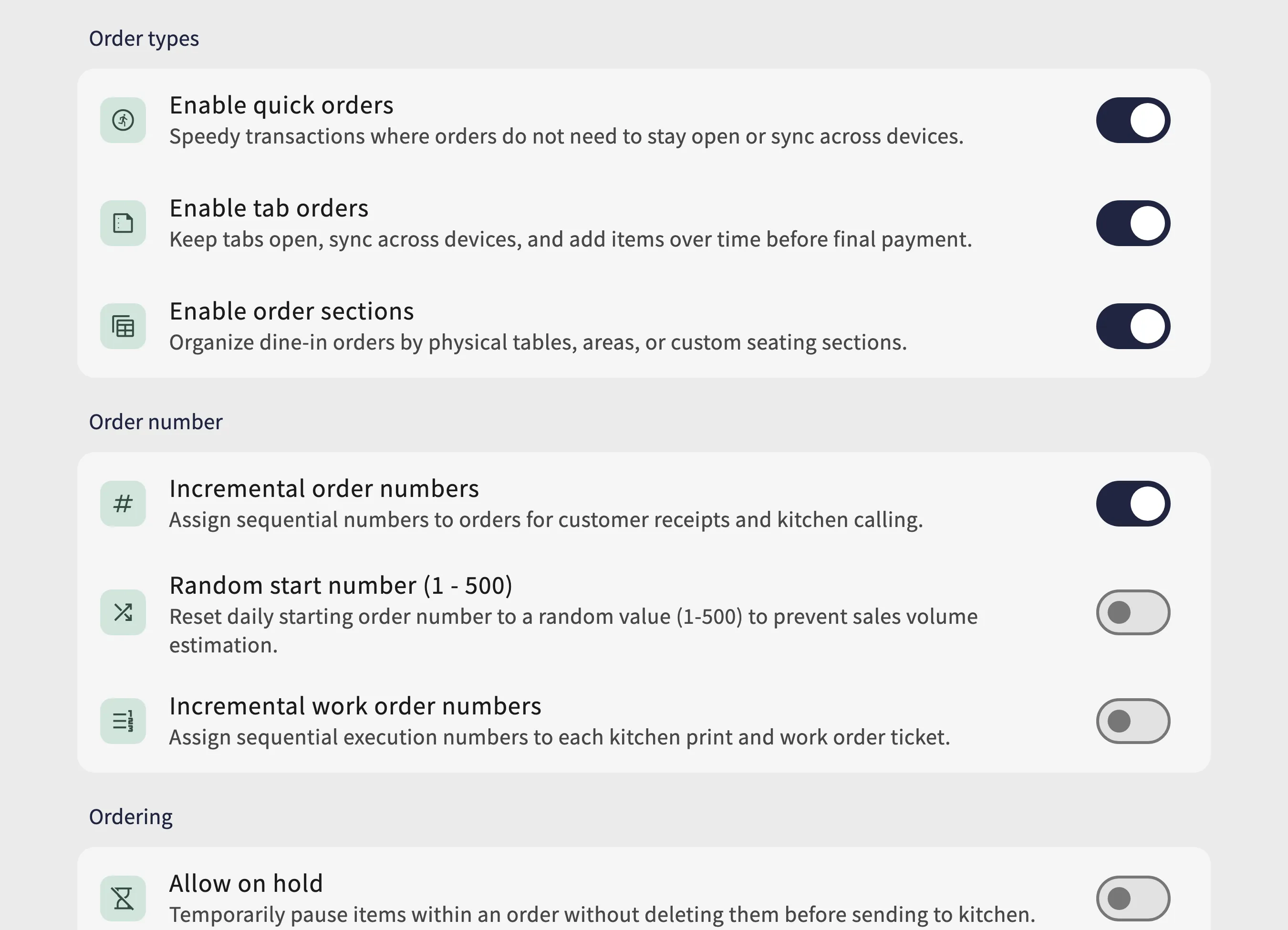
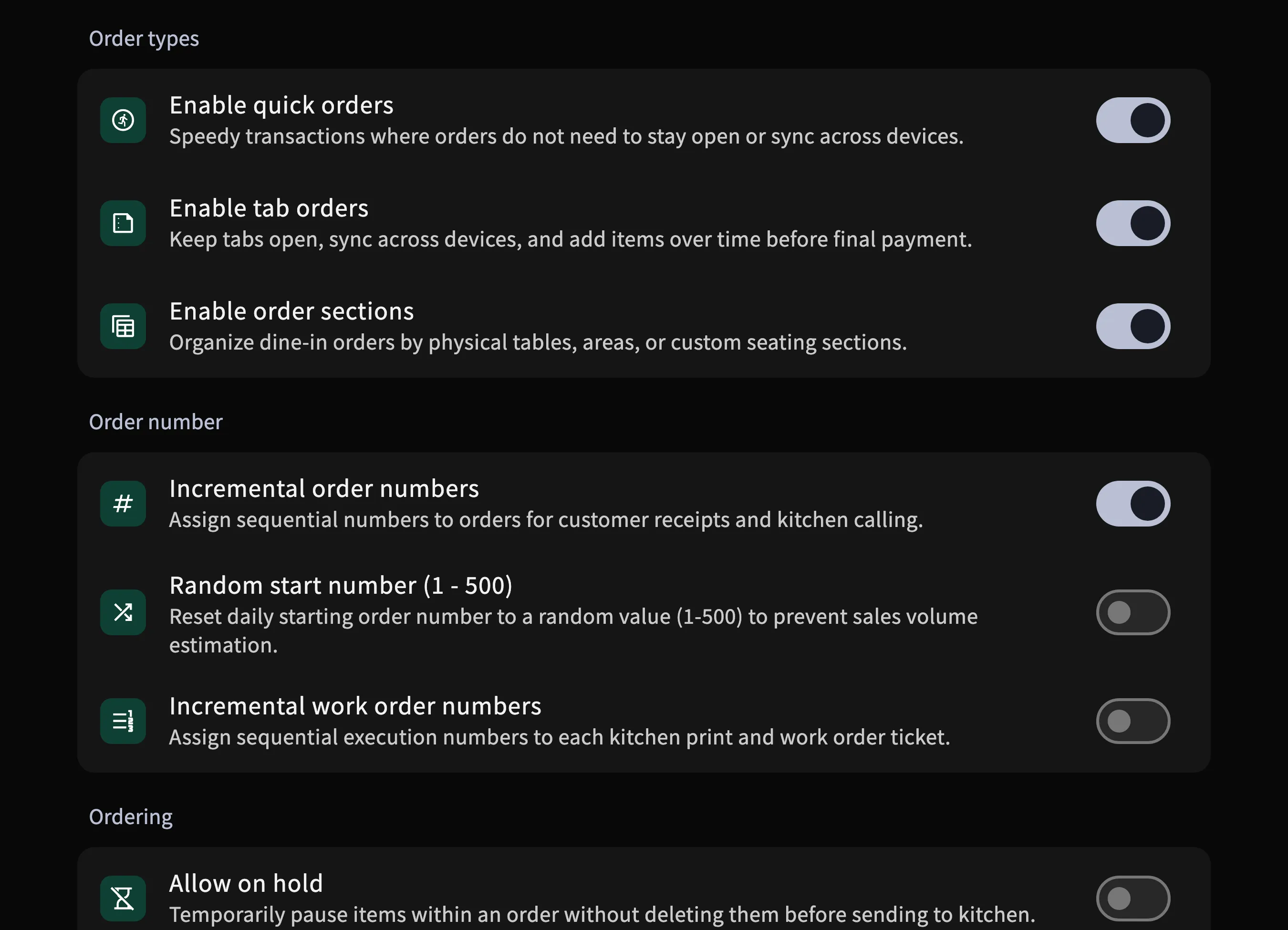
Choosing Your Order Types
Section titled “Choosing Your Order Types”| Order Type | Description |
|---|---|
| Quick orders | Perfect for speedy transactions where orders don’t need to stay open or sync across devices. Think takeaways or fast-casual spots. |
| Tab orders | Ideal for longer dining experiences where orders stay open, sync across devices, and can be added to over time. Perfect for restaurants and bars. |
| Order sections | Group orders together based on tables, order types, or any other way that makes sense for your business. |
Keeping Things Organized
Section titled “Keeping Things Organized”| Option | Description |
|---|---|
| Incremental order numbers | Give each order a unique number for easy tracking across worklists, checklists, and reports. |
| Random start nunber (1 - 500) | Enable if you want each closing to reset to a random number. This can help prevent anyone to estimate your number of orders throughout the day. |
| Incremental work order numbers | Assign a unique number to each order execution for even more detailed tracking. |
Ordering Options
Section titled “Ordering Options”| Option | Description |
|---|---|
| Allow on hold | Temporarily pause items within an order without removing them completely. |
| Allow paid orders to stay open | Keep track of seating availability and duration, even after payment. |
| Show order subtotal | Display order subtotals on the order section overview for a quick glance at totals. |
| Scheduled | Allow orders to be marked as scheduled with a schedule date. |
| Stay on cart after executed | Choose whether the app returns to the main screen or stays on the cart page after order execution. |
| Require # of customers | Force your staff to explicitly specify the number of customers for an order |
| Require product option validation | Require staff to fulfill required product options before adding items or combo items to the cart. Disable to allow adding items without enforcing product option min/max constraints. |
| Product option sorting | Select how product option on an cart item level is sorted. Either based on menu sorting order or as added |
| Option | Description |
|---|---|
| Show item price in Menu | Display variant prices directly in the menu for customer clarity. |
| Enable order tags | Assign tags to orders for operational efficiency and detailed reporting. |
| Enable combo items | Create items that bundle multiple items and rules together, saving time and streamlining order taking. |
| Barcodes | Enable barcode support |