
Tags
This content is for 5.0 (Preview). Switch to 4.5 (Current) for the current release documentation.
Think of tags as your digital sticky notes, helping you group and filter information like a pro.
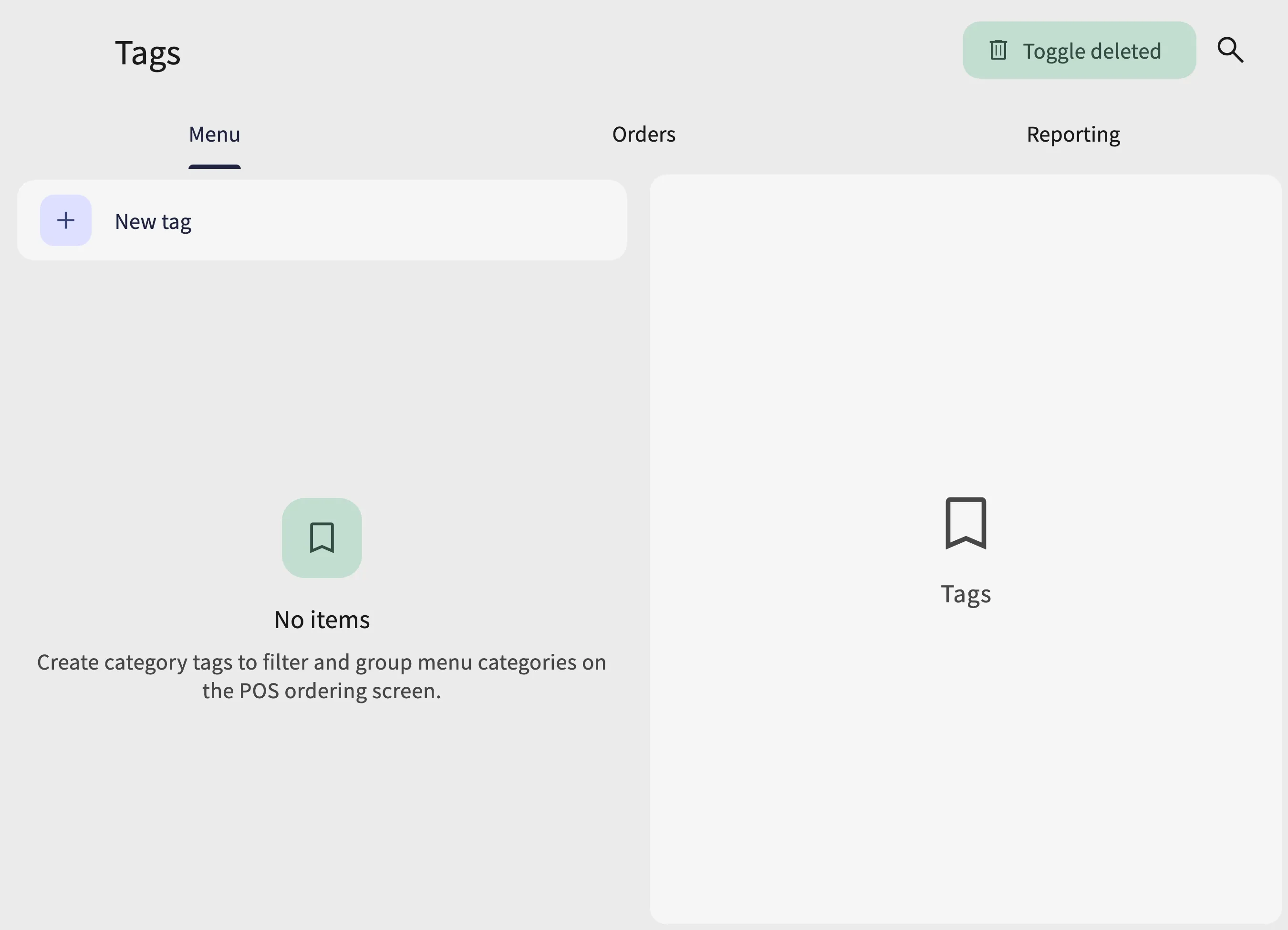
Category Tags
Section titled “Category Tags”- Keep It Simple for Large Menus: Use category tags to filter categories when taking orders, making it a breeze to navigate even the most extensive menus.
- Create and Assign: Create new tags here, then add them to specific categories or products in the menu settings.
- Show Only What You Need: When a category tag is selected, only those associated categories will be visible, keeping things tidy and focused.
Order Tags
Section titled “Order Tags”- Automatic Tagging: External orders are automatically tagged as “External,” while other tags can be assigned based on order section groups or manual editing.
- Worklist and Printing Rules: Use order tags to set up specific rules for worklists and printing, ensuring orders flow to the right stations and get printed with the necessary information.
- Dive Deeper into Data: Order tags also enhance reporting drilldowns, letting you track trends and analyze performance based on different tag criteria.
How Tags Help You:
- Improve Order Efficiency: Find items faster and streamline order taking, especially for large or complex menus.
- Personalize Customer Experiences: Use tags to highlight dietary restrictions, special offers, or popular items, tailoring the experience for each customer.
- Optimize Kitchen Workflow: Route orders to the correct stations and streamline preparation with worklist tags.
- Gain Valuable Insights: Track order patterns, identify popular items, and make data-driven decisions using tag-based reporting.