
Customers
This content is for 5.0 (Preview). Switch to 4.5 (Current) for the current release documentation.
QUEUE lets you create and manage customer profiles that can be attached to orders across all of your store devices. Linking customers to orders makes it easy to recognize regulars, view dietary preferences or VIP notes, track lifetime spend, and manage monthly corporate/regular billing accounts (Consolidate payments).
New customer
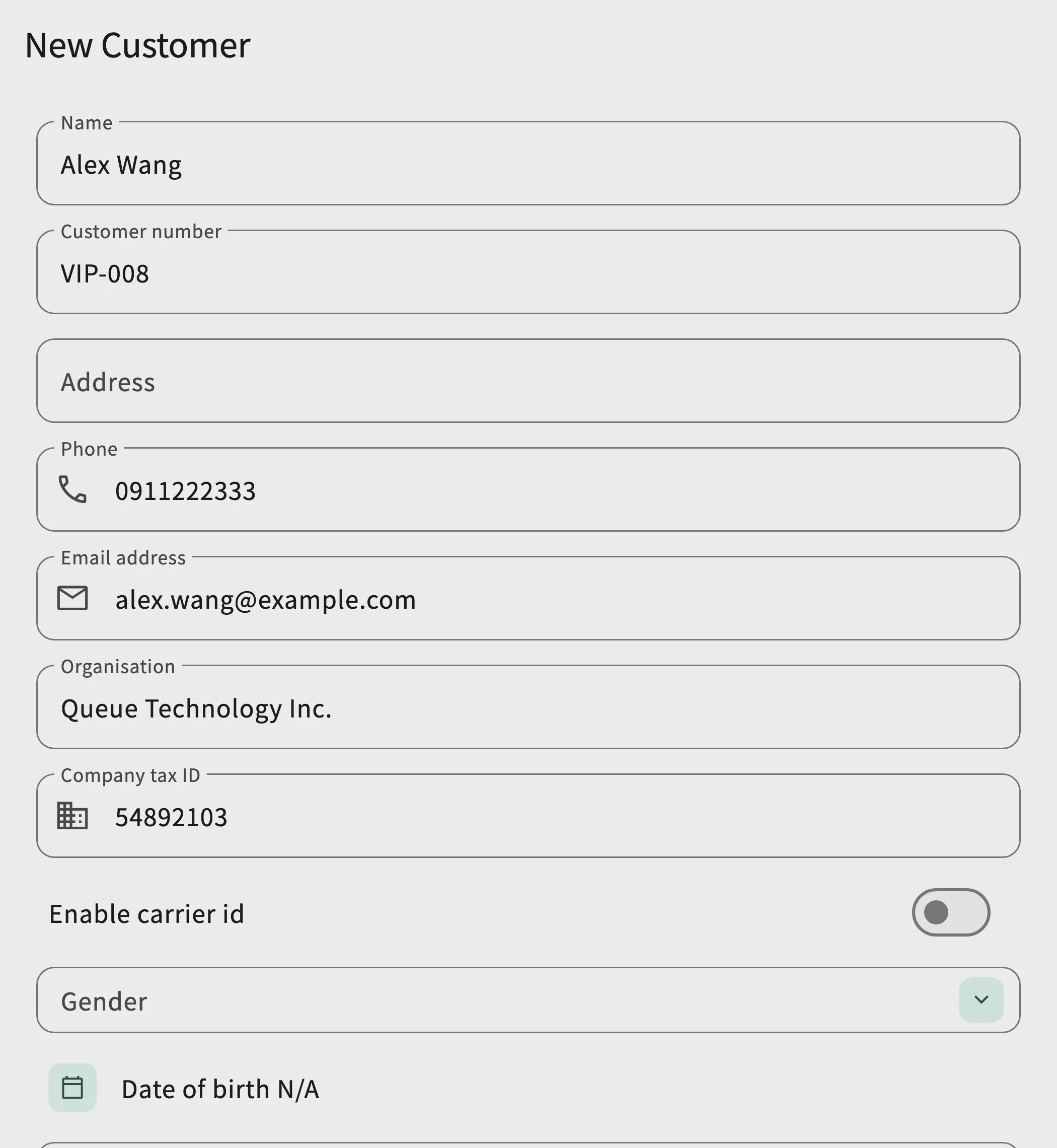
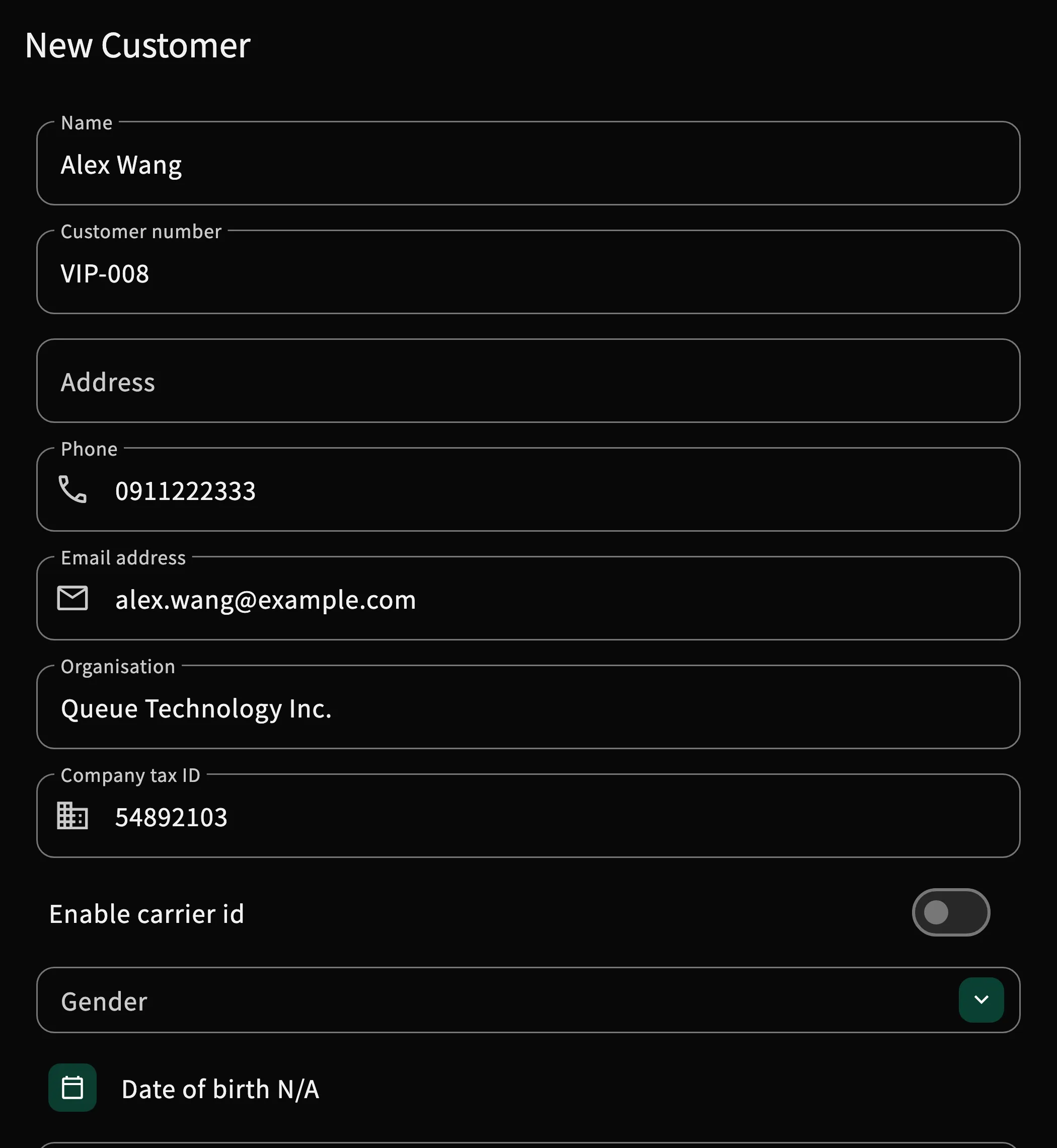
Section titled “New customer”Tap New customer in the top-right corner of the Customers page (or directly from the Cart / Payment screen) to create a new customer record. Enter the customer’s name, phone number, email, address, default e-invoice carrier/tax ID, and any staff notes, then press Save. The new customer is immediately synchronized across all connected POS devices.
Find customer
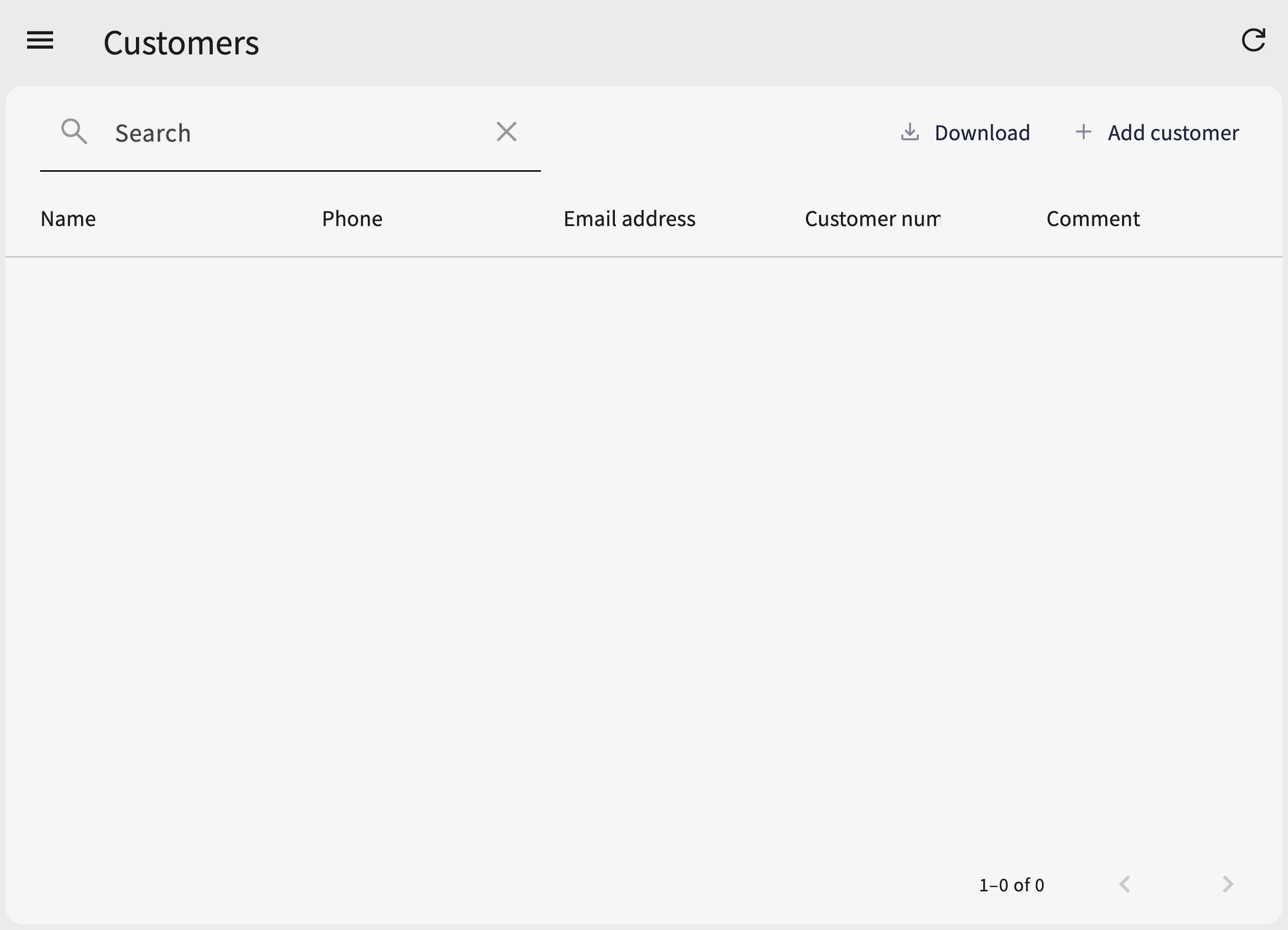
Section titled “Find customer”Select a customer from the list to view their full profile and transaction history. Use the search bar at the top to filter customers by name, phone number, or email address.
Customer orders
Section titled “Customer orders”When a customer is selected, QUEUE displays their complete order history along with summary metrics (total lifetime spend, order count, and latest order date). Tap any order in the list to inspect its items, payment details, and receipt.
Consolidate payments (Monthly / Account Billing)
Section titled “Consolidate payments (Monthly / Account Billing)”If the Consolidate payments (Consolidate Later) payment type is enabled for your store:
- Charging to a Customer Account: During checkout on the Payment screen, attach the customer to the order and select the Consolidate payment method. The order balance is added to the customer’s open account ledger.
- Reviewing Account Ledger: Open Customers > select the customer > view the Consolidate payments section to see all incoming account charges and outgoing settlement payments, along with the current outstanding balance.
- Settling Balance (
Make payment): When the customer pays their monthly or periodic statement, tap Make payment, choose the settlement tender (e.g., Cash, Credit Card, or Bank Transfer), enter the payment amount, and tap Payment to record the settlement.
Ocard CRM & Loyalty Integration
Section titled “Ocard CRM & Loyalty Integration”For stores partnered with Ocard for CRM membership, points accumulation, and digital vouchers:
- Member Lookup at Checkout: On the Cart or Payment screen, tap the Ocard button and enter the customer’s mobile phone number (or scan their Ocard member barcode).
- View Points & Coupons: Once linked, QUEUE displays the member’s tier, available Ocard points balance, and active digital coupons/vouchers.
- Redeem Rewards: Select any eligible Ocard coupon or point-redemption reward (
OCardWidget) to automatically apply the corresponding discount or free item to the order. When the order is completed, points earned from the purchase are automatically posted to the customer’s Ocard account.