
Order management
This content is for 5.0 (Preview). Switch to 4.5 (Current) for the current release documentation.
QUEUE makes it fast and easy to take orders for one-time quick orders, dine-in table orders, tab orders, or customer QR self-orders.
Order types
Section titled “Order types”Depending on which order types have been enabled in Settings > Store > Orders, there are four main types of orders:
| Type | Description |
|---|---|
| Quick order | Device-specific order that is not synchronized across other devices until payment is complete. Ideal for fast counter-service and takeout orders. |
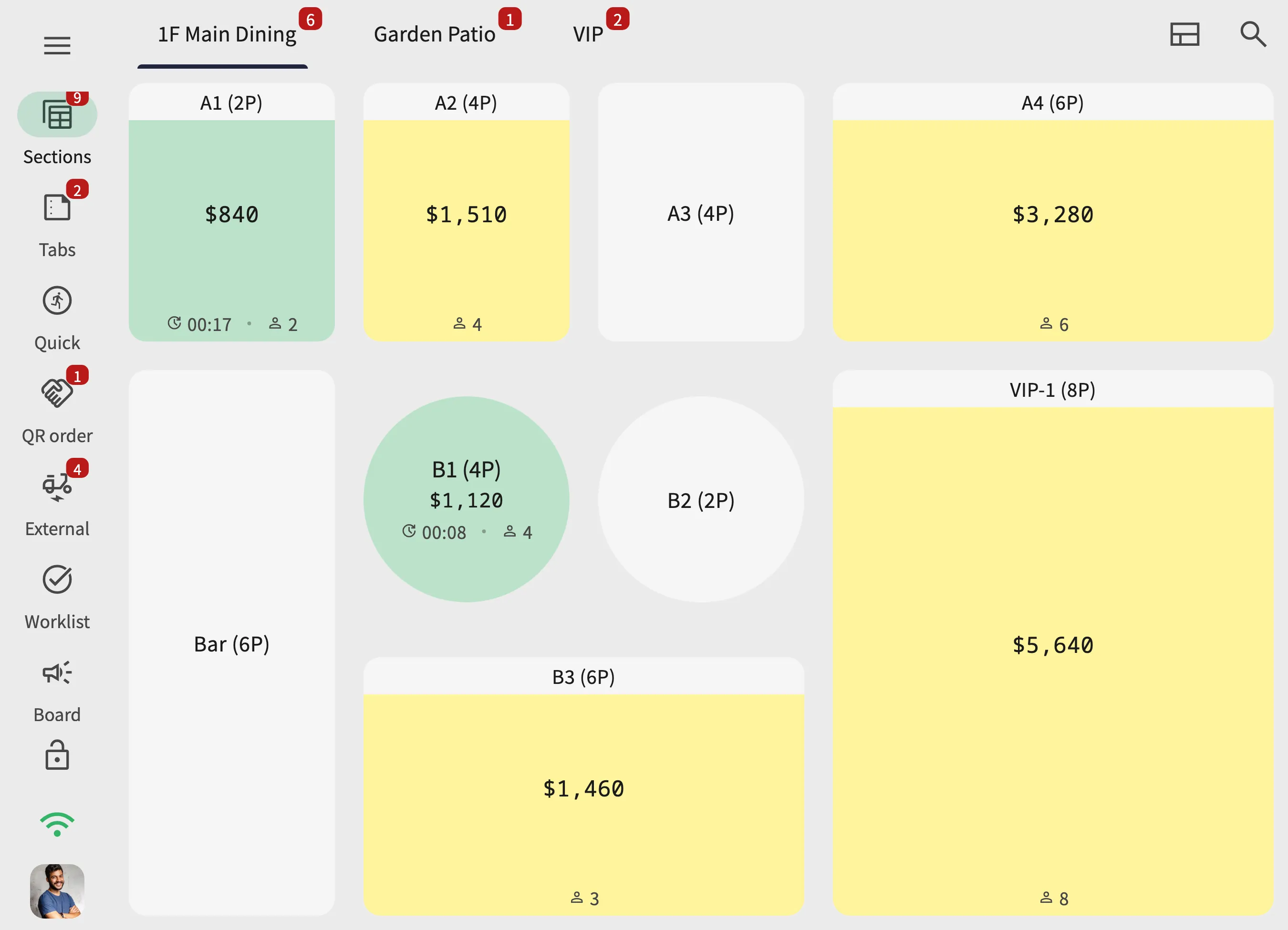
| Order section | Belongs to a floor plan / table section and is synchronized in real time across all connected POS devices. Ideal for dine-in table service. |
| Tab order | A stand-alone open order not tied to a fixed floor table, synchronized across devices. Ideal for bar tabs, phone orders, or waiting takeout customers. |
| Self order | Orders created directly by customers scanning a table or dynamic receipt QR code on their smartphone. |
Create a new order
Section titled “Create a new order”Quick order
Section titled “Quick order”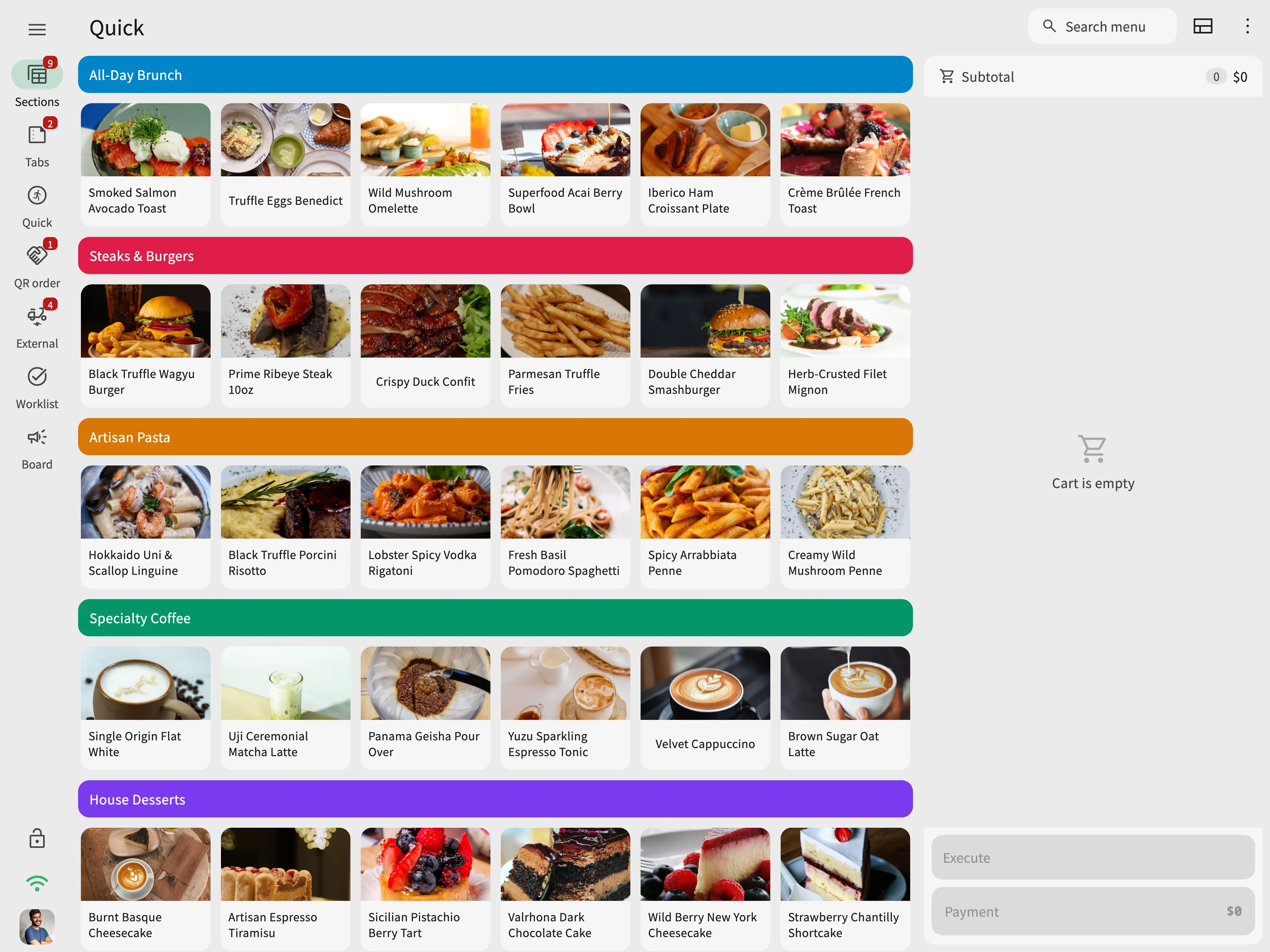
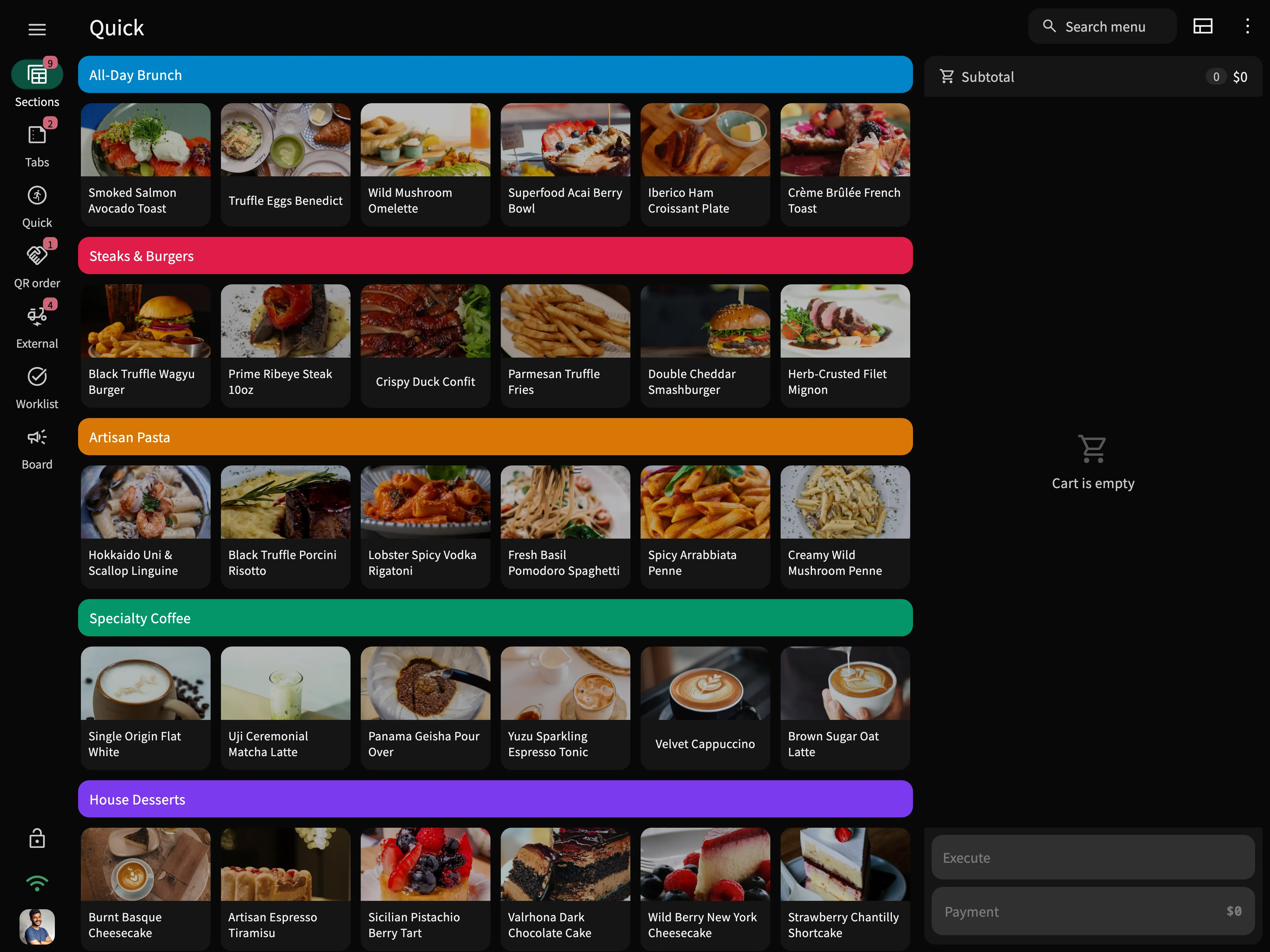
Navigate to the Quick tab and a new Quick order is automatically created.
Order Section
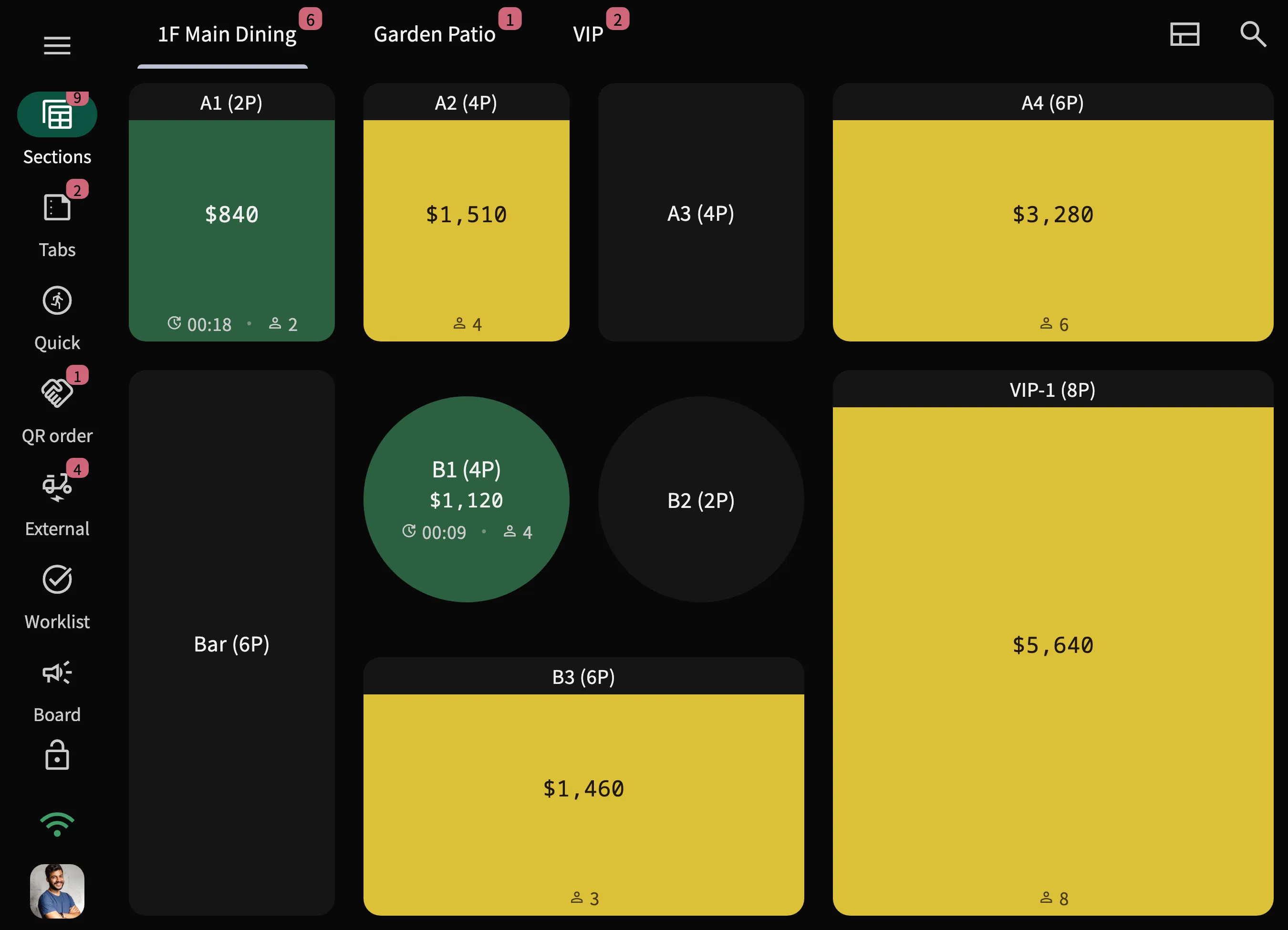
Section titled “Order Section”Navigate to the Sections tab to view your existing order section groups and tables. Tap an empty order section to automatically create a new order, or long-press an occupied order section to open an additional sub-order on the same table.
Tab order
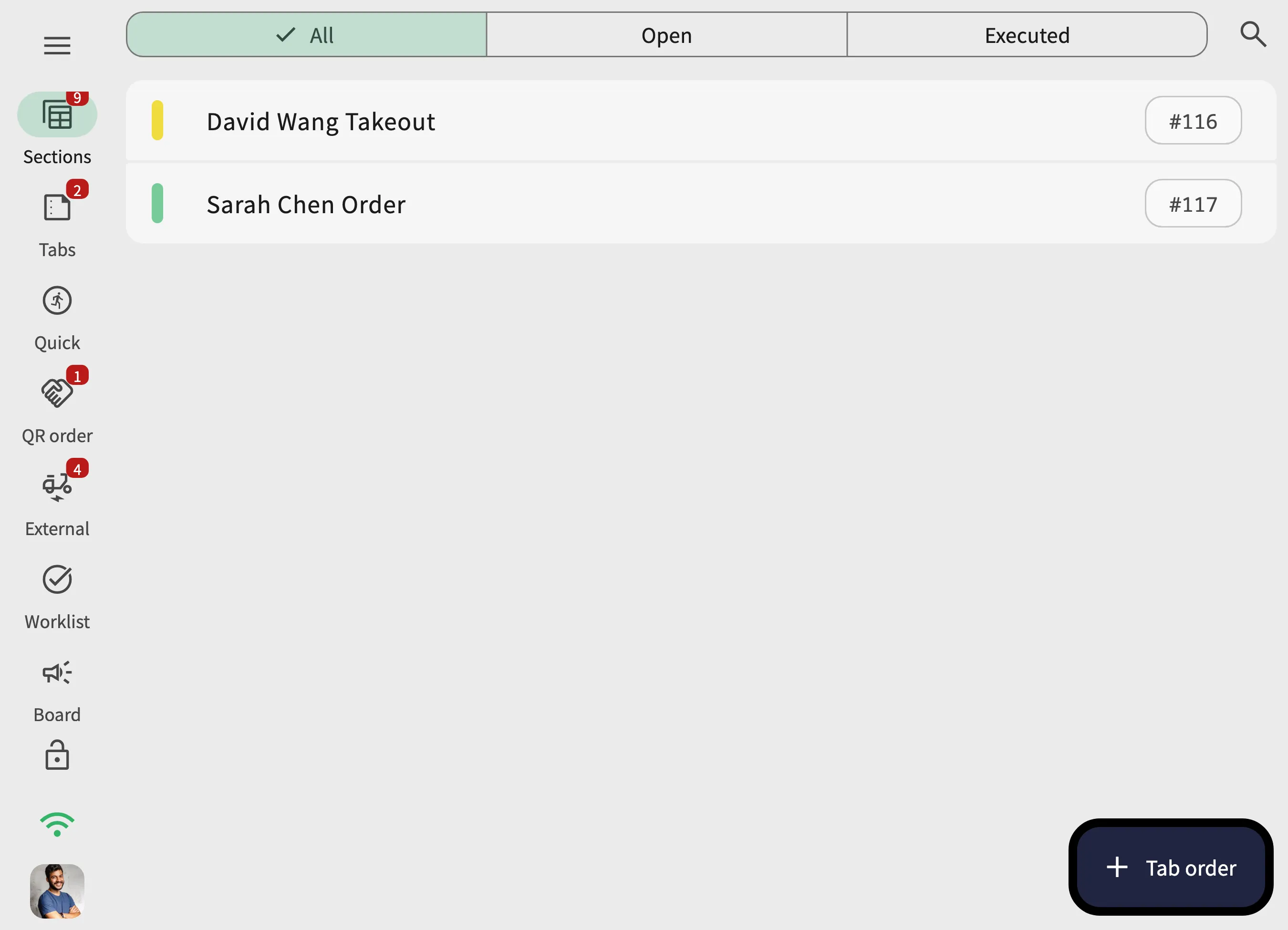
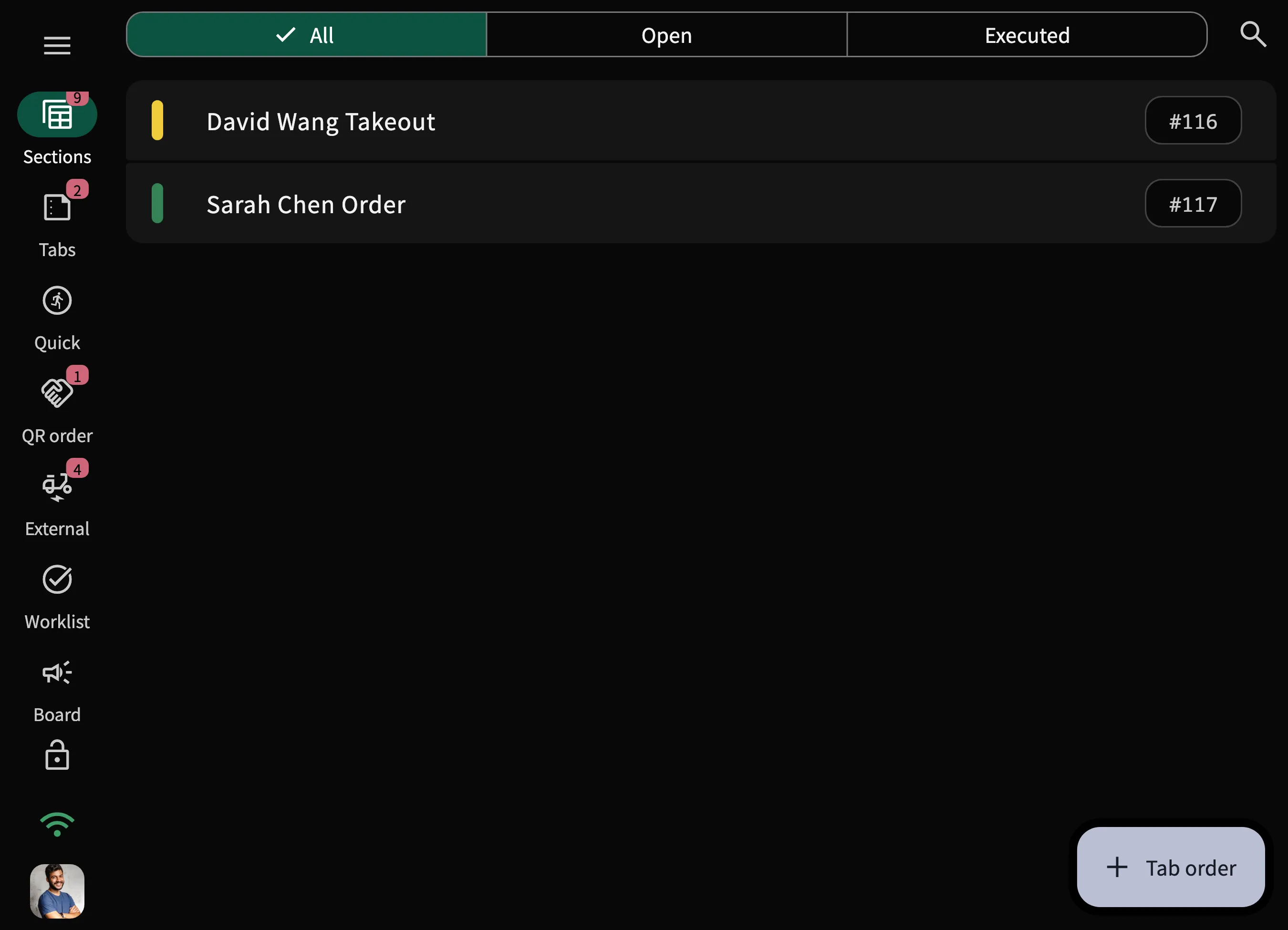
Section titled “Tab order”Navigate to the Tab tab and press New tab order to create a new standalone tab order.
Add items to order
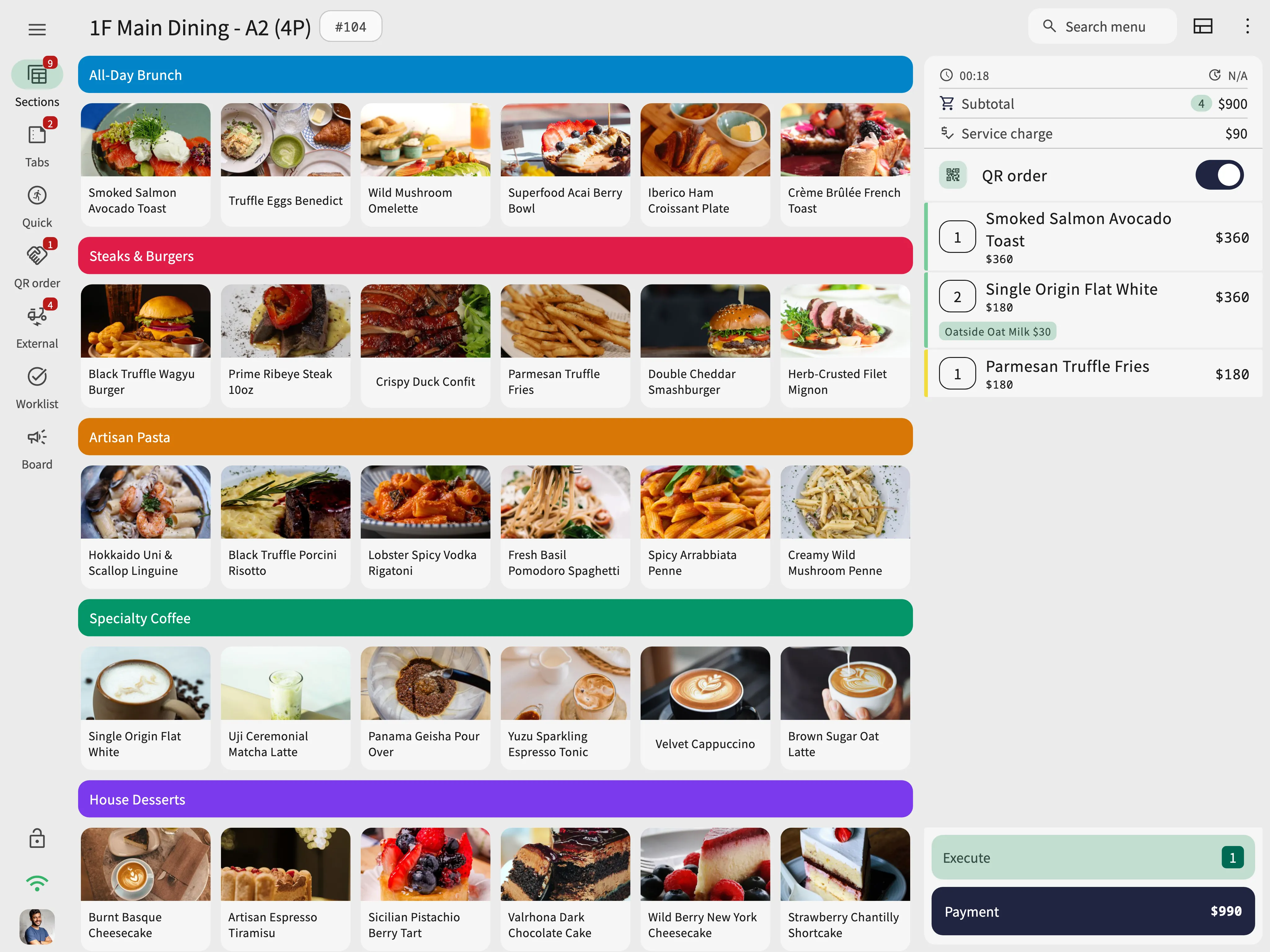
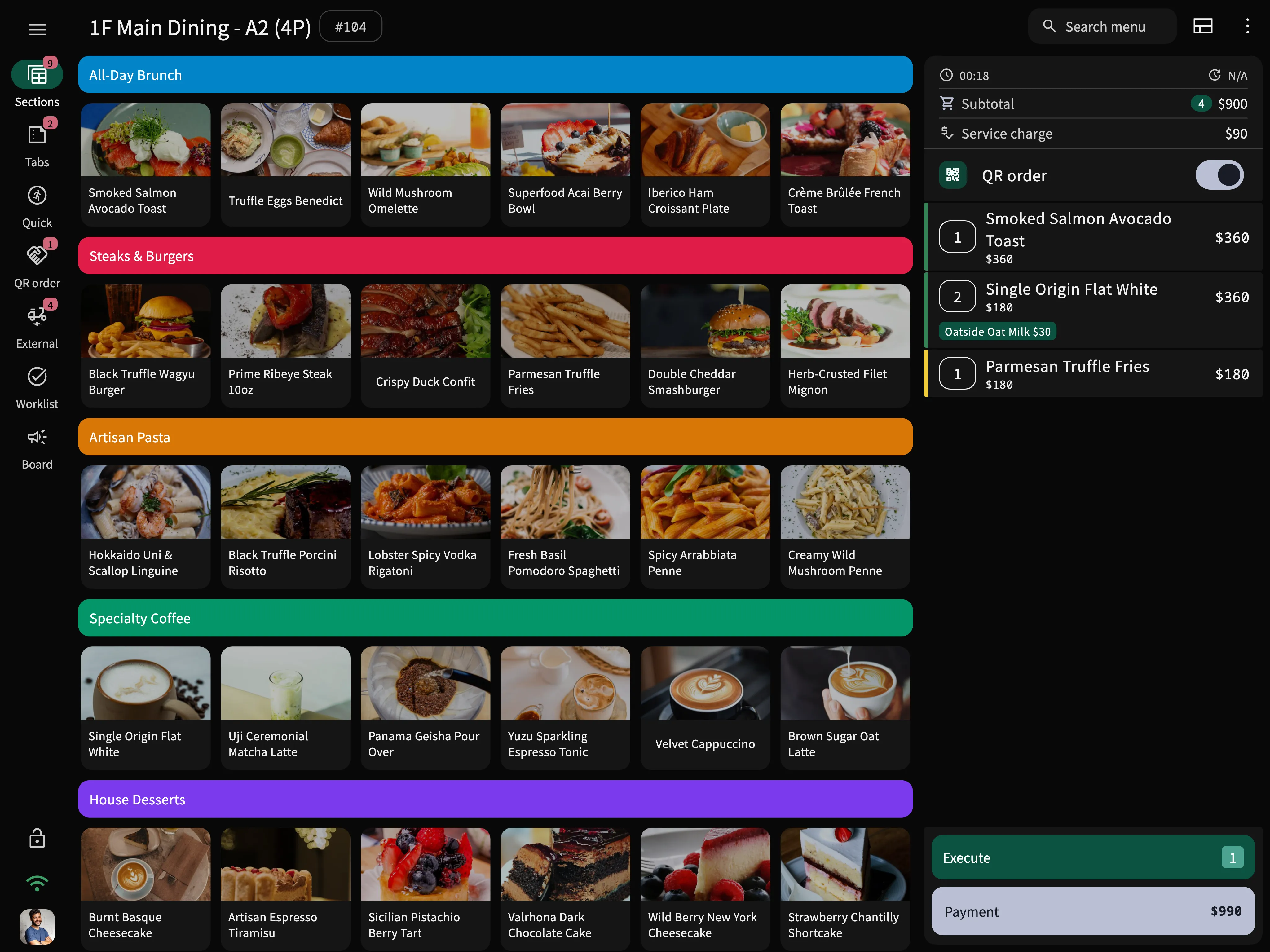
Section titled “Add items to order”By default your menu is presented in a grid view, and pressing a product automatically adds it to the cart. To remove an unexecuted product, swipe from right to left on the cart line item.
To add a comment, apply an item-level discount, or select product options (modifiers), tap the item in the cart, make the required changes, and press Save.
Edit order
Section titled “Edit order”To make changes at the order level, press the Options (⋮) button in the upper-right corner of the cart and select Edit:
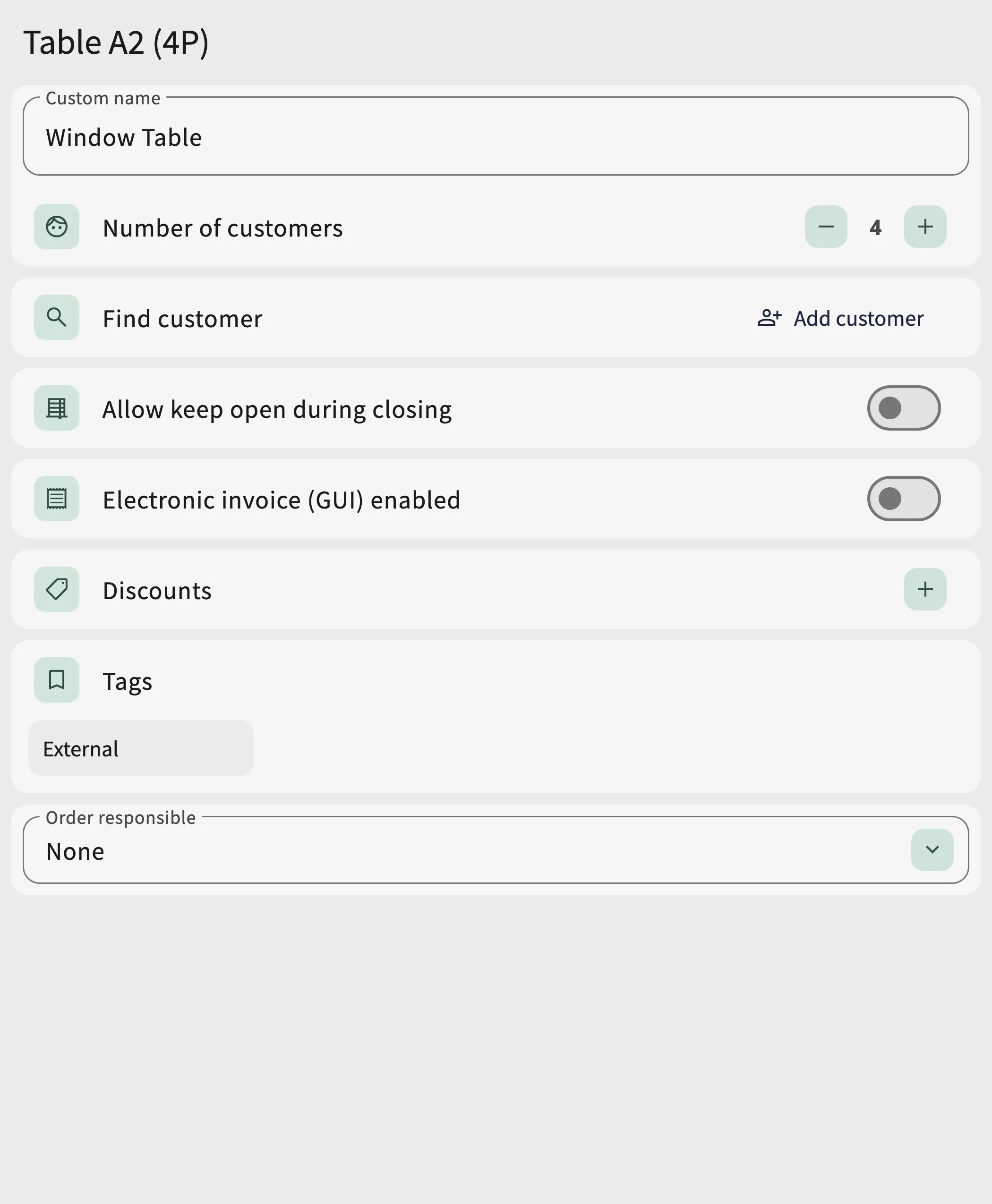
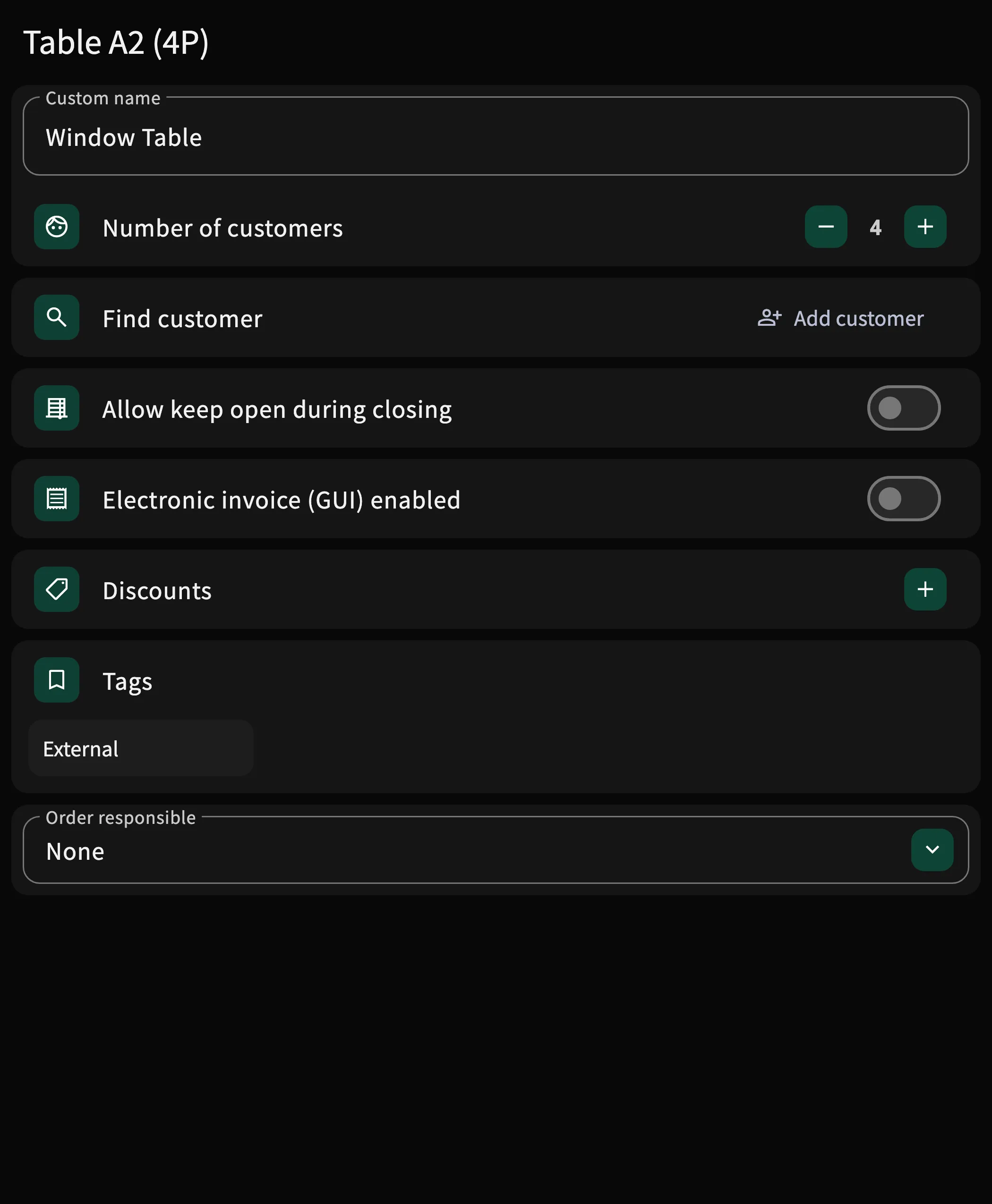
Depending on the options enabled for your store, the following fields are available:
- Custom Order Name: Add or modify a custom label stored on the order and printed on kitchen tickets and receipts.
- Customer Count (Guests): Specify the number of guests seated at the table.
- Keep Open During Closing: Allow long-running orders to remain open even when performing a shift closing.
- Service Charge: Toggle the service charge on or off for this specific order.
- Order Tags: Attach custom order tags (e.g., VIP, To-Go, Birthday) for kitchen routing and reporting.
- Order Responsible: Designate a staff member as responsible for the order.
Execute order
Section titled “Execute order”When the products in the cart are ready to be prepared, press the Execute button. All open items are marked as executed and sent to your configured kitchen Worklists (KDS) and kitchen printers.
Order actions (Move, Merge, Split & Reorder Cart)
Section titled “Order actions (Move, Merge, Split & Reorder Cart)”Open the Options (⋮) menu in the top-right corner of an order to reorganize items, move tables, or split bills across all connected devices:
| Action | Description |
|---|---|
| Move order | Move an Order Section or Tab order to a different table or floor section (Move). |
| Merge orders | Combine all items from the current order into another open order. The source order is automatically removed once merged. |
| Split order | Split an order into two separate orders by selecting specific line items (SplitViewPage). |
| Multi split | Visually split an order into up to 8 separate sub-bills (MultiSplitPage) by tapping/dragging line items or splitting multi-quantity items. |
| Reorder cart | Rearrange the sequence of items in the cart (ReorderCartPage) using drag-and-drop handles before executing or printing. |
| Activities | View the chronological audit log of all actions performed on this order (QuickCartPage). |
| Delete | Delete an open order (with a recorded cancellation reason if required by store settings). |
How to Reorder Cart Items (ReorderCartPage)
Section titled “How to Reorder Cart Items (ReorderCartPage)”If you want items to appear in a specific serving order on kitchen tickets or customer receipts (for example, grouping starters before mains, or organizing drinks by seat):
- In the cart, tap the Options (⋮) menu and select Reorder cart.
- Touch and drag the reorder handle (
≡) next to any line item to move it up or down in the list. - Tap Save in the top-right corner to persist the new item sequence across all devices.
How to Use Single Split vs. Multi-Split Billing
Section titled “How to Use Single Split vs. Multi-Split Billing”- Single Split (
Split order): Ideal when one guest wants to pay for specific items right now while the rest of the table keeps dining. Select the items to separate and tap Split to create a second order on the same table. - Multi-Split (
Multi split): Ideal when a group of guests wants to divide a table bill into 2 to 8 separate checks:- Open the active order, tap Options (⋮), and select Multi split.
- A visual split canvas opens with the original order on the left and new sub-bill columns (Bill 1, Bill 2, Bill 3, etc.) on the right.
- Tap or drag item cards into the target sub-bill column. For multi-quantity items (e.g., 4 Lattes), select how many units to move into each sub-bill.
- Each split sub-bill can then be settled independently with its own payment method and Taiwan E-Invoice.
Editing Completed Orders (CompletedOrderDetailsPage)
Section titled “Editing Completed Orders (CompletedOrderDetailsPage)”If a cashier needs to adjust metadata on an order after payment is completed, go to Recent Orders (or Reporting > Orders), select the order, and tap the Edit (Pencil) icon:
- Change Order Section: Reassign a completed dine-in order to a different floor area or table (automatically updating the Order Sections report).
- Change Custom Name: Add or update the custom order name.
- Change Payment Type: Switch the recorded payment tender (for example, changing Cash to Credit Card) without voiding the order or cancelling its electronic invoice. All post-completion edits are logged in Activities.