
Barcodes & Scanner Configuration
This content is for 5.0 (Preview). Switch to 4.5 (Current) for the current release documentation.
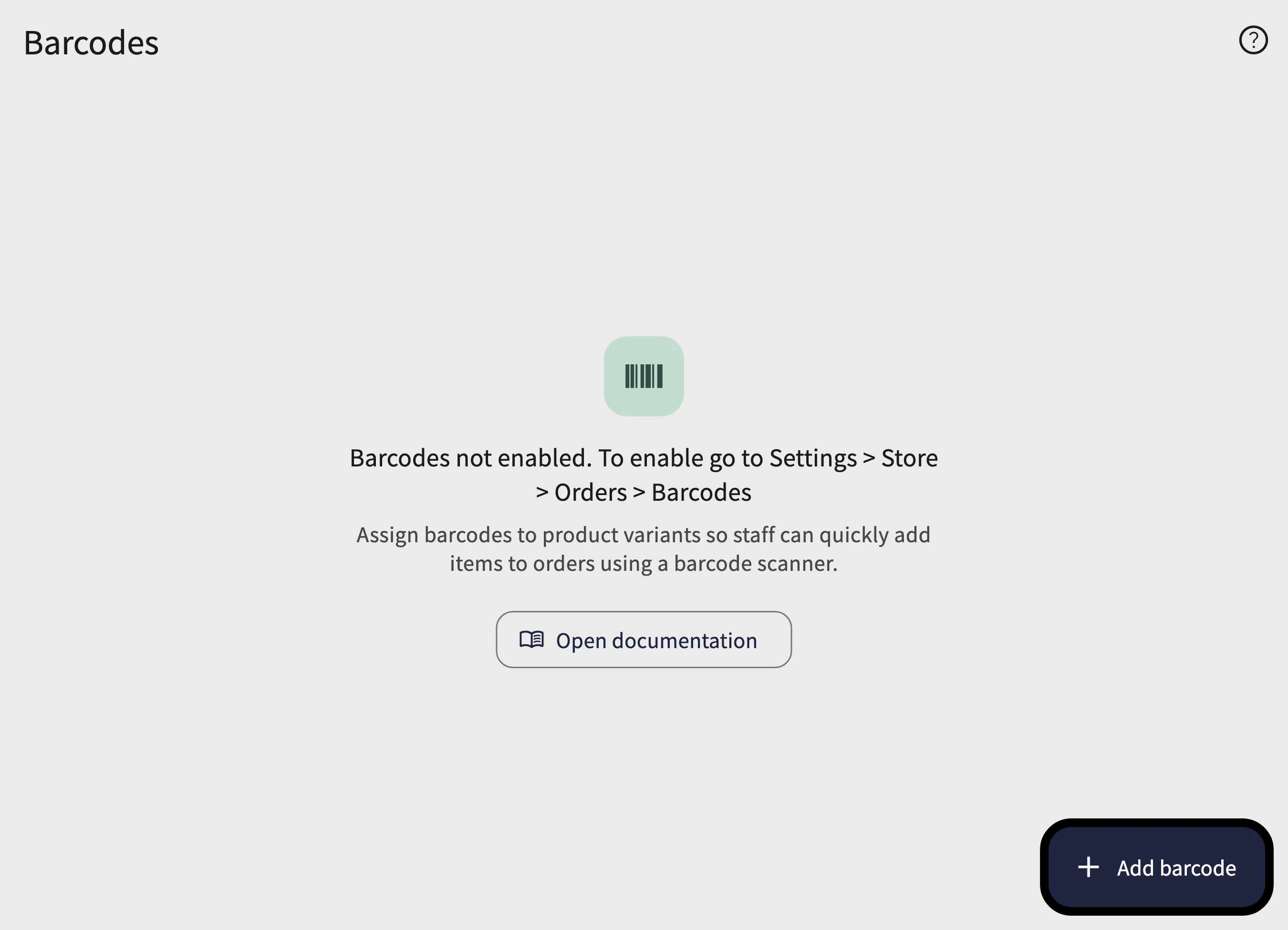
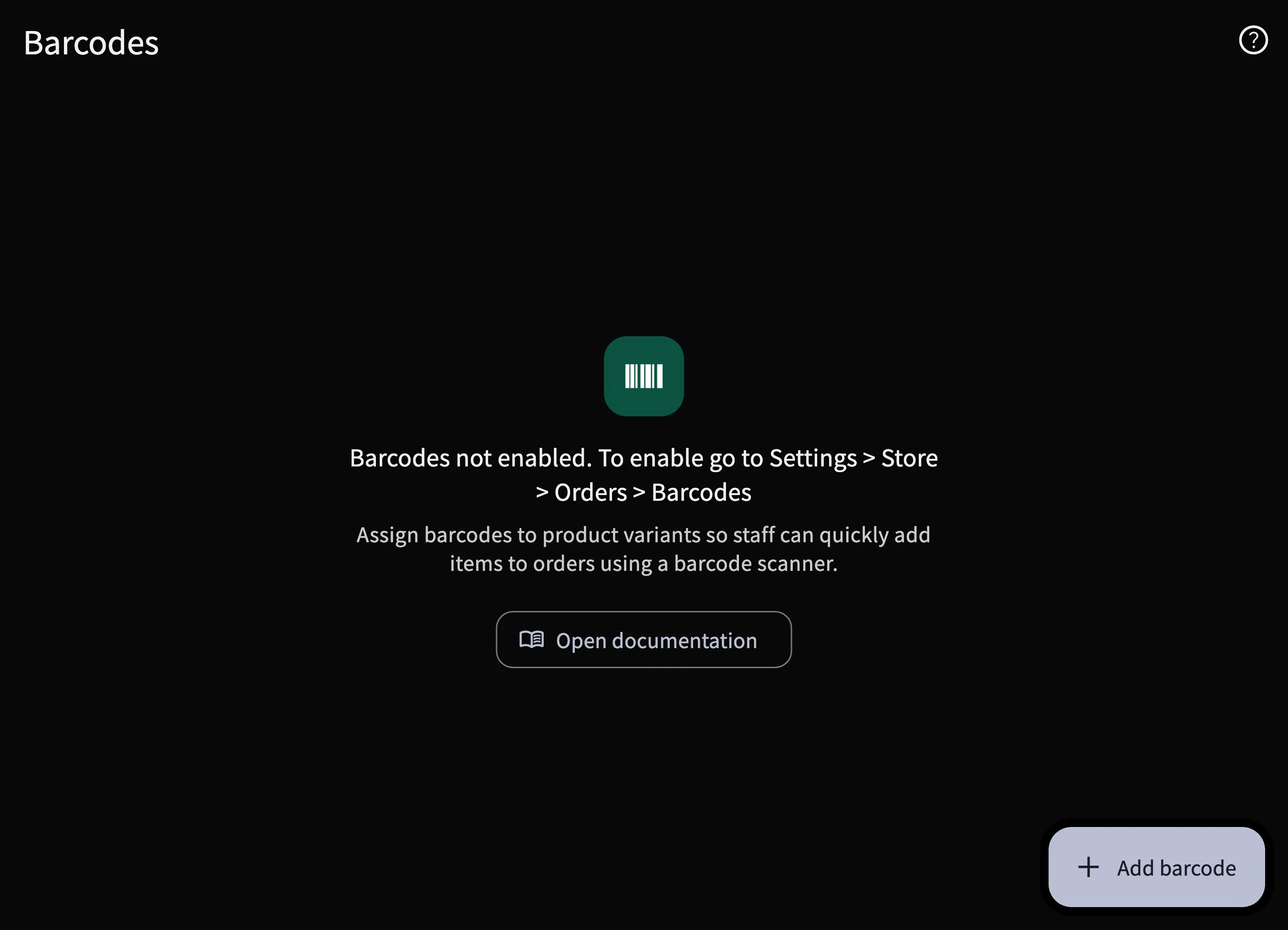
QUEUE POS supports international standard 1D and 2D barcodes (including UPC, EAN-13, Code 128, and QR codes) for instant retail product lookup, weight-embedded scales, and member card scanning.
Associating Barcodes with Products
Section titled “Associating Barcodes with Products”- Navigate to Settings > Products (or Menu Editor > Barcodes).
- Select the product or specific variant size/flavor.
- Tap the Barcodes field:
- Scan to Assign: Aim a connected USB/Bluetooth scanner at the physical product packaging. The barcode number fills in automatically.
- Manual Typing: Type the numerical barcode string directly.
- Tap Save.
Hardware Scanner Setup
Section titled “Hardware Scanner Setup”- Supported Scanners: Standard HID keyboard-emulation USB and Bluetooth barcode scanners (such as Zebra, Honeywell, Sunmi built-in 2D imagers, and generic wireless scanners).
- Scanner Configuration: Ensure your barcode scanner is configured to send a trailing
Enter/Carriage Return (CR)suffix after scanning. - Fast Ring-Up: When on the cart screen, scanning a product barcode instantly adds 1 unit of that item to the current order cart without opening manual category menus.